Want to make your Word document stand out with a splash of color? Changing the background color can instantly transform a plain page into something eye-catching and unique.
Whether you’re creating a flyer, a report, or just want to add some personality to your work, adding a background color is easier than you think. In this guide, you’ll learn simple, step-by-step methods to add color to your entire document or just a specific part.
Ready to make your Word files pop? Let’s dive in and give your documents the vibrant touch they deserve!
Choose Background Color
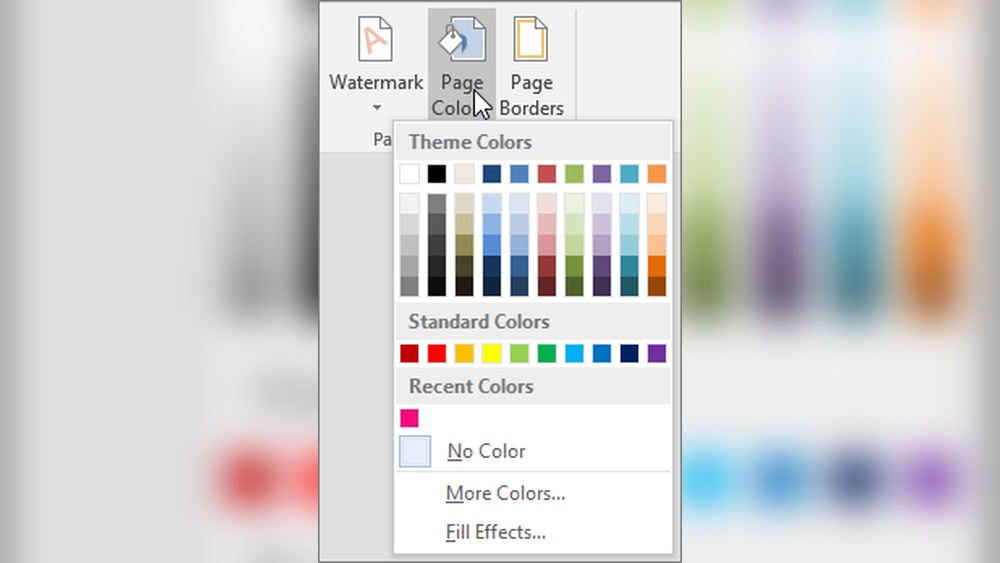
Changing the background color in a Word document is simple. Use the Design tab, then click Page Color to pick a shade. Custom colors and effects are also available for a unique look.
Choosing the right background color sets the tone for your Word document.
A good background color makes the text easier to read and the document more attractive.
Microsoft Word offers many colors to pick from, including standard shades and custom options.
Pick A Color From The Gallery
Start by clicking the Design tab on the ribbon at the top of Word.
Find the Page Color button in the Page Background group and click it.
A color gallery appears with theme colors and standard colors to choose from.
Hover your mouse over colors to see a live preview on your document.
Click the color you like to apply it as your background.
Use More Colors For Custom Shades
Click More Colors at the bottom of the color gallery for extra choices.
This opens a color picker with two tabs: Standard and Custom.
The Standard tab shows a larger palette of colors to select from.
The Custom tab lets you create a unique color by adjusting red, green, and blue values.
After choosing, click OK to apply the custom color to your background.
Apply Fill Effects For Unique Backgrounds
Click Fill Effects inside the More Colors menu to add special styles.
You can pick gradients, textures, patterns, or even pictures as your background.
Gradients blend two or more colors for a smooth color transition.
Textures and patterns add visual interest beyond solid colors.
Choose your effect and click OK to set it as your page background.
Credit: www.extendoffice.com
Use Design Tab Options
The Design tab in Microsoft Word offers simple tools to add background color. It lets you change the whole page color quickly. This method works well for making your document look unique or for highlighting sections.
Using the Design tab, you can pick colors from a preset list. You can also use custom colors or special effects. This gives you control over how your document appears.
Accessing The Design Tab
Open your Word document. Look at the top ribbon and click on the Design tab. This tab contains all tools related to the document’s look and feel.
Selecting Page Color
Inside the Design tab, find the Page Background group. Click the Page Color button there. A color menu will appear with many color choices.
Choosing A Color From The Gallery
Hover your mouse over colors to preview them on your page. Click a color to apply it as your background. This changes the whole page’s look instantly.
Using More Colors For Custom Shades
Click More Colors for a wider color palette. You can pick any shade you want using the color picker. This lets you match your brand or style perfectly.
Applying Fill Effects
Fill Effects lets you add gradients, textures, or pictures as the background. Choose this option for creative or professional designs. It helps your document stand out visually.
Pick Custom Colors
Applying fill effects in a Word document lets you create unique background styles. It goes beyond simple solid colors. Fill effects include gradients, textures, patterns, and pictures. These options help your document stand out with a professional look. You can customize the background to fit your style or purpose.
Using fill effects is easy and quick. You access these options from the Page Color menu. This feature gives your document a visual boost. It also improves readability by adding subtle designs or color shifts. Explore the choices to make your document more attractive.
Access The Fill Effects Menu
Start by opening your Word document. Click the Design tab on the ribbon at the top. Find the Page Background group and click Page Color. At the bottom of the color list, select Fill Effects. This opens a new window with all fill effect options.
Choose Gradient Styles
The Gradient tab offers smooth color transitions. Pick two or more colors for the gradient. Decide the shading style: horizontal, vertical, diagonal, or from the center. Adjust the brightness to make the gradient lighter or darker. This creates a subtle or bold background effect.
Apply Textures And Patterns
The Texture tab shows a variety of background textures. These include fabric, paper, and marble styles. Click a texture to see it in the preview. The Pattern tab allows you to select patterns like stripes or dots. Choose foreground and background colors to customize the pattern’s look.
Use Pictures As Backgrounds
The Picture tab lets you insert an image for the background. Click Select Picture to upload from your computer or online sources. Adjust the scaling and alignment to fit the page. This option works well for themed documents or creative projects.
Credit: support.microsoft.com
Apply Fill Effects
Start by opening the Design tab and selecting Page Color in the Page Background group. Choose Fill Effects to add gradients, patterns, or pictures as your background. This creates a unique look beyond simple solid colors.
Coloring a specific paragraph in a Word document highlights important text. It helps readers focus on key points easily. Instead of changing the whole page color, you can apply color only to the paragraph you want.
This method is simple and quick. It adds visual interest and improves document readability. Here is how to do it step-by-step.
Select The Paragraph
First, click and drag your mouse to highlight the paragraph. Make sure the entire paragraph is selected. This tells Word exactly where to apply the background color.
Open The Shading Options
Next, go to the Home tab on the ribbon. Look for the Paragraph group. Find the small arrow next to the Shading button and click it. This opens a color palette for shading options.
Choose Your Color
Pick a color from the palette that fits your style. The color will fill the background of the selected paragraph. For more choices, click “More Colors” to see a wider selection.
Check The Result
After selecting the color, click outside the paragraph to see the effect. The paragraph’s background color should now stand out. This makes your document look polished and professional.
Color A Specific Paragraph
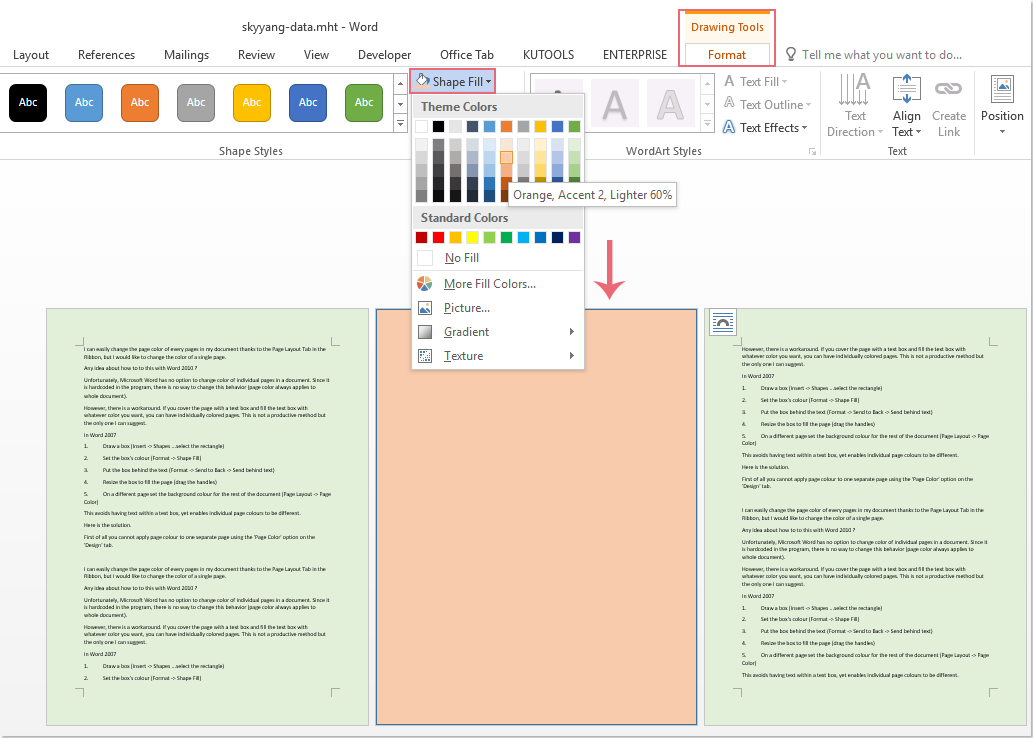
Adding a background color to just one page in a Word document can make your content stand out. This technique highlights specific sections without changing the entire document’s look. Word does not offer a direct feature for this, but there is a simple workaround.
You will use a text box or shape to cover the page and add color behind your text. This method works well for reports, flyers, or any page where you want a splash of color.
Add A Text Box For Background
Open your Word document and go to the page where you want the background color. Click the Insert tab on the ribbon. Select Text Box and choose Draw Text Box. Click and drag to draw a box that covers the entire page.
Format The Text Box
Click on the text box border to select it. Go to the Shape Format tab. Click Shape Fill and pick the color you want as the background. To remove the border, click Shape Outline and select No Outline.
Send The Text Box To The Back
With the text box still selected, click Send to Back in the Shape Format tab. This places the colored box behind your text. Now your page has a new background color without affecting other pages.
Adjust The Text Box Position
Make sure the text box covers the whole page. You can resize or move it if needed. Lock the position by right-clicking the text box, selecting More Layout Options, and setting it to Fixed Position on Page.

Credit: www.youtube.com
Add Background To One Page
Changing or removing the background color in a Word document can help customize your pages. This feature lets you control the look of your document easily. You can switch colors or go back to a plain white background anytime. The steps are simple and quick to follow.
How To Remove Background Color In Word
Open your Word document. Click the Design tab on the ribbon. Look for the Page Background section. Click the Page Color button. Select No Color from the color options. This will remove any background color from your pages. Your document will return to the default white background.
How To Change Background Color In Word
Go to the Design tab on the ribbon. Click the Page Color button in the Page Background group. Pick a color from the Theme Colors or Standard Colors. Hover over colors to see a live preview on your page. Click on your preferred color to apply it. For more choices, select More Colors. You can pick custom colors using the color picker.
Using Fill Effects For Advanced Backgrounds
After clicking Page Color, choose Fill Effects at the bottom. This opens options for gradients, textures, and patterns. Select a style that fits your document. You can also add pictures as a background. Click OK to apply your selection. This creates a unique background beyond solid colors.
Frequently Asked Questions
How Do I Put A Background Color On A Word Document?
To add background color in Word, click the Design tab, select Page Color, then choose a color or More Colors for custom options.
How Do I Change The Background Color In Word Only One Page?
Insert a section break before and after the page. Then, apply a background color to that section using a text box or shape.
How To Print A Word Document With A Color Background?
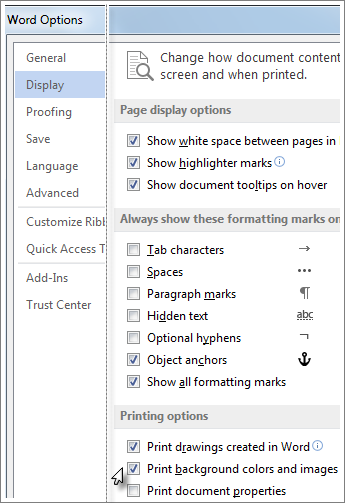
To print a Word document with a color background, enable background colors in print settings. Go to File > Options > Display and check “Print background colors and images. ” Then, print your document normally to include the color background.
How Do I Add A Background Theme To A Word Document?
To add a background theme in Word, click the Design tab, select Page Color, and choose a color or fill effect.
How Do I Add A Background Color To A Word Document?
Go to the Design tab, click Page Color, and choose a color from the gallery.
Can I Use Custom Colors For Word Document Backgrounds?
Yes, click More Colors in the Page Color menu to pick custom colors.
How To Apply A Gradient Or Pattern As Background In Word?
Select Fill Effects under Page Color to add gradients, patterns, or pictures.
Is It Possible To Change Background Color For One Paragraph Only?
Yes, select the paragraph, go to Home tab, click Shading, and pick a color.
How Do I Preview Background Colors Before Applying In Word?
Hover over colors in Page Color to see a live preview on your page.
Can I Remove The Background Color From My Word Document?
Yes, select No Color in the Page Color menu to clear the background.
Conclusion
Changing the background color in Word is simple and quick. Use the Design tab to pick colors easily. Choose a color that fits your document style and purpose. You can also add colors to specific paragraphs for emphasis. Experiment with different shades to find what works best.
This small change can make your document look more attractive. Try it out in your next Word file and see the difference.