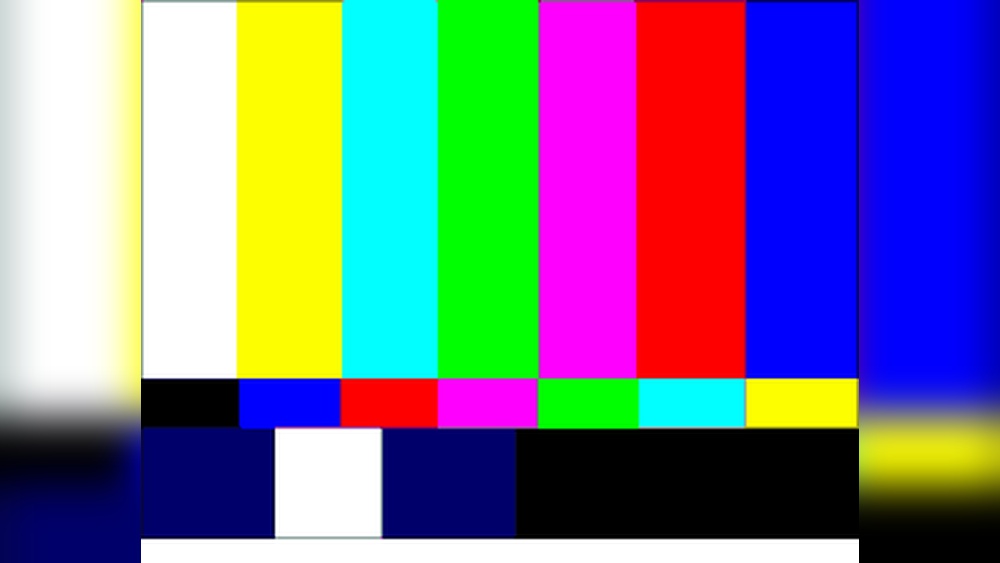
Are the colors on your computer screen truly accurate? Whether you’re editing photos, watching movies, or just browsing, seeing the right colors makes all the difference.
But how do you know if your display is showing colors the way they’re meant to be? Testing your computer’s colors isn’t as complicated as it sounds. With a few simple steps, you can check if your screen is bright, balanced, and true to life.
Keep reading, and you’ll learn easy methods to test your computer colors and ensure your viewing experience is top-notch. Don’t settle for dull or off shades—discover how to get your screen looking just right today.

Credit: www.buddycompany.com
Check Basic Color Display
Checking your computer’s basic color display is the first step in testing colors. This process helps you see if your screen shows colors clearly and correctly. It reveals any problems like dull colors or strange tints.
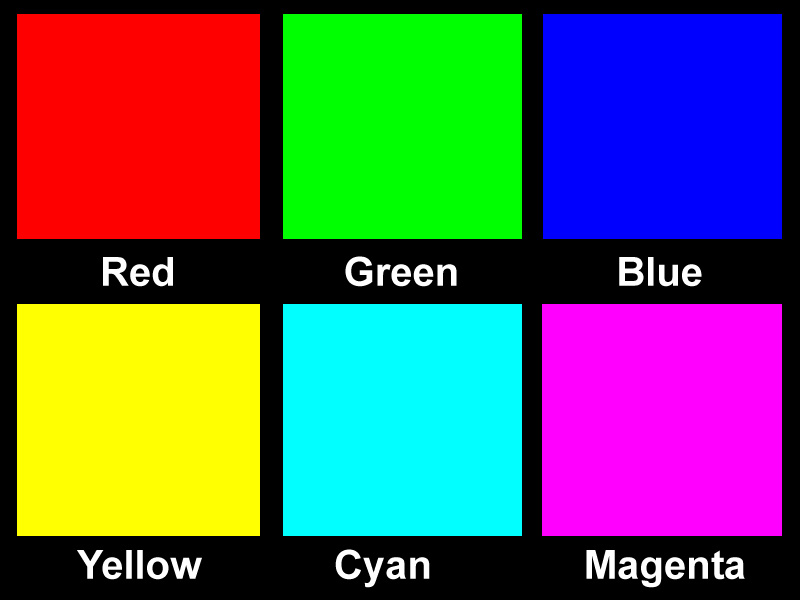
Start by viewing simple color blocks. These blocks show primary colors such as red, green, and blue. You should see bright, pure colors without any fading or spots. This test helps you spot dead pixels or color shifts easily.
Display Solid Color Screens
Open a program or website that shows full-screen colors. Switch between red, green, blue, white, and black screens. Look closely for uneven color areas or strange lines. A good display shows smooth, even colors.
Look For Color Consistency
Check if colors look the same in different parts of the screen. Move your eyes across the display while the color is on. All areas should look alike, without patches or shadows. Inconsistency means your screen may need calibration or repair.
Use Built-in Color Tests
Many computers include basic color test tools. On Windows, use the “Color Calibration” option in the display settings. On Mac, open “Displays” in System Preferences and select the color tab. These tools guide you through simple color checks.
Credit: www.learningsites.com
Use Online Color Tests
Using online color tests offers a quick way to check your computer screen’s color accuracy. These tests run directly in your web browser. No special software is needed. This makes them perfect for anyone who wants to verify their display’s colors fast.
Online tools show a variety of colors and patterns. You can easily spot if colors look dull, too bright, or off. These tests also help identify dead pixels and other screen issues. Testing your computer colors online helps improve your viewing experience.
What Are Online Color Tests?
Online color tests are web pages designed to display color patterns. They help you see how your monitor shows colors. These tests include gradients, solid colors, and color bars. Each pattern reveals different aspects of color quality.
How To Use Online Color Tests
Open a trusted online color test website. Follow the instructions to run different color patterns. Click or tap the screen to switch colors. Look closely for color shifts, brightness, and contrast issues. Take your time to study each color.
Benefits Of Using Online Color Tests
These tests are free and easy to use. They do not require downloads or installations. You can test your screen anytime and anywhere. Online tests also help you decide if you need further calibration or repairs.
Run Gray Scale Checks
Running gray scale checks is a simple way to test your computer’s color accuracy. This test helps identify problems with color shades and contrast. It shows if your screen displays smooth transitions from black to white.
Gray scale tests reveal issues like color tint or banding in the display. These problems affect how images and videos look on your screen. The test is useful for photographers, designers, or anyone who needs accurate colors.
How To Prepare For A Gray Scale Check
Find a gray scale test image online or use a built-in test tool. Make sure your room lighting is even and not too bright. Turn off any screen filters or blue light settings. Set your screen brightness to a medium level.
Observing The Gray Scale Gradient
Look closely at the gradient from black to white on the test image. The transition should be smooth without sudden jumps or lines. Each shade of gray must be distinct from the next. Watch for any color tint, like a blue or yellow hue.
Interpreting Common Gray Scale Issues
If the screen shows bands or blocks instead of smooth shades, the color depth might be low. A strong color tint means the monitor needs calibration. If blacks look gray or whites look dull, adjust brightness and contrast. These simple fixes improve color accuracy quickly.
Test Color Gamut Range
Testing the color gamut range reveals how many colors your monitor can show. This range affects how vibrant and true colors appear on your screen.
A wider color gamut means the display shows more colors. This leads to richer and more detailed images.
Understanding your monitor’s color gamut helps you decide if it fits your needs. It is important for photo editing, design, and video work.
What Is Color Gamut Range?
Color gamut range is the full spectrum of colors a screen can display. It includes reds, greens, blues, and all shades between.
Monitors with a small gamut may look dull or faded. Those with a wide gamut offer more life-like colors.
How To Check Your Monitor’s Color Gamut
Use online tools that display color charts and gradients. These tests show how smoothly colors change across the screen.
Look for websites that offer color gamut testing for free. They help you see if your display covers common color spaces like sRGB or AdobeRGB.
Interpreting Color Gamut Test Results
Compare your monitor’s results with standard color spaces. If it covers more than sRGB, it supports a wide gamut.
A wide gamut display produces brighter reds and deeper blues. This makes images look more vivid and realistic.
Identify Dead Pixels
Testing computer colors helps spot dead pixels that appear as tiny black or bright spots. Running solid color screens reveals these stuck or unresponsive pixels quickly. This simple check ensures your display shows accurate and clear images.
Dead pixels are tiny spots on your screen that do not display colors correctly. They usually appear as black, white, or colored dots that stay fixed in one place. These pixels can affect your viewing experience and image quality.
Detecting dead pixels early helps decide if your monitor needs repair or replacement. The process is simple and takes only a few minutes.
Use Solid Color Backgrounds
Display solid colors like red, green, blue, white, and black on your screen. This method makes dead pixels stand out clearly. Look carefully for any spots that do not change color with the background.
Zoom In To Inspect Closely
Zoom in on suspicious areas to see pixels better. Use a magnifying glass or screen magnifier software for a closer look. This helps confirm if a pixel is dead or just stuck temporarily.
Try Online Dead Pixel Test Tools
Several websites offer free dead pixel tests. These tools cycle through different colors and patterns to highlight dead pixels. Follow the on-screen instructions and note any problem pixels you find.
Use Pixel Fixing Software
Some apps try to fix stuck pixels by flashing colors rapidly. This may revive pixels that seem dead but are only stuck. Run the software for a few minutes and check your screen again.
Calibrate Using Software Tools
Software tools make calibrating your computer colors simple and effective. They adjust your screen to show true and balanced colors. These tools guide you step-by-step to fix color issues.
Using software calibration improves your screen’s color accuracy. It helps photos, videos, and designs look natural and clear. The best part: many tools are free or low-cost.
Choosing The Right Calibration Software
Select software that matches your device and needs. Some focus on basic adjustments, while others offer advanced settings. Popular options include DisplayCAL, Calibrize, and Windows built-in calibration.
Check if the software supports your operating system. Also, read reviews to find easy-to-use tools. A good choice saves time and gives precise results.
Step-by-step Calibration Process
Start by closing all bright applications and lights near your screen. Open the calibration software and follow its instructions carefully. You will adjust brightness, contrast, gamma, and color balance.
The software shows color patterns and asks you to tweak settings. Some tools use test images to compare colors. Repeat steps until colors look even and natural.
Benefits Of Using Software Calibration
Software calibration keeps your display accurate over time. It fixes color shifts caused by screen aging or environment. This ensures consistent colors for work or entertainment.
You can save calibration profiles and switch between them easily. Profiles help when working on different tasks like photo editing or gaming. Software tools are a quick and budget-friendly way to improve color quality.
Adjust Brightness And Contrast
Adjusting brightness and contrast is key to testing computer colors. These settings affect how colors appear on your screen. Proper adjustment ensures images look clear and true to life.
Brightness controls the light level of your display. Contrast changes the difference between dark and light areas. Balancing these two helps reveal true color quality.
How To Adjust Brightness
Start with the brightness control on your monitor or in your computer settings. Lower brightness can make colors look dull. Too much brightness can wash out colors. Find a level where colors look vivid without glare.
How To Adjust Contrast
Use the contrast setting to deepen shadows and brighten highlights. Increasing contrast makes colors pop but can lose details in dark or bright areas. Decrease contrast if colors seem harsh or unnatural. Aim for a natural, balanced look.
Testing Colors After Adjustment
Open a color test image or a website with color blocks. Check if each color looks distinct and not faded. Adjust brightness and contrast again if colors blend or look off. Repeat until colors appear clear and accurate.
Verify Color Profiles
Verify color profiles to ensure your computer shows accurate colors. Color profiles control how colors appear on your screen. Different devices use different profiles, which can change the colors you see. Checking these profiles helps match colors across screens and printers.
Without proper profiles, colors may look dull or too bright. This affects photo editing, design work, and even watching videos. Verifying color profiles is a key step in testing computer colors effectively.
What Is A Color Profile?
A color profile is a set of data that defines how colors are displayed. It tells your computer how to show colors correctly. Common profiles include sRGB, Adobe RGB, and DCI-P3. Each profile covers different color ranges or gamuts.
How To Check Your Current Color Profile
On Windows, open Settings and go to System > Display > Color profile. Here, you see the active profile for your screen. On Mac, go to System Preferences > Displays > Color tab. The selected profile shows in the list. Checking this helps confirm your display uses the right profile.
Switching And Calibrating Color Profiles
Try switching profiles to see which fits best. Some monitors offer built-in profiles for different uses. Calibration tools can create custom profiles for your screen. These tools adjust brightness, contrast, and color balance to improve accuracy. Proper calibration ensures colors are true and consistent.
Compare With Reference Images
Comparing your computer screen colors with reference images helps check accuracy. Reference images have known colors and tones. Viewing these images on your monitor reveals color differences.
This method is simple and effective. It shows if colors appear too bright, dull, or shifted. Correct color display is vital for photo editing, design, and video work.
Choose High-quality Reference Images
Use images with accurate, well-balanced colors. Download from trusted sites that offer color-calibrated photos. Avoid images that are compressed or altered.
Look for test patterns or color charts designed for monitor testing. These include grayscale, primary colors, and skin tones. They show how your screen handles a variety of colors.
View Images In A Controlled Environment
Check colors in a dim or neutral-lit room. Bright or colored lighting changes how you see the screen. Turn off any screen filters or night mode features.
Set your monitor to its default or calibrated profile. This prevents extra color shifts during comparison. Try to view images at full screen without zoom.
Identify Color Differences Easily
Look for color shifts such as reds appearing orange or blues looking greenish. Notice if dark areas lose detail or bright areas are washed out. Skin tones should look natural, not overly red or pale.
Compare multiple reference images to spot consistent issues. Small differences are normal, but large shifts indicate a problem. Use this feedback to adjust your monitor’s color settings.

Credit: colormax.org
Test Across Different Devices
Testing computer colors across different devices helps ensure color accuracy. Colors can look different on various screens due to settings and technology. Checking colors on multiple devices gives a clearer view of how they appear to others. This step is vital for designers, photographers, and anyone relying on precise colors.
Test On Different Monitor Types
Try your images on LCD, LED, and OLED monitors. Each type shows colors differently. LCDs may look dull, while OLEDs offer richer colors. Testing on various monitors reveals how colors shift with screen technology.
Check Colors On Mobile Devices
Smartphones and tablets often display colors brighter or more saturated. Test your colors on popular mobile devices to see if they remain true. This step ensures consistency for users viewing on smaller screens.
Use Multiple Operating Systems
Colors can vary between Windows, macOS, and Linux. Each system handles color profiles in its own way. Testing on different operating systems helps spot any inconsistencies in color display.
Compare In Different Lighting Conditions
Screen brightness and ambient light affect color perception. Test your colors in both bright and dim rooms. This practice helps identify any visibility or color issues in real-world settings.
Frequently Asked Questions
How Do I Test My Screen Color?
Visit testmyscreen. com using your browser. Select a color test and click the screen to cycle through colors. Check for accuracy and defects.
How Can I Tell If My Screen Color Is Accurate?
Use online tools like testmyscreen. com to display color patterns. Compare with reference images and check grayscale visibility. Calibrate using system settings or hardware calibrators for best accuracy.
How To Test Laptop Color Accuracy?
Test laptop color accuracy by using online tools like testmyscreen. com or color calibration software. Adjust settings in Display or Color Management. Compare test patterns for accurate hues, contrast, and brightness. Use a hardware calibrator for precise results. Repeat tests to ensure consistent color accuracy.
How To Check Pc Color Profile?
To check your PC color profile, open Settings > System > Display > Advanced display settings > Color profile. Select the active profile to view or change it.
What Is The Best Way To Test Computer Screen Colors?
Use online tools like testmyscreen. com to display various colors and check accuracy.
How Do I Check If My Monitor Shows True Colors?
Compare displayed colors with known color samples or use calibration software for accuracy.
Can I Test Computer Colors Without Special Equipment?
Yes, free online color test websites help check your screen’s color range and defects.
Why Are My Computer Colors Looking Different Than Others?
Monitor settings, color profiles, and lighting conditions affect how colors appear on screens.
How To Test Color Accuracy On A Windows Pc?
Go to Settings > System > Display > Color profile to view and adjust settings.
What Steps Test Color Accuracy On A Mac Display?
Open System Preferences > Displays > Color to select or calibrate your display profile.
Conclusion
Testing your computer’s colors ensures clear and true images. Use simple online tools or built-in settings to check color accuracy. Regular testing helps spot issues early and keeps your display sharp. Adjust brightness and color profiles for the best view.
A well-calibrated screen improves work, games, and videos. Don’t ignore color tests—they keep your screen reliable and easy on the eyes. Try testing often to maintain consistent and accurate colors every day.