Want your apps to reflect your style or simply make your phone’s screen more vibrant? Changing the color of your apps can give your device a fresh, personalized look that catches your eye every time you unlock it.
Whether you prefer bright, bold shades or subtle tones that match your wallpaper, you have the power to customize your app icons easily. In this guide, you’ll discover simple steps to transform your app colors on both iPhone and Android—no complicated tech skills needed.
Ready to make your screen pop with color? Let’s dive in and turn your apps into a reflection of you.
App Color Options On Iphone
iPhones offer several ways to change app colors. These options help personalize your phone’s look. You can switch between light, dark, and automatic modes. There is also a tinted mode for full color control. Each mode changes how your apps appear on the home screen.
Light, Dark, And Automatic Modes
The light mode shows bright app icons and backgrounds. This mode works best in well-lit places. Dark mode switches your apps to darker colors. It reduces eye strain in low light. Automatic mode changes the look based on time. Your iPhone switches between light and dark modes by itself.
Using The Tinted Mode
Tinted mode allows you to pick any color for your apps. Use a slider to choose the shade and intensity. You can also use the eyedropper tool. This tool matches app colors to your wallpaper. This option offers more creativity and a unique style. It changes the app icons beyond the basic light or dark look.
Changing Colors With Iphone Settings
Changing colors with iPhone settings lets you personalize your apps without extra tools. The process is simple and uses features built into your iPhone. You can adjust colors to match your style or mood quickly.
This section explains how to change app colors using iPhone settings step-by-step. Follow along to make your home screen look fresh and unique.
Entering Jiggle Mode
Start by going to your iPhone’s Home Screen. Touch and hold an empty space or any app icon. Wait until the apps start to wiggle or “jiggle.” This means you are in edit mode. In jiggle mode, you can move or change apps.
Accessing Customize Menu
While still in jiggle mode, look for the “Edit” button at the top corner. Tap it to open more options. Then select “Customize” to see color settings. This menu allows you to pick how your app icons look.
Selecting And Applying Colors
You will see different color modes like Light, Dark, and Tinted. Choose “Tinted” to pick a color yourself. Use the slider to find the perfect shade. You can also use the eyedropper tool to pick a color from your wallpaper. When done, tap “Done” to save your changes. Your app colors will update immediately.
Using The Eyedropper Tool
The eyedropper tool is a simple way to change your app colors. It picks colors from anywhere on your screen. This helps your apps blend well with your background. The tool works by sampling exact colors you want. It saves time and keeps your design consistent.
Matching Wallpaper Colors
Use the eyedropper to select colors from your wallpaper. Tap the tool and move it over your screen. Pick colors that look good with your background. This creates a smooth, matching look for your apps. It makes your home screen feel more personal and neat.
Adjusting Saturation And Hue
After picking a color, adjust its saturation and hue. Saturation controls how bright or dull the color is. Hue changes the shade of the color itself. Small changes can make your apps stand out or blend in. Use sliders to find the best balance for your style.
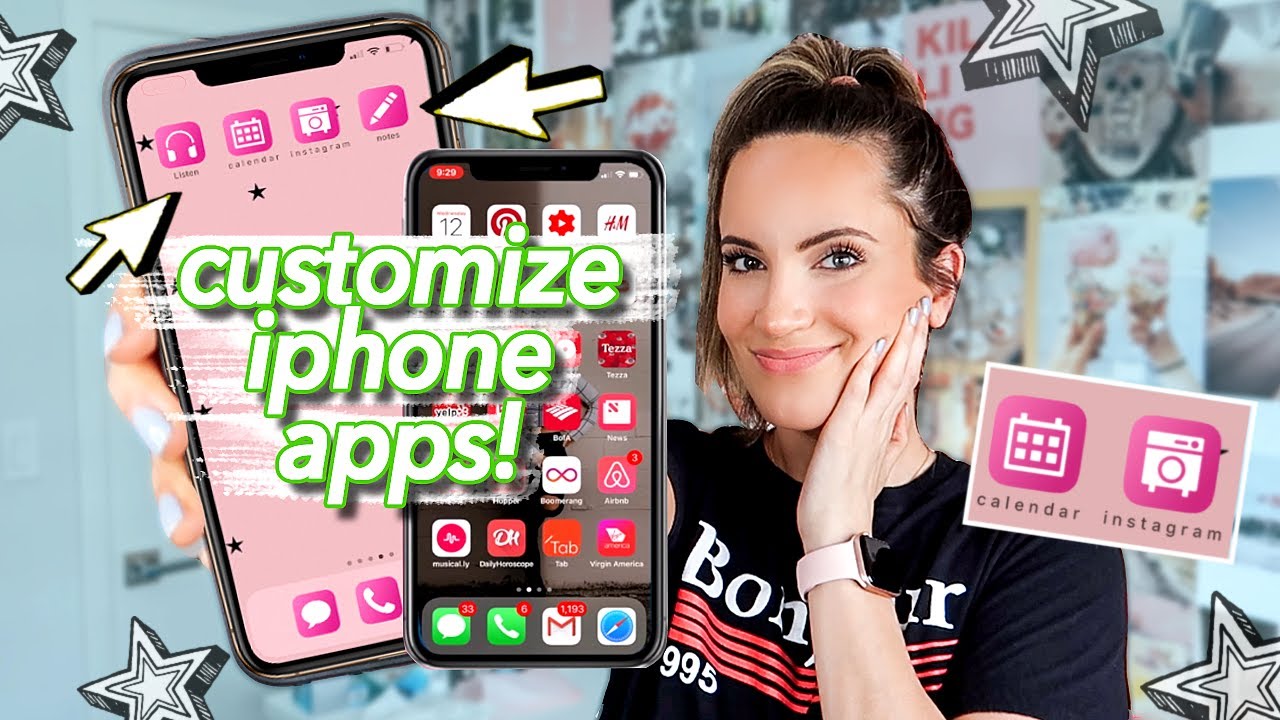
Credit: www.youtube.com
Customizing Android App Colors
Customizing Android app colors lets you personalize your device’s look. Changing colors makes your phone feel fresh and unique. You can adjust themes, icons, and backgrounds with simple steps. This section explains easy methods to change app colors on Android.
Third-party Icon Apps
Third-party icon apps offer many color options for your apps. These apps let you replace default icons with colorful ones. You can browse hundreds of icon packs in the Google Play Store. Some popular apps include Icon Pack Studio and CandyCons. Installing these apps allows you to pick icons that match your style. After choosing, apply the icon pack to your launcher. This changes all app icons’ colors at once. No need for manual editing of each app icon.
Enabling System Dark Mode
Dark mode changes the color scheme of your apps and system. It switches backgrounds to dark colors and text to light colors. This mode is easier on the eyes, especially in low light. To enable dark mode, open Settings on your Android device. Find the Display section and select Dark theme. Many apps automatically adjust their colors to match dark mode. Some apps might need manual switching inside their settings. Dark mode saves battery on phones with OLED screens too.
Applying Themes On Android Devices
Changing the look of your Android apps becomes easy with themes. Themes let you adjust colors, backgrounds, and icons all at once. Applying themes on Android devices gives your phone a fresh and personal feel. It does not require technical skills or extra apps. Just a few taps and your apps will look new and colorful.
Downloading Themes From Stores
Many Android devices support theme downloads from official stores. Visit the Google Play Store or your phone’s theme store app. Browse through thousands of free and paid themes. Choose themes that match your style or mood. Downloading is simple and fast. After download, apply the theme with one tap. Your app colors, wallpapers, and fonts will change instantly.
Using Custom Icon Packs
Icon packs change the look of your app icons only. They can brighten your screen or make it look sleek and modern. Find icon packs in the Google Play Store. Download the packs you like. Use a launcher app like Nova Launcher to apply them. Many launchers support icon packs and let you switch easily. Custom icon packs work well with themes or on their own.
Changing Icon Colors With Shortcuts
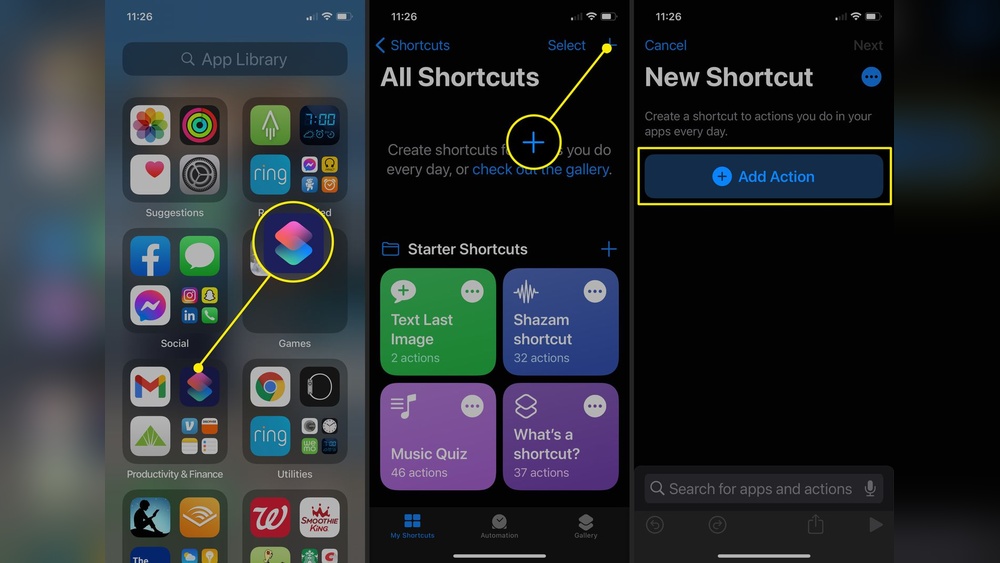
Changing icon colors with shortcuts offers a simple way to personalize your device. This method lets you create new app icons with your preferred colors. You do not need special apps or software. Just use the built-in Shortcuts app on your iPhone or iPad. The process allows full control over the icon’s look and feel.
With shortcuts, you can pick any color and image to represent your apps. This approach makes your home screen unique and visually appealing. It also helps in organizing apps by color codes. You can easily spot your favorite apps at a glance.
Creating Custom Shortcuts
Open the Shortcuts app on your device. Tap the plus (+) icon to create a new shortcut. Select “Add Action” and choose “Open App.” Pick the app you want to change. Next, tap the three dots at the top right. Name your shortcut with the app’s name.
Tap “Add to Home Screen.” Here you can change the icon and name. Tap the icon image to choose a new photo or color. You can select an image from your gallery or use a custom icon. After selecting the icon, tap “Add” to place it on your home screen.
Modifying Shortcut Appearance
To change the shortcut’s icon color, use a photo editor app. Create a simple colored background or an icon with your chosen color. Save the image to your photo library. In the Shortcuts app, select this image when setting the icon. Adjust the name if needed to match your app.
You can also use third-party icon packs for more style options. Make sure the icons match your chosen color scheme. Organize your shortcuts by color for easy access. The result is a personalized home screen with colorful app icons.
Tips For Color Coordination
Choosing the right colors for your apps can enhance your phone’s look. Color coordination helps create a balanced and attractive home screen. It makes your device feel more personal and neat. Here are some tips to help you pick colors that match well and look great together.
Matching App Colors To Wallpaper
Start by looking at your wallpaper colors. Pick app colors that blend or contrast nicely with the background. Using similar tones creates a smooth, unified look. Bright wallpapers work well with muted app colors. Dark wallpapers pair nicely with vibrant app icons. Matching colors with your wallpaper keeps your screen organized and pleasant to see.
Choosing Complementary Shades
Choose colors opposite each other on the color wheel for a lively contrast. For example, blue and orange or purple and yellow. This makes your apps stand out but still look balanced. Use soft versions of these colors to avoid harshness. Complementary shades add energy without overwhelming your eyes. Try mixing one bright color with a few neutral tones for variety.

Credit: www.idownloadblog.com
Restoring Original App Colors
Restoring the original colors of your apps can help keep your device looking clean and familiar. Changing app colors is fun, but sometimes you want to go back to the default look. Returning to the original colors is simple and quick. It ensures your apps appear as intended by their developers.
Resetting Customizations
To reset app colors, open your device’s customization menu. Find the option to reset or remove color changes. Select this option to return the app icons to their default colors. This action often restores all apps at once, saving time. You can also reset individual apps if your device supports it. After resetting, your home screen will display the original colors again.
Troubleshooting Color Issues
Sometimes, colors do not reset as expected. Restart your device to clear temporary glitches. Check for software updates that may fix color display bugs. If problems persist, clear the app cache or reinstall the app. This often fixes color errors caused by corrupted files. Make sure your device’s display settings are normal. Adjusting brightness or color mode can affect how app colors appear.
Popular Apps For Icon Customization
Changing the look of your app icons can refresh your device’s appearance. Popular apps for icon customization help you do this easily. These apps let you change colors, shapes, and styles of your app icons. Many offer user-friendly tools for quick design changes. You can match icons with your wallpaper or personal taste. Customizing icons adds a unique touch to your phone or tablet.
Features To Look For
Choose apps with simple color editing options. Look for apps that offer preset color themes and manual color pickers. Easy-to-use interfaces save time and effort. Support for different icon shapes is useful. Some apps include icon packs to expand your choices. Compatibility with your device ensures smooth performance. Backup and restore options protect your customizations.
Recommended Apps
“Icon Changer” offers fast color swaps and icon replacements. “App Icon Studio” provides many color filters and themes. “Color Widgets” lets you customize icons and widgets together. “Nova Launcher” allows deep icon customization within Android devices. For iPhone users, built-in tools and apps like “Shortcuts” help create colored icons. These apps support both beginners and advanced users.
:max_bytes(150000):strip_icc()/Icon_Colors_01-751a9fe19ff34162ad4055716ac03478.jpg)
Credit: www.lifewire.com
Maintaining A Fresh Look
Keeping your app colors fresh enhances your phone’s look and feel. It prevents boredom and keeps your device exciting. Changing colors regularly reflects your mood and style. This simple update can make your apps feel new again.
Maintaining a fresh look also helps you stay organized. Different colors can highlight important apps or group similar ones. This makes your phone easier to navigate and more fun to use.
Regular Updates And Changes
Change your app colors often to keep things lively. Set a schedule to update colors weekly or monthly. This habit refreshes your screen without much effort. Regular changes can match seasons, holidays, or your personal taste.
Try switching between light and dark modes. Use the tinted option to pick colors that suit your mood. These small tweaks make your phone feel updated and stylish.
Experimenting With New Styles
Try new color combinations to discover what you like best. Mix bright and soft colors for contrast. Use the eyedropper tool to match colors from your wallpaper. This creates a harmonious and unique look.
Don’t hesitate to try bold colors or subtle shades. Play with saturation and brightness to find the perfect balance. Experimenting keeps your app colors fresh and personalized.
Frequently Asked Questions
How Do I Change The Color Of My App Icons?
To change app icon colors, long-press the Home Screen, tap Edit, then Customize. Choose Light, Dark, or Tinted mode. Use the color picker or eyedropper tool to select your desired color. Tap Done to save changes. On Android, use third-party apps or themes for icon color customization.
How Do I Change The Color Of An Iphone App?
To change iPhone app colors, long-press the Home Screen, tap Edit, then Customize. Select Light, Dark, or Tinted mode. Use the color picker or eyedropper in Tinted mode to choose your desired color. Tap Done to save changes.
How Do I Change The Theme Of Apps?
To change app themes, open your device settings or home screen edit mode. Select “Customize” or “Themes,” then pick your preferred color or style. On iPhone, long-press the home screen, tap Edit, then Customize. On Android, use theme stores or third-party apps for icon colors.
How Do You Customize The Appearance Of Apps On Iphone?
To customize app appearance on iPhone, long-press the Home Screen, tap Edit, then Customize. Choose Light, Dark, or Tinted mode. Use the color picker or eyedropper tool to select icon colors. Tap Done to save changes.
How Can I Change App Icon Colors On Iphone?
Long-press the home screen, tap Edit, select Customize, then pick Light, Dark, or Tinted mode.
What Is The Easiest Way To Customize App Colors?
Use the Tinted mode to pick any color or match wallpaper with the eyedropper tool.
Can I Make App Icons Dark Or Light Automatically?
Yes, choose Light, Dark, or Automatic mode to change icon colors based on time.
How Do I Access The App Icon Color Settings?
Enter jiggle mode by holding the home screen, tap Edit, then Customize.
Is It Possible To Match App Colors To Wallpaper?
Yes, use the eyedropper tool in Tinted mode to select colors from your wallpaper.
Can I Change App Colors On Android Devices Too?
Android options vary, but many launchers and themes let you customize app icon colors.
Conclusion
Changing your app colors makes your phone feel fresh and personal. It takes just a few simple steps on both iPhone and Android devices. Experiment with different colors to find what suits your style best. Remember, customization helps improve your user experience every day.
Start today and enjoy a more colorful, organized home screen.