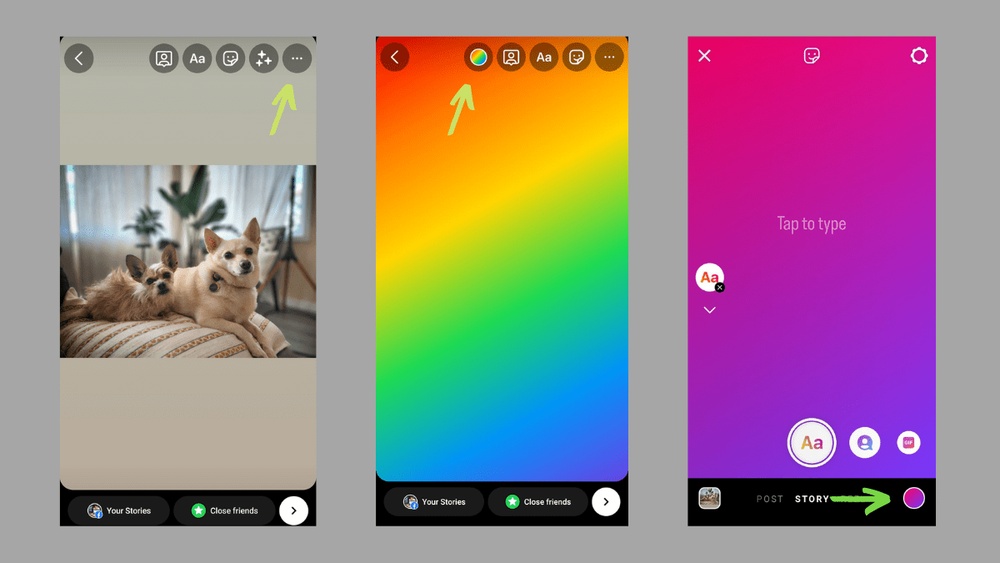
Want to make your Instagram Stories stand out with eye-catching background colors? Changing the background color of your Insta Story is a simple trick that can instantly boost your creativity and grab your followers’ attention.
Whether you’re sharing a photo, reposting a Reel, or creating something from scratch, knowing how to switch up your story’s background color helps you express yourself better and keeps your content fresh. In this guide, you’ll learn easy, step-by-step methods to change your Instagram Story background color like a pro—no complicated tools or apps needed.
Ready to make your stories pop? Let’s dive in!

Credit: www.youtube.com
Create A New Instagram Story
Starting a new Instagram Story is simple and fun. It lets you share moments instantly.
Stories appear at the top of the Instagram app. They stay live for 24 hours.
Changing the background color can make your story more eye-catching and unique.
Open Instagram And Swipe To Create
Open the Instagram app on your phone. Swipe right from your feed or tap the plus icon.
This opens the story camera. You can take a new photo or video here.
Choose Or Capture Your Content
Tap the shutter button to take a photo or hold it for video. Or swipe up to pick from your gallery.
Pick any image or video you want as your story base. This is where you add your background color.
Look for the draw icon at the top right. It looks like a squiggly line or pen.
Tap this to open color options. This tool lets you paint over your story background.
Select And Apply Background Color
Pick a color from the palette at the bottom. Swipe left to see more choices.
Press and hold anywhere on the screen. This fills the entire background with your chosen color.
Your photo or video now has a new colored background. Add text or stickers on top if you like.
Take Or Select A Photo
Starting with a photo is the first step to change your Instagram story background color. You can either take a new picture or select one from your gallery. This choice sets the base for customizing your story’s look.
Taking or selecting a photo is simple and quick. It gives you control over the content and colors you want to work with.
Take A New Photo
Open the Instagram app and swipe right to open the story camera. Point your camera at the subject and tap the capture button. The photo will appear on your story screen ready for editing.
Select A Photo From Gallery
Swipe up on the story screen or tap the gallery icon in the bottom left corner. Browse your gallery and tap the photo you want to use. It will load into the story editor for background color changes.
Access The Draw Tool
Start by tapping the draw tool icon at the top right after opening your story. Choose a color and press on the screen to fill the background quickly. This method changes the story’s background color in just a few steps.
Changing your Instagram story background color starts with the Draw Tool. This tool lets you paint the screen with any color you want.
After capturing or uploading your photo, look for the Draw Tool icon. It looks like a squiggly line or pen and sits at the top right of the screen.
Tapping this icon opens the color palette at the bottom. You can pick a color or hold a color to see more shades. This tool is simple but powerful for customizing your story background.
Credit: www.kapwing.com
Choose Your Background Color
Choosing the right background color for your Instagram story can make it stand out. The background sets the tone and highlights your content. It can be bright, dark, or somewhere in between. This section explains how to pick a color that fits your style and message perfectly.
Explore Color Palette
Instagram offers a color palette at the bottom of the screen. You can swipe left or right to see many color options. These colors cover a wide range from soft pastels to bold shades. Tap a color to preview it on your story background. This simple step helps you find a color that matches your photo or video.
Try different colors to see which one looks best. The palette makes it easy to switch colors quickly. This way, you can experiment without losing time or creativity.
Select Custom Shades
You can create custom shades beyond the basic palette. Hold your finger on any color to open a gradient slider. Slide your finger up or down to adjust the shade. This tool lets you find the perfect hue or brightness.
Custom shades give your story a unique look. They help match your background to your brand or mood. This feature works well for those who want more control over their story’s appearance.
Fill The Background With Color
Filling the background with color is a simple way to make your Instagram story stand out. It helps highlight your text, photos, or stickers. Changing the background color can refresh the look of your story and match your style or mood.
This process works for both new stories and when sharing posts. The key tool is the draw feature, which lets you cover the entire screen with one color. You can pick from preset colors or create a custom shade.
Open The Instagram Story Creator
Start by opening Instagram and swiping right to access the story camera. Take a new photo, record a video, or select media from your gallery. This creates the base for your story background.
Use The Draw Tool To Select A Color
Tap the draw icon, which looks like a squiggly line or pen, located at the top right corner. At the bottom, you will see a palette of colors. Swipe left to explore more options or press and hold a color for a custom choice.
Fill The Background By Holding The Screen
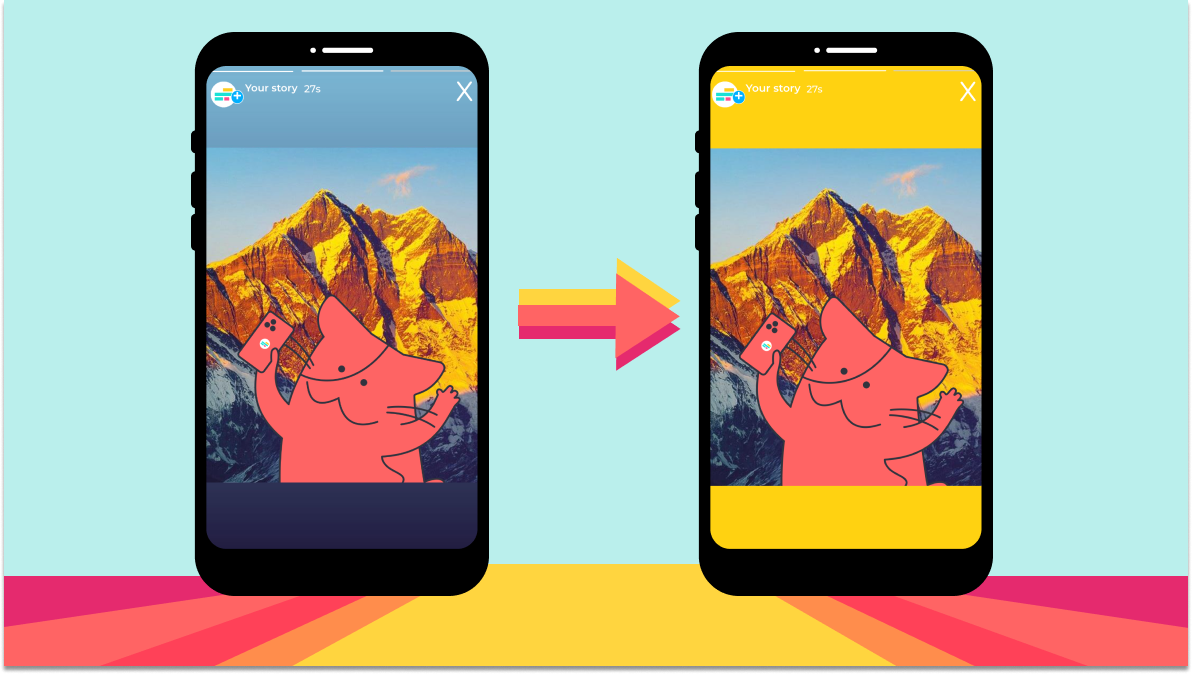
After choosing your color, tap and hold anywhere on the screen. The entire background will fill with your selected color. This covers the original photo or video with a solid color layer.
Add Text Or Stickers Over The New Background
Once the background is filled, add text, GIFs, or stickers on top. This lets you create a creative and eye-catching story. The colored background makes your elements pop and grabs viewers’ attention.
Add Text And Stickers
Adding text and stickers to your Instagram Story makes it more fun and personal. These elements help your story stand out and share your message clearly. After changing your story background color, use text and stickers to decorate your post. They bring life and creativity to your Instagram Story.
Add Text To Your Instagram Story
Tap the “Aa” icon at the top right to add text. Type your message using simple words. Choose font styles from the options below. Change the text color by tapping the color circle. Move the text by dragging it with your finger. Resize text by pinching or spreading two fingers. Keep your text easy to read and not too long.
Use Stickers To Decorate
Tap the sticker icon, a square smiley face, at the top. Choose from many stickers like GIFs, location tags, or emojis. Tap to add a sticker to your story. Drag to place it where you want. Pinch to resize or rotate stickers. Stickers make your story lively and catch attention quickly.
Combine Text And Stickers Creatively
Mix text and stickers for a balanced look. Use stickers to highlight important words or phrases. Place text near stickers for a neat layout. Avoid overcrowding your story with too many items. Keep your design simple and attractive. This helps viewers enjoy and understand your story easily.
Change Background When Resharing Posts
Changing the background color when resharing posts on Instagram Stories helps your content stand out. This feature lets you customize the look and feel of the story. It adds a personal touch and matches your style or brand colors. The process is simple and quick to do.
Select Post Or Reel
Open Instagram and find the post or reel you want to share. Tap the paper plane icon below the post. Choose “Add post to your story” to open the story editor. The post or reel appears in the middle of the screen, ready to be customized.
Apply New Background Color
Tap the draw tool icon at the top of the screen. Choose a color from the palette at the bottom. Press and hold on the screen to fill the background with the selected color. The post or reel stays visible on top of the new background. Add text or stickers if you want to enhance the story further.
Resize And Move Story Elements
Resizing and moving story elements on Instagram helps create visually balanced stories. You can adjust stickers, text, and images to fit your design perfectly. Small changes make your story more attractive and easier to read.
Instagram offers simple gestures to resize and reposition elements. Learning these tricks lets you customize your story background color with style. Keep story elements clear and well-placed for better engagement.
How To Resize Story Elements
Tap the sticker, text, or image you want to resize. Use two fingers to pinch inward or outward. Pinching inward shrinks the element. Pinching outward makes it bigger. Resize slowly to keep the element clear and not blurry.
How To Move Story Elements
Hold the sticker or text with one finger. Drag it anywhere on the screen. Place it where it looks best with your background color. Avoid covering important parts of your image or text.
Tips For Precise Placement
Use grid lines shown by Instagram to align elements. Snap objects to the center or edges for neatness. Keep important text away from the edges to prevent cropping. Adjust spacing between items for a clean look.
Use Advanced Color Tips
Changing your Instagram Story background color can make your posts stand out. Simple solid colors are good, but advanced color techniques create unique looks. These tips help you explore creative ways to enhance your story backgrounds. You can blend colors or use gradients and patterns for a fresh style.
Blend Colors Creatively
Mix two or more colors to create smooth transitions. Use the draw tool with different shades and blend them softly. This technique adds depth and interest to your background. Try combining warm and cool tones for a balanced effect. Blending makes your story look artistic and eye-catching.
Use Gradients And Patterns
Create gradients by dragging colors from one side to the other. This effect gives a modern and stylish look to your background. You can also add patterns by drawing simple shapes repeatedly. Patterns add texture and make your story more dynamic. Use light and dark shades to highlight the patterns well.
Save And Share Your Story
Saving and sharing your Instagram story is the final step after customizing the background color. This step lets you keep a copy or share your creation with friends and followers. It ensures your story looks perfect and reaches your audience quickly.
Instagram makes it easy to save your story to your device. You can also share it directly to your followers or close friends. This way, your story stays visible for 24 hours or longer if you add it to highlights.
How To Save Your Instagram Story
After changing your story background, look for the download icon at the top of the screen. Tap it to save your story as an image or video to your phone. This allows you to keep a copy outside Instagram for later use.
Saving your story helps you reuse or share it on other platforms easily.
Steps To Share Your Story On Instagram
Tap the “Your Story” button to post it instantly. Your followers will see the new story with your custom background. You can also send it as a direct message to specific people by selecting “Close Friends” or “Send To.”
Sharing Stories To Other Platforms
Once saved, open your phone’s gallery or camera roll. Choose the saved story and share it on apps like Facebook, WhatsApp, or Twitter. This helps you reach more people beyond Instagram.
Sharing your story across platforms increases its visibility and engagement.

Credit: skedsocial.com
Frequently Asked Questions
How To Change Instagram Story Background Color?
Open Instagram Story, tap the draw tool icon, pick a color, then tap and hold the screen to fill the background. Add text or stickers as desired, then share your story.
How Do I Change The Background Color In A Storyline?
To change a storyline background color, open the story editor, tap the draw tool, select a color, then tap and hold the screen to fill the background. Add text or stickers as desired, and save or share your story.
How To Change Background Color On Instagram Stories When Reposting Without?
To change background color when reposting on Instagram Stories, tap the draw tool, pick a color, then tap and hold the background. This fills it with the chosen color behind the post. Adjust the post’s position, then share your story.
How Do I Use Custom Colors On Ig Stories?
Open Instagram Story and add a photo or post. Tap the draw tool, select a color, then tap and hold the screen to fill the background. Add text or stickers, then share your story.
How Do I Change The Background Color On An Instagram Story?
Tap the draw tool icon, pick a color, then tap and hold the screen to fill the background.
Can I Change Instagram Story Background After Posting?
No, you cannot change the background color once the story is posted.
What Tools Are Needed To Change Insta Story Background Color?
Use the Instagram draw tool and color palette to change the background color.
How To Use The Color Palette For Insta Story Background?
Swipe left on the color options or hold a color to see more shades.
Is It Possible To Add Different Colors To Story Background?
Yes, you can tap and hold with different colors or use brushes for effects.
Can I Change Background Color Without A Photo On Instagram Story?
Yes, select a photo or take one, then use the draw tool to color the background.
Conclusion
Changing your Instagram Story background color is simple and fun. Just use the draw tool and pick your favorite shade. Filling the screen with color helps your story stand out. Add text or stickers to make it personal. Practice a few times to get comfortable.
Enjoy creating colorful and unique stories every day. This small step can brighten your Instagram feed. Keep experimenting with different colors and styles. Your stories will look fresh and engaging.