Do you want your iPhone to truly reflect your style? Changing app colors on iOS 18 lets you personalize your Home Screen like never before.
Imagine giving your apps a fresh new look that matches your mood or aesthetic—without downloading anything extra. In this guide, you’ll discover simple steps to customize your app colors, making your iPhone not just smarter, but uniquely yours. Keep reading to unlock the secrets of transforming your screen and impress everyone with your sleek, colorful setup.
App Color Options In Ios 18
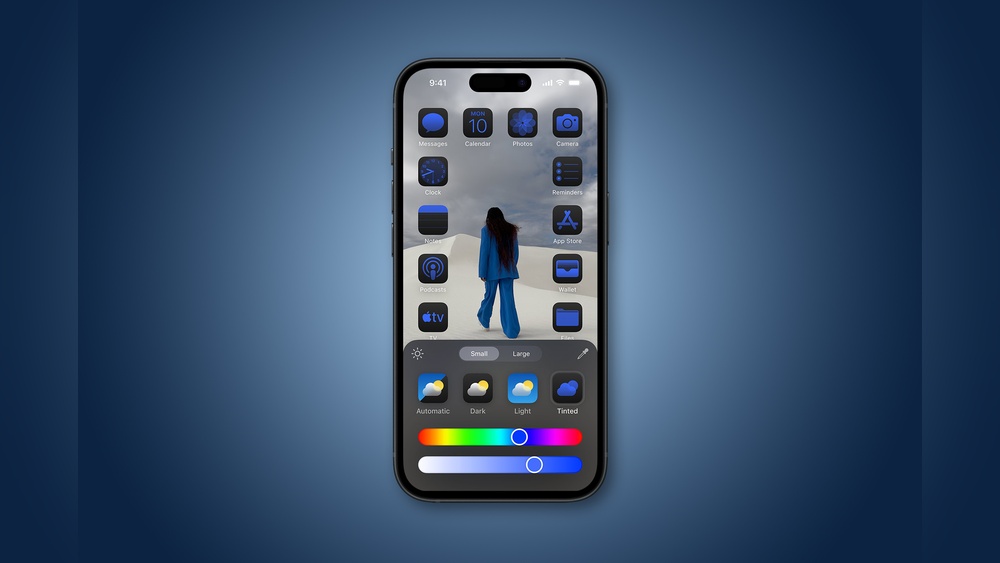
iOS 18 introduces new ways to change app colors easily. These options help customize your iPhone’s look. You can pick from preset modes or create your own tint. This flexibility improves your device’s style and usability.
The app color options affect all app icons on your Home Screen. You cannot change colors for individual apps yet. These settings work across the system for a consistent look.
Dark Mode For App Colors
The dark mode forces all app icons to use dark colors. This option suits low-light environments well. It reduces eye strain and saves battery on OLED screens. Dark mode gives your Home Screen a sleek, modern feel.
Light Mode For App Colors
Light mode makes all app icons appear bright and clear. It is ideal for well-lit spaces or daytime use. This mode enhances visibility on your screen. Light mode offers a clean and simple appearance for your apps.
Automatic Color Switching
Automatic mode changes app icon colors based on system settings. It switches between light and dark modes depending on your environment. This option adapts without manual changes. It keeps your phone’s look balanced all day long.
Custom Tinted Colors
The tinted option lets you choose a custom color for all app icons. Pick any hue that fits your style or mood. This adds a unique and personal touch to your Home Screen. Tinted colors allow more creative freedom than default modes.
Accessing Home Screen Edit Mode
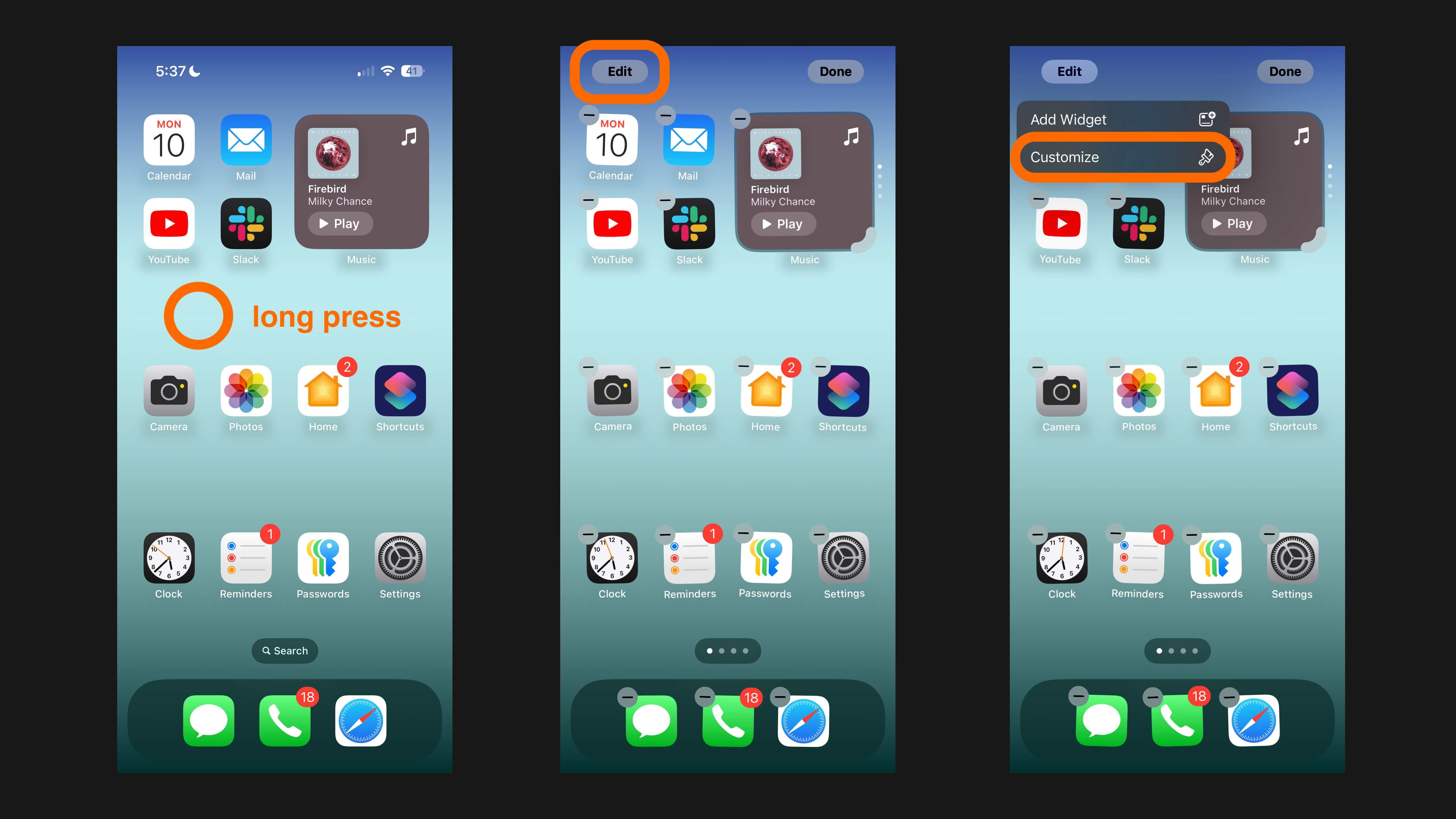
Start by pressing and holding the Home Screen until apps jiggle. Tap “Edit” in the top-right corner to enter edit mode. From there, select “Customize” to change your app colors easily in iOS 18.
What Is Home Screen Edit Mode?
Home Screen Edit Mode lets you change app icons and colors easily.
It also allows moving and deleting apps or widgets.
How To Enter Home Screen Edit Mode
Touch and hold any empty space on your iPhone’s Home Screen.
Wait until the apps start to jiggle. This means Edit Mode is active.
Using The Edit Button For More Options
Tap the “Edit” button at the top-right corner of the screen.
This opens extra options for customizing your Home Screen.
Exiting Home Screen Edit Mode
Press the Home button or tap “Done” in the top-right corner.
Your apps will stop jiggling, and changes will be saved.
Navigating To Customize Menu
Changing app colors on iOS 18 starts with finding the Customize menu. This menu lets you pick how your app icons look. It is easy to find once you know the steps.
Follow the simple guide to open the Customize menu quickly. This will help you change app colors with no hassle.
Enter Edit Mode On Home Screen
Touch and hold the Home Screen background for a few seconds. Wait until the apps and widgets start to jiggle. This means your iPhone is in edit mode.
Tap The “edit” Button
Look at the top-right corner of your screen. Tap the “Edit” button that appears there. This will open more options to customize your Home Screen.
Select “customize” From The Menu
After tapping “Edit,” a menu will show on your screen. Find and tap the “Customize” option. This takes you to the area where you can change app colors easily.
Choosing Light Or Dark Mode
Choosing between Light and Dark Mode on iOS 18 changes how your apps look. It affects the color scheme of your entire device. This option helps reduce eye strain and saves battery life on OLED screens.
iOS 18 offers four main appearance settings: Light, Dark, Automatic, and Tinted. Each mode changes the background and app colors differently. Picking the right mode can make your phone easier to use in various lighting conditions.
Light Mode
Light Mode uses bright backgrounds with dark text. It works well in bright environments. This mode feels clean and simple. Most people find it easy to read in daylight. It keeps your screen bright and vibrant.
Dark Mode
Dark Mode shows dark backgrounds with light text. It helps reduce eye strain in low light. This mode saves battery on OLED displays. Many users prefer it at night or indoors. It gives your apps a sleek, modern look.
Automatic Mode
Automatic Mode switches between Light and Dark based on time. It uses Light Mode during the day. It changes to Dark Mode at night. This mode adjusts your screen for comfort all day. No need to change settings manually.
Tinted Mode
Tinted Mode lets you choose a custom color for your apps. It adds a unique look to your Home Screen. You can pick colors that suit your style. This mode personalizes your device beyond Light or Dark. It brings a splash of color to your phone.
Using The Automatic Color Setting
The Automatic Color Setting in iOS 18 offers a simple way to change your app colors without manual choices. It adjusts app icon colors based on your device’s light or dark mode. This feature ensures your apps always look clear and fit your current environment.
Using the Automatic Color Setting saves time and keeps your screen visually balanced. Your iPhone switches colors smoothly as daylight changes or as you toggle modes.
How To Enable Automatic Color Setting
First, touch and hold the Home Screen background until the apps start to jiggle. Tap “Edit” in the top-right corner, then choose “Customize.” At the bottom, select the “Automatic” option. Your app icons will now change color with your device’s theme.
Benefits Of Using Automatic Colors
This setting keeps your app icons easy to see in different lighting. It reduces eye strain by matching icon colors to light or dark modes. You get a consistent look across your Home Screen without extra effort.
Things To Keep In Mind
Automatic color changes apply to all app icons at once. You cannot pick individual app colors with this setting. The feature works best if you switch your phone between light and dark modes regularly.
Applying Custom Tinted Colors
Applying custom tinted colors on iOS 18 lets you personalize your app icons with a unique color. This feature changes the overall look of your Home Screen by adding a color tint to all app icons. It creates a fresh, consistent style that matches your mood or preference.
Using tinted colors is simple and fast. You can pick from many color options to find the perfect shade. The tint affects every app icon, giving your iPhone a uniform and eye-catching appearance. It also works well with both light and dark modes.
Entering Home Screen Edit Mode
Start by touching and holding the Home Screen background. Wait until the apps and widgets start to jiggle. This signals you are in the edit mode, ready to customize your screen.
Accessing The Customization Menu
Tap the “Edit” button at the top-right corner. A menu will appear with several options. Select “Customize” to open the color settings for app icons.
Choosing The Tinted Color Option
At the bottom, you will see color appearance choices. Tap “Tinted” to enable custom colors for your app icons. This unlocks a palette of colors to choose from.
Selecting Your Desired Tint Color
Scroll through the available colors and tap the one you like. The app icons will instantly update with the new tint. Try different colors until you find the best fit.
Saving Your Custom Tint
Once satisfied, tap “Done” to save changes. Your Home Screen will now display the tinted colors across all app icons. Exit the edit mode by pressing the Home button or tapping outside the icons.
Adjusting Icon Size And Appearance
Adjusting icon size and appearance on iOS 18 helps personalize your iPhone. It improves your home screen’s look and makes apps easier to find. Small changes can give your phone a fresh, unique style.
iOS 18 offers simple ways to resize icons and tweak their look. These options help you create a home screen that fits your preferences and needs. The process is user-friendly and quick.
How To Resize App Icons
To change icon size, first enter the home screen edit mode. Press and hold any empty space until icons start to jiggle. Look for the icon size option in the customization menu. Choose from small, medium, or large icon sizes. The change applies to all your app icons at once.
Changing Icon Appearance
iOS 18 lets you adjust icon colors and styles. Tap “Customize” while in edit mode. Select from Light, Dark, Automatic, or Tinted appearances. Tinted mode allows choosing a custom color for all icons. This setting changes the overall theme of your app icons.
Tips For Best Results
Keep icon size balanced to avoid clutter. Use tinted colors that match your wallpaper. Test different appearances to find what looks best. Remember, changes affect all icons on your home screen.

Credit: www.idownloadblog.com
Tinted Colors For All Apps
iOS 18 introduces a fresh way to personalize your iPhone by applying tinted colors to all apps. This feature allows users to add a custom color overlay that changes the look of every app icon. The tinted color setting creates a uniform and stylish appearance across your Home Screen.
Applying tinted colors helps improve visual appeal and makes your device stand out. It also aids in reducing eye strain by choosing softer or more vibrant hues. This option works for all apps at once, ensuring a consistent theme without extra effort.
How To Enable Tinted Colors For All Apps
Start by entering the Home Screen edit mode. Press and hold any empty area until the app icons jiggle. Tap the “Edit” button in the top-right corner. Select “Customize” from the menu that appears.
At the bottom of the screen, find the appearance options. Choose “Tinted” to activate the color overlay. You will see a palette or color wheel to pick the tint you prefer. After selecting your color, tap “Done” to save the change.
Choosing The Right Tint Color
Pick a tint that matches your style and mood. Bright colors add energy, while pastel shades offer calmness. Darker tints can reduce glare and make icons easier to see at night. Experiment with different colors to find what feels best for your eyes.
Important Notes About Tinted Colors
The tinted color applies to all app icons simultaneously. You cannot set different tints for individual apps. The effect works only on the Home Screen icons and does not change app interfaces. This setting complements light or dark mode but stays consistent regardless of mode changes.
Limitations On Per-app Color Changes
Changing app colors on iOS 18 lets you personalize your device’s look. Yet, this customization has some limits. You cannot change colors for each app separately. The color change applies to all apps at once. This can be a bit restrictive for users who want unique colors for individual apps.
Apple’s design keeps the interface simple and consistent. This means no per-app color adjustments are available. Instead, color settings affect the entire Home Screen. Users can select themes like light, dark, automatic, or tinted. The tinted option lets you pick one color tint for all app icons. But all apps share the same tint color.
Global Color Changes Only
iOS 18 allows only global color changes. You cannot assign different colors to separate apps. The system applies your color choice to every app icon. This ensures a uniform look across the Home Screen. It keeps the design clean and easy to use.
No Support For Individual App Colors
Individual app color customization is not supported. Each app icon follows the global color theme. This means you cannot highlight specific apps with unique colors. Apple focuses on simplicity over detailed customization here.
Workarounds For More Color Variety
Some users create custom app icons with different colors. This requires using third-party apps or shortcuts. These methods are not officially supported by Apple. They also take extra time and effort. Still, they offer a way to add color variety to your apps.

Credit: www.youtube.com
Tips For Matching Colors With Wallpaper
Matching your app colors with your wallpaper creates a smooth, stylish look on iOS 18. This harmony makes your screen pleasant and easy on the eyes. Simple color matching improves the overall feel of your iPhone.
Choosing the right colors is key. It helps your apps stand out or blend softly with the background. Follow these tips for a neat and balanced screen design.
Analyze Your Wallpaper Colors
Start by looking closely at your wallpaper colors. Notice the main shades and any accent colors. Pick app colors that either match these shades or complement them well.
Use Tinted Color Options
iOS 18 offers tinted color options for apps. Select tints that reflect your wallpaper’s dominant tones. This creates a unified and attractive look across your home screen.
Balance Bright And Dark Tones
Check if your wallpaper has bright or dark tones. Match app colors accordingly. Use light app colors on dark wallpapers and dark colors on light wallpapers for better visibility.
Test Different Color Combinations
Try several app color choices to find the best match. Small changes can make a big difference. Adjust colors until the screen looks balanced and pleasing.
Keep It Simple
Avoid using too many colors at once. Stick to two or three main colors for your app icons. This keeps your home screen clean and easy to navigate.
Credit: 9to5mac.com
Frequently Asked Questions
How To Invert App Colors In Ios 18?
To invert app colors in iOS 18, go to Settings > Accessibility > Display & Text Size. Enable Smart Invert to reverse colors except images. This changes app colors system-wide for easier viewing.
How Do I Change The Color Of My Iphone Apps?
To change iPhone app colors, long-press the Home Screen, tap Edit > Customize, then select Light, Dark, Automatic, or Tinted. Choose Tinted to pick a custom color for all app icons at once.
What New Customization Options Are In Ios 18?
IOS 18 introduces new customization options like tinted app icons, adjustable icon sizes, and automatic light or dark modes for the Home Screen. Users can personalize all app icons simultaneously with custom colors and choose icon sizes to enhance their iPhone’s appearance.
Why Are My Icons Dark On Ios 18?
Your icons appear dark on iOS 18 due to the selected Home Screen appearance setting. Choose Light, Dark, Automatic, or Tinted in Customize mode to adjust icon colors.
How Can I Change App Colors On Ios 18?
Open Home Screen edit mode, tap Customize, then pick a color option for app icons.
What Color Options Are Available For Ios 18 Apps?
You can choose Dark, Light, Automatic, or Tinted colors for app icons.
Does Changing App Colors Affect All Apps Or One By One?
The color change applies to all Home Screen app icons at once.
How Do I Apply A Custom Tint To My App Icons?
Select the Tinted option in Customize, then pick your preferred color.
Can App Colors Switch Automatically In Ios 18?
Yes, Automatic mode changes icon colors based on your iPhone’s light or dark mode.
Will Changing App Colors Affect App Functionality?
No, changing app colors only alters the icon appearance, not app functions.
Conclusion
Changing app colors in iOS 18 is simple and fun. You can pick light, dark, automatic, or tinted modes. This lets you personalize your iPhone’s look easily. Remember, the color change affects all apps at once, not single apps. Try different tints to find what suits your style best.
Keep exploring the settings to make your device feel truly yours. Enjoy a fresh and colorful home screen every day.