Want to make your Google Docs stand out or just easier on your eyes? Changing the background color can instantly refresh your document’s look and help you focus better.
If you’ve ever wondered how to do this but didn’t know where to start, you’re in the right place. In this guide, you’ll discover a simple way to change your Google Docs background color step by step — no complicated tools or tech skills needed.
Ready to give your documents a fresh new vibe? Let’s dive in and transform your pages in just a few clicks!

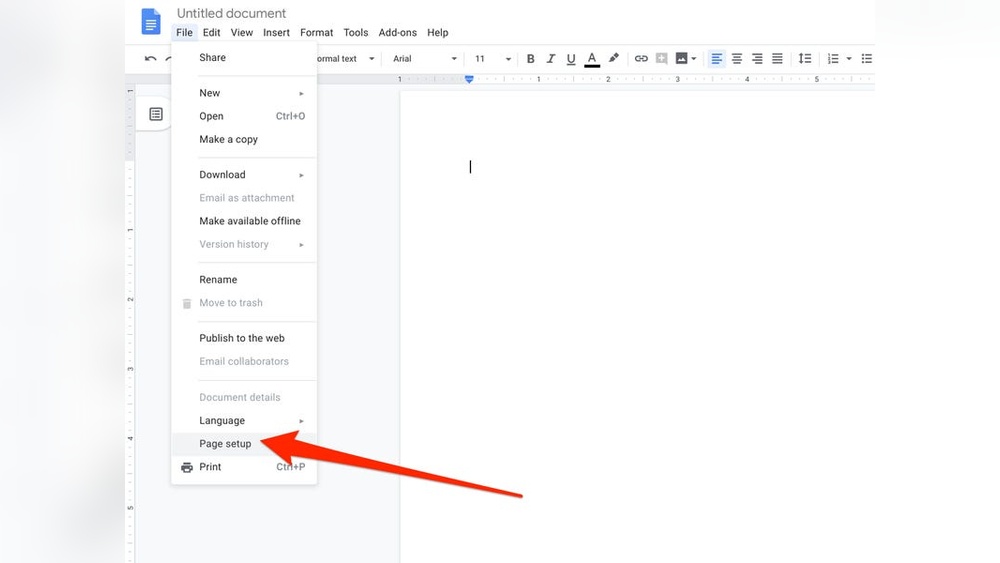
Credit: www.businessinsider.com
Access Page Setup
Accessing the Page Setup in Google Docs is the first step to change the background color. This menu lets you customize the look of your entire document. It is easy to find and use.
Page Setup controls the page size, orientation, margins, and color. Changing the background color here applies the color to all pages. This creates a consistent look throughout your document.
Open Your Google Docs Document
Start by opening the document you want to edit. Use any web browser and sign in to your Google account. Then, open the Google Docs file where you want to change the background color.
Click On The File Menu
Look at the top left corner of your screen. Click the “File” menu to open a dropdown list. This menu contains many options for managing your document.
Select Page Setup From The Dropdown
Scroll down in the File menu and click “Page setup.” This will open a new window. The Page Setup window includes all the settings for your document’s layout.
Find The Page Color Option
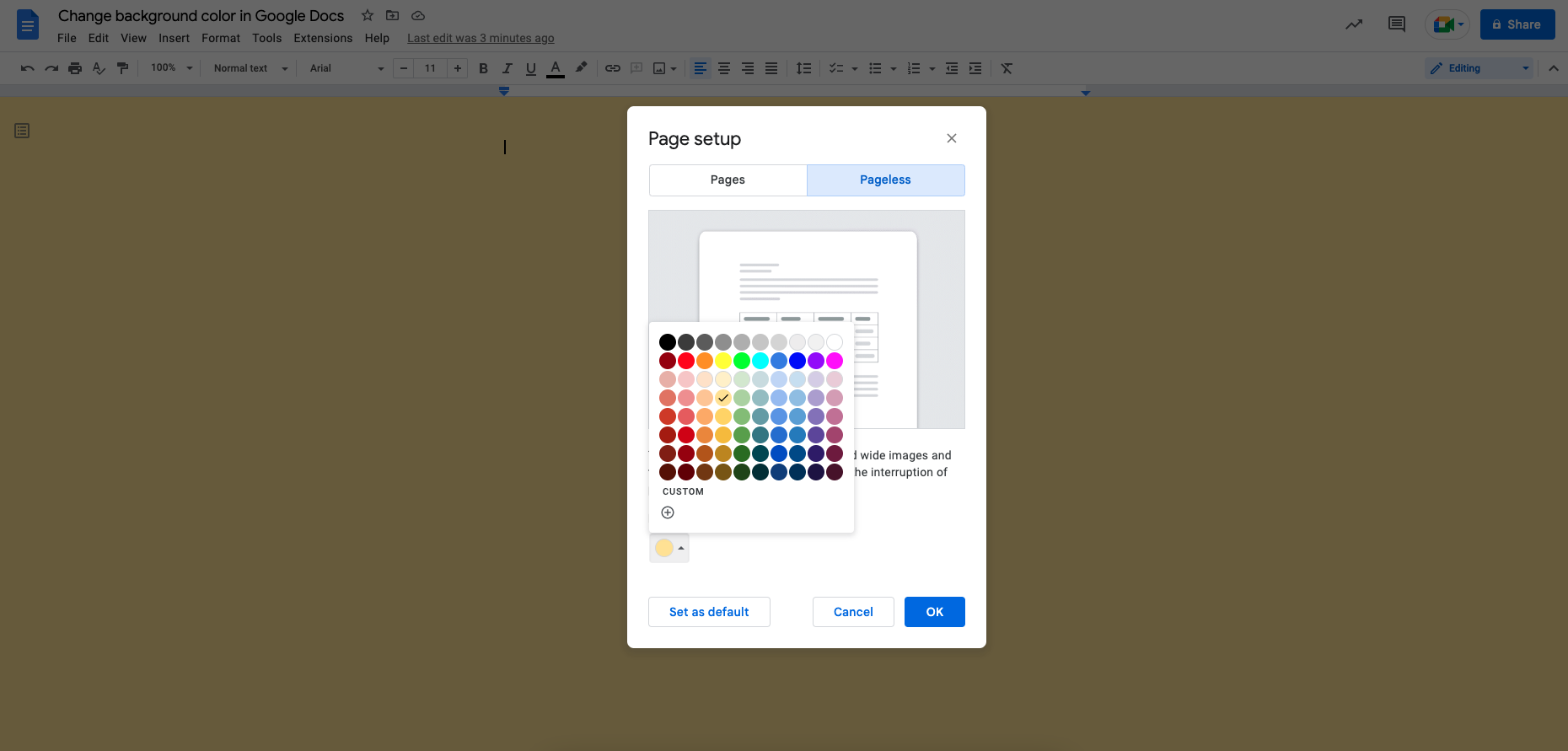
Inside the Page Setup window, locate the “Page color” section. Click the colored box next to it. A palette will appear with many color choices for your background.
Choose Your Desired Background Color
Pick a color from the palette that fits your style. You can select light or dark colors depending on your need. The choice affects all pages in your document.
Apply The Changes
After picking a color, check the “Apply to” dropdown. Make sure it says “Whole document.” Then, click the “OK” button. This saves your settings and changes the background color.
Select Whole Document
Selecting the whole document is a key step to change the background color in Google Docs. This action ensures the new color applies to every page, not just a part of the text. It creates a consistent look throughout your document.
Google Docs offers a simple way to select the entire document for background color changes. This method saves time and avoids manual color changes on each page.
Select The Entire Document Quickly
To select the whole document, click anywhere inside your Google Docs file. Then press Ctrl + A on Windows or Cmd + A on Mac. This keyboard shortcut highlights all the text and elements in the document.
Use The Page Setup Menu
After selecting the document, go to the File menu on the top left. Click Page setup from the dropdown list. In the dialog box, find the Apply to option and choose Whole document. This step ensures the background color change affects every page.
Choose Your Background Color
Inside the Page setup box, click the color box next to Page color. A palette will open with many color options. Pick the color you want as your new background. When done, click OK to apply the color to the entire document.
Open Color Palette
The color palette in Google Docs holds all your background color options. It helps you pick the perfect shade for your document’s page. Opening this palette is the first step in changing your page background color. The palette shows a variety of colors, including basic, custom, and recently used ones.
Accessing the color palette is simple and quick. It gives you full control over how your document looks. Choosing the right background color can make your text easier to read and your document more attractive.
How To Access The Color Palette
First, open your Google Docs document. Next, click on the File menu at the top left. Then, select Page setup from the dropdown list. In the popup window, find the Page color option. Click on the color box next to it to open the color palette.
Exploring Color Options
The palette shows default colors like white, black, and many shades in between. You can also click Custom to create a unique color. Use the sliders or enter a hex code to find the exact shade you want. Recently used colors appear at the top for easy access.
Selecting And Applying A Color
Click on any color to preview it as your document background. Once you find the right color, press OK. The new background color applies to the whole document immediately. You can always reopen the palette to change it again later.
Choose Background Color
Choosing the right background color in Google Docs can make your document more attractive and easier to read. It helps set the tone and mood of your content. Google Docs allows you to pick from many colors or create a custom shade.
Changing the background color applies to the whole document or selected pages. This feature is useful for presentations, reports, or personal projects. Below are clear steps to select and apply a background color in Google Docs.
Open Page Setup Menu
Start by opening your Google Docs document. Click on the File menu in the top left corner. From the dropdown, select Page setup. This opens the settings window where background color can be changed.
Select Apply To Option
In the Page setup window, find the Apply to dropdown menu. Choose Whole document to change the background color on every page. This step is important to ensure your color change applies correctly.
Choose Your Background Color
Next, click the color box next to Page color. A color palette will appear with many options. Pick the color that fits your style and purpose. You can also click on Custom to create a unique shade.
Apply The Background Color
After selecting your color, click the OK button. This saves your changes and updates the background color throughout your document. You will see the new color instantly.
Apply Color To Document
Applying color to your Google Docs document background helps make your text stand out. It also gives your document a fresh look. Changing the background color is easy and takes just a few clicks.
This feature works well for presentations, reports, or personal notes. You can choose any color that fits your style or purpose. The color applies to the whole document, creating a uniform background.
Open Page Setup In Google Docs
Start by opening your Google Docs document. Look at the top menu bar and click on File. From the dropdown menu, select Page setup. This opens a new dialog box with various page options.
Select Background Color
In the Page setup box, find the option labeled Page color. Click the color box next to this option. A color palette will appear, showing many colors. Pick the color you want for your document’s background.
Apply Color To The Whole Document
Look for the dropdown menu labeled Apply to inside the Page setup box. Choose Whole document to apply the color to every page. After that, click the OK button at the bottom. Your new background color will appear on all pages immediately.
Change Background For Sections
Changing the background color for specific sections in Google Docs helps highlight important parts. It improves readability and adds style to your document. Unlike changing the entire page color, section backgrounds require a different approach. Google Docs does not offer a direct feature for section backgrounds. But you can use workarounds to achieve a similar effect.
Using Tables To Change Section Background
Create a one-cell table to act as a colored background. Insert your text inside this cell. Then, change the table cell’s background color. This method isolates the section with a distinct color.
- Go to Insert > Table and select 1×1.
- Type or paste your content inside the table cell.
- Click inside the cell, then open the Table properties.
- Choose a background color for the cell.
- Adjust the table width and height to fit your text.
Using Drawing Tool For Colored Sections
The Drawing tool can create colored text boxes. These boxes can be placed anywhere in the document. It gives more control over the background color and shape.
- Click Insert > Drawing > + New.
- Select the Shape tool and draw a rectangle.
- Fill the shape with your desired background color.
- Add a text box on top of the shape.
- Type your section content inside the text box.
- Save and close to insert the drawing into the document.
Highlighting Text As A Simple Background
Highlighting text changes its background color briefly. It works best for short sections or lines. This option is quick but less flexible than tables or drawings.
- Select the text you want to highlight.
- Click the Highlight color icon in the toolbar.
- Pick a color to apply behind the text.
- This method keeps the page background unchanged.
Use Custom Colors
Using custom colors in Google Docs lets you personalize your document background. This feature helps match colors to your brand, mood, or style. You can choose from a wide range of shades beyond the default palette.
Custom colors make your document stand out. They can improve readability and create a comfortable viewing experience. The process is simple and quick, even for beginners.
Access The Custom Color Palette
First, open your document in Google Docs. Click File in the top menu. Select Page setup from the dropdown menu. In the dialog box, find the Page color option and click the color box. This opens the color palette.
At the bottom of the palette, click + Custom. This opens the custom color selector.
Choose Your Custom Color
Use the color picker to find the shade you want. Drag the circle inside the color box or enter a hex code directly. Hex codes are six-digit codes that define exact colors. Entering a hex code ensures you get a precise color every time.
Adjust the brightness and saturation to get the perfect tone. Preview your choice in the small box beside the selector.
Apply And Save The Custom Color
Once you select your custom color, click OK. The page background changes immediately. To keep this color for future documents, click Set as default in the Page setup window. Then click OK to save all changes.
Your custom color now applies every time you create a new document unless you change it again.
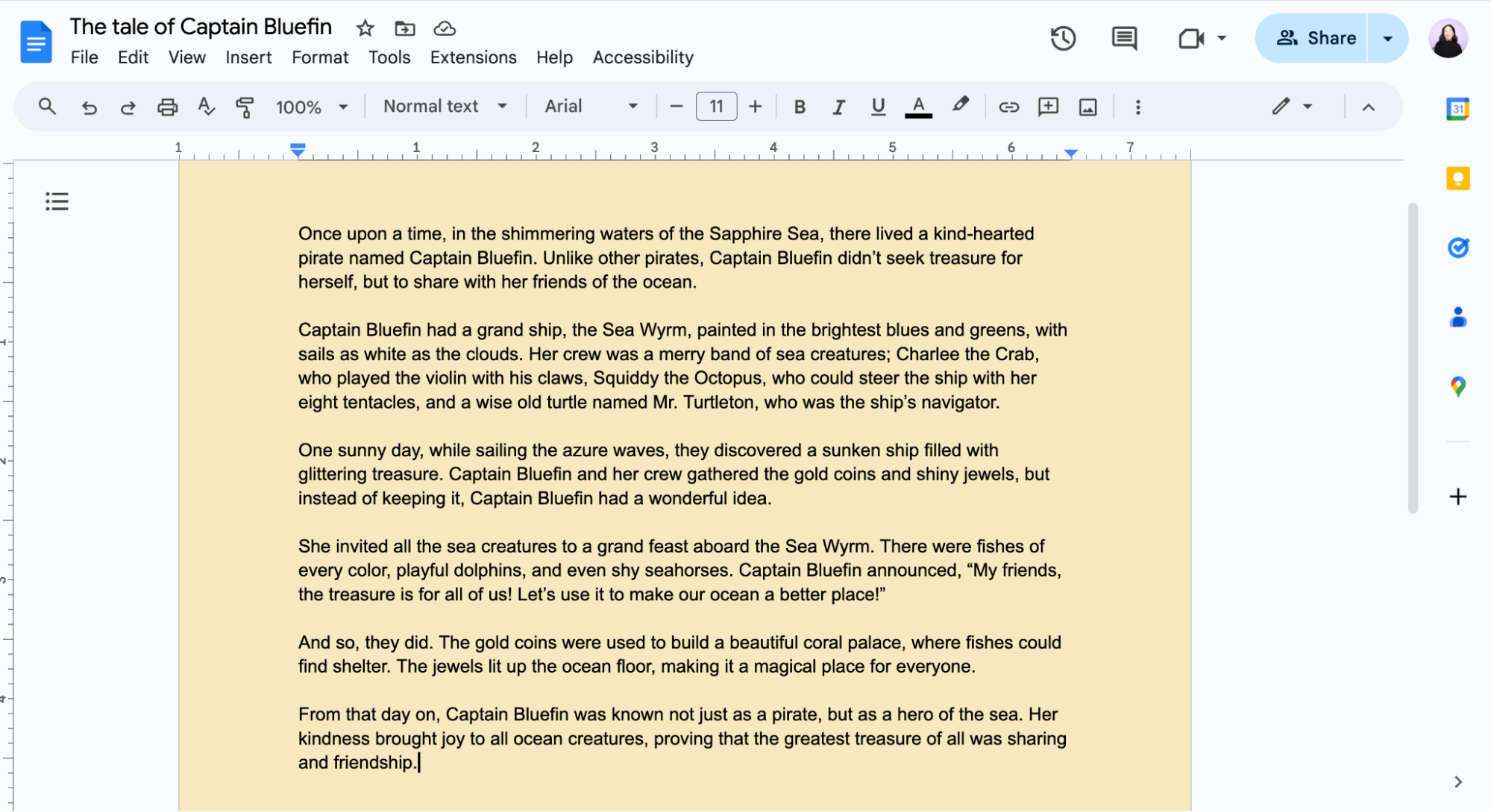
Credit: zapier.com
Reset To Default Background
Resetting the background color in Google Docs returns your document to its original white shade. This is useful after experimenting with different colors. It makes your document look clean and professional again. The process is quick and easy.
Accessing The Page Setup Menu
Open your Google Docs file. Click on File in the top menu. Choose Page setup from the dropdown list. This opens the settings for page layout and background.
Selecting The Default Background Color
In the Page setup window, find the Page color option. Click on the color box to open the palette. Select the white color, which is the default background.
Applying The Changes To Your Document
Make sure Whole document is selected under the Apply to menu. Click the OK button to save your changes. Your document background resets to white immediately.
Tips For Color Selection
Choosing the right background color in Google Docs can improve readability and create the perfect mood for your document. Careful color selection helps your content stand out and keeps readers focused.
Colors affect how people feel and understand your text. Soft colors reduce eye strain. Bright colors grab attention but may tire the eyes quickly. Balance is key.
Consider Readability And Contrast
Pick colors that make your text easy to read. Dark text on a light background works best. Avoid colors that clash with your text color. Good contrast improves clarity and keeps readers engaged.
Match The Purpose Of Your Document
Choose colors that fit the document’s tone. Formal reports suit light, neutral colors. Creative projects allow bold or pastel shades. The background color should support the message you want to send.
Use Color Psychology
Colors can influence emotions. Blue feels calm and trustworthy. Yellow feels cheerful and energetic. Green feels fresh and natural. Select colors that match the feeling you want your readers to have.
Test On Different Screens
Colors may look different on various devices. Check your document on phones, tablets, and monitors. Make sure the background color appears consistent and does not distract from the text.
Troubleshooting Common Issues
Troubleshooting common issues helps fix problems fast. Changing the background color in Google Docs is usually simple. Some users face challenges that block this process. Knowing how to solve these issues saves time and stress.
Common Problems With Applying Background Color
Sometimes the new color does not appear after applying it. This happens if the wrong option is selected. Ensure “Whole document” is chosen in the “Apply to” menu. Selecting a specific section may limit color changes.
Another issue is the color looking different than expected. Screen brightness or monitor settings can affect color display. Try viewing the document on another device for accuracy.
Page Setup Option Not Responding
The Page setup window might freeze or not open. This can be due to browser glitches or slow internet. Refresh the page or restart the browser to fix this. Clearing cache and cookies often resolves loading problems.
Background Color Changes Not Saving
Changes may disappear after closing the document. This usually means the document did not save properly. Check if Google Docs shows “All changes saved” at the top. Use stable internet to ensure saving happens correctly.
Color Options Are Limited Or Missing
Sometimes the color palette is incomplete or missing. This can occur if the browser version is outdated. Update your browser to the latest version for full features. Using Google Chrome is recommended for best compatibility.
Credit: www.indeed.com
Frequently Asked Questions
How Do I Change The Page Background Color In Google Docs?
Open your Google Docs document. Click File > Page setup. Under “Apply to,” select “Whole document. ” Click the “Page color” box, pick a color, then click OK. The chosen color applies to the entire document background.
How Do I Change The Background Color On Google?
To change Google’s background color, customize Chrome’s new tab via “Customize Chrome. ” In Google Docs, use File > Page setup, then select a page color. Adjust Google Search theme in settings for a different look.
How Do I Change The Background Color Of A Document?
Open your document, click File > Page setup, choose “Whole document,” select a page color, and click OK to apply the background color.
How To Make The Google Docs Background Black?
Open your Google Docs file. Click File > Page setup. Select “Whole document” under “Apply to. ” Click “Page color,” choose black, then click OK.
How Do I Change Background Color In Google Docs?
Go to File > Page setup, select color under “Page color,” then click OK to apply.
Can I Change Background Color For Part Of The Document?
No, Google Docs only allows background color change for the whole document.
Where Is The Background Color Option In Google Docs?
Find it under File > Page setup in the “Page color” section.
Can I Use Custom Colors For Google Docs Background?
Yes, Google Docs lets you pick custom colors from the color palette.
Does Changing Background Color Affect Printing In Google Docs?
Yes, background colors may print depending on your printer settings.
How To Remove Background Color From Google Docs?
Go to File > Page setup, choose white or default color, then click OK.
Conclusion
Changing the background color in Google Docs is quick and easy. Just follow a few simple steps. This feature helps make your document look unique and easier to read. Experiment with different colors to find the best fit for your work.
Keep in mind, the color applies to the whole document. Now, you can create more visually appealing documents with just a few clicks. Try it today and see the difference it makes!