Are you looking for a quick way to change the colors on your screen or in your images? Learning how to invert colors can make your device easier to see, help reduce eye strain, or add a creative twist to your photos.
Whether you want to switch your entire display or just adjust a picture, this simple technique can give you a fresh perspective instantly. In this guide, you’ll discover easy steps to invert colors on Windows, Mac, Android, and iPhone—plus handy shortcuts that save you time.
Keep reading, and you’ll be able to flip your colors like a pro in just minutes!
Color Inversion Basics
Color inversion changes the colors on your screen to their opposites. This means dark colors become light and light colors become dark. It helps reduce eye strain and improve visibility for some users. Color inversion is also useful for creating artistic effects in images and designs.
Understanding the basics makes it easier to use this feature on different devices. Most operating systems provide built-in options to invert colors quickly. Some even offer keyboard shortcuts for instant toggling. Let’s explore how color inversion works and where to find it on popular platforms.
What Is Color Inversion?
Color inversion flips every color to its opposite on the color wheel. For example, white turns black, and blue becomes orange. It works by reversing each pixel’s color value. This process creates a new image with contrasting colors that are easier to see in some cases.
Why Use Color Inversion?
Color inversion helps users with low vision or light sensitivity. It reduces glare and eye fatigue during long screen use. Some people find inverted colors more comfortable for reading text. Artists and designers use it to check contrast and create unique effects.
How Color Inversion Affects Images
Inverting colors changes the entire look of an image. Bright areas become dark, and shadows become highlights. This may reveal hidden details or create a surreal effect. It’s a simple way to see images from a different perspective.
:max_bytes(150000):strip_icc()/003_how-to-invert-colors-on-iphone-4154078-a450d0124c7a4cadb907922477b7dc3b.jpg)
Credit: www.lifewire.com
Invert Colors On Windows
Inverting colors on Windows can help reduce eye strain and improve screen visibility. This feature reverses the colors on your display, making light colors dark and dark colors light. Windows offers several easy methods to invert colors. You can use keyboard shortcuts, the Magnifier tool, or adjust accessibility settings. Each option lets you quickly change your screen colors based on your needs.
Using Keyboard Shortcuts
Press Win + Ctrl + C to toggle color inversion on or off. This shortcut works only if color filters are enabled in your settings. It is the fastest way to invert colors without opening any menus. Try it to switch your screen colors quickly and reduce eye strain in low light.
Through Magnifier Tool
Open the Magnifier by pressing Win + + or searching for “Magnifier” in the Start menu. Once the Magnifier toolbar appears, press Ctrl + Alt + I to invert colors. Magnifier lets you zoom in and invert colors at the same time. It is useful for users who need both features.
Via Accessibility Settings
Go to Settings > Accessibility > Color Filters. Turn on the toggle for “Color Filters” and select “Invert” from the options. This method allows permanent color inversion until you turn it off. You can also explore other filters that adjust colors for different types of color blindness. Accessibility settings provide a simple way to customize your display.
Invert Colors On Mac
Inverting colors on a Mac can help reduce eye strain and improve screen visibility. This feature changes the display colors to their opposite shades. It makes white backgrounds dark and dark text light. MacOS offers easy ways to set up and use color inversion.
System Preferences Setup
Open the Apple menu and select System Preferences. Click on Accessibility to access display options. Choose Display from the sidebar. Check the box next to “Invert colors.”
This switches all screen colors to their negative versions. You can turn it off anytime by unchecking the box. The change applies system-wide, affecting all apps and windows.
Accessibility Shortcut
Mac lets you create a shortcut to toggle color inversion quickly. Go back to Accessibility in System Preferences. Scroll down and select “Shortcut.”
Enable the “Invert Colors” option to assign a shortcut key. The default shortcut is often Command + Option + Control + 8. Pressing this combination will invert colors instantly.
This shortcut saves time and effort. You do not need to open settings repeatedly. Toggle the colors on or off with a simple key press.
Credit: www.youtube.com
Invert Colors On Android
Inverting colors on Android helps reduce eye strain and improves screen readability. This feature swaps colors, making dark areas light and light areas dark. It benefits users in low-light conditions or with visual impairments.
Activating color inversion is quick and straightforward through your device’s settings. Follow the steps below to find and enable this helpful option.
Settings Navigation
Open the Settings app on your Android device. Scroll down and select Accessibility. Inside Accessibility, look for the section named Color and motion or Display & text size. Here, you will find the Color inversion option.
Toggle Color Inversion
Tap on Color inversion to open its settings. You will see a switch or toggle labeled Use color inversion. Slide this toggle to the On position. Your screen colors will invert immediately. To turn it off, simply slide the toggle back to Off.
Invert Colors On Iphone
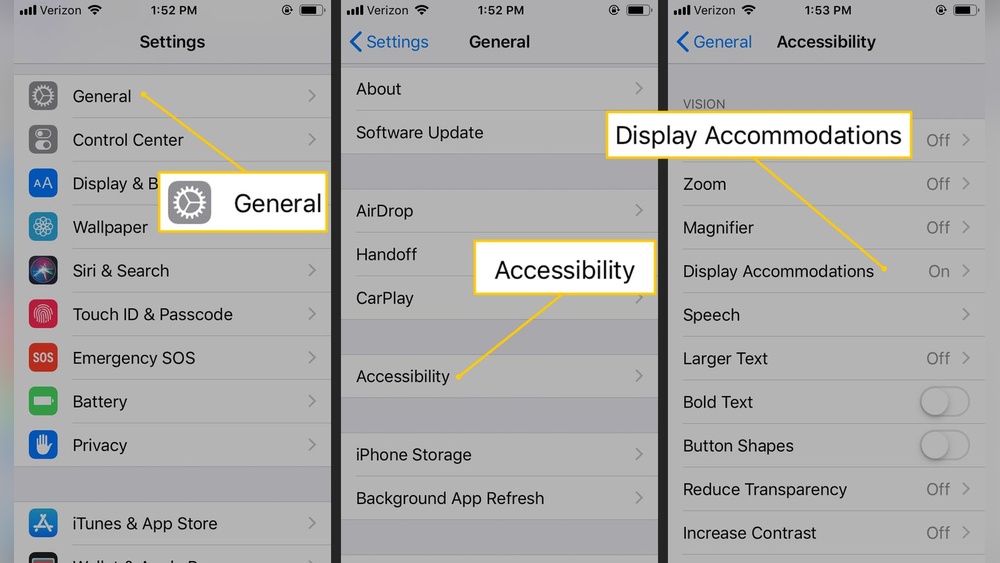
Inverting colors on an iPhone changes the screen’s color scheme. This feature helps reduce eye strain and improves visibility for some users. It can also make reading easier in low light or bright settings. Apple offers two main color inversion options: Classic and Smart Invert. Classic inverts all colors on the screen, while Smart Invert reverses colors except for images and media. Both options are found within the iPhone’s Accessibility settings.
Display & Text Size Options
Start by opening the Settings app on your iPhone. Scroll down and tap Accessibility. Next, select Display & Text Size. Here, you will find the options for color inversion.
Toggle on Classic Invert to reverse all colors. This changes everything on your screen to its opposite color. Choose Smart Invert to invert colors but keep images and some media unchanged. These options help users customize their screen according to their needs.
Accessibility Shortcut Setup
Setting up an Accessibility Shortcut allows quick access to invert colors. Go to Settings, then tap Accessibility. Scroll to the bottom and select Accessibility Shortcut.
Check the box for Color Filters or Invert Colors. After this, triple-click the side button on your iPhone to toggle color inversion on or off anytime. This shortcut saves time and makes it easy to switch modes without opening Settings.
Invert Colors On Chromebook
Inverting colors on a Chromebook helps reduce eye strain and improves screen visibility. This feature is useful in low-light environments or for users with visual impairments. Chromebook offers a quick way to switch colors without changing display settings manually.
Using the keyboard shortcut is the fastest method to invert colors on your Chromebook. It toggles the feature on and off instantly. This makes it convenient to switch back to normal view anytime.
Keyboard Shortcut Method
Press Ctrl + Search + H together to invert colors on your Chromebook. The Search key is also called the Launcher key and looks like a magnifying glass. This shortcut flips all screen colors to their opposite.
To revert, press the same keys again. The screen returns to its normal color scheme immediately. This method works on most recent Chromebook models and Chrome OS versions.
Invert Colors In Photoshop
Inverting colors in Photoshop changes the colors of an image to their opposite values. This effect can create striking visuals or help with detailed editing tasks. Photoshop offers simple tools to invert colors quickly and precisely.
Understanding how to invert colors in Photoshop helps enhance your editing skills. Follow these steps to achieve the best results.
Using The Invert Adjustment Layer
Open your image in Photoshop. Go to the Layers panel. Click the “Create new fill or adjustment layer” icon at the bottom. Select “Invert” from the list.
This adds an adjustment layer that inverts the colors non-destructively. You can toggle the effect on or off anytime.
Keyboard Shortcut To Invert Colors
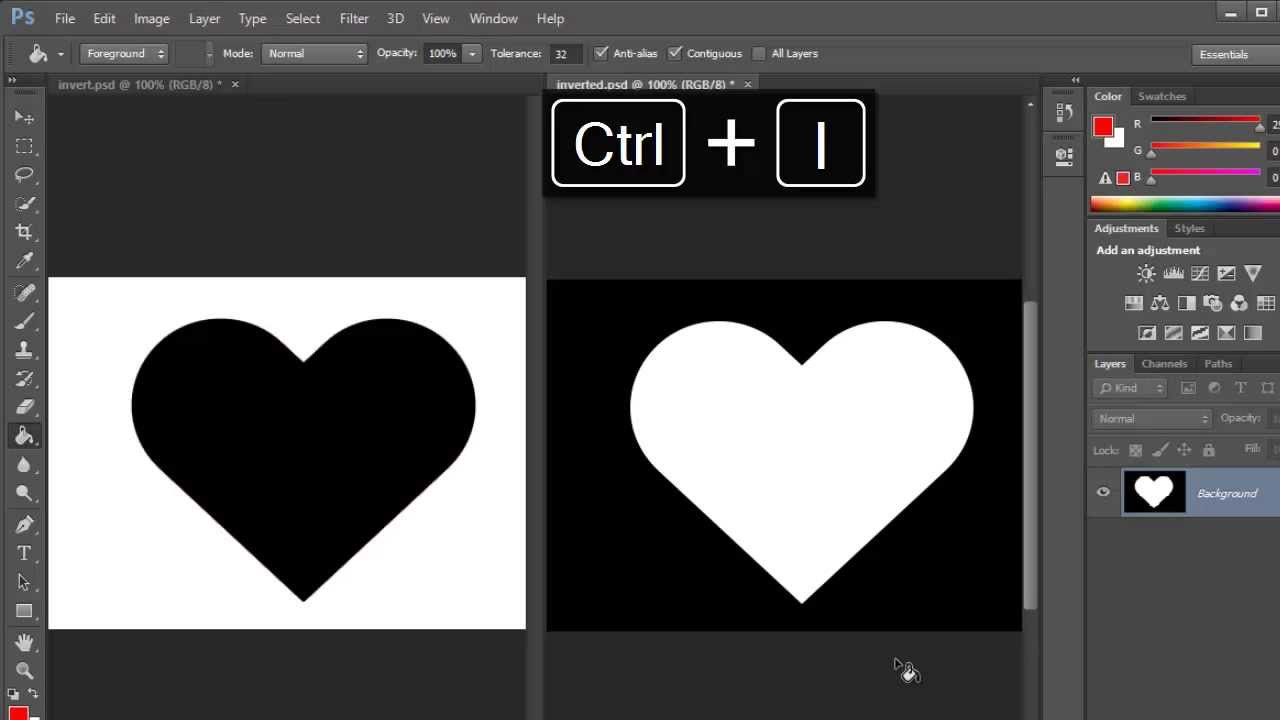
Photoshop allows quick inversion with a shortcut. Press Ctrl + I (Windows) or Cmd + I (Mac). This directly inverts the colors of the active layer or selection.
It works well for fast edits but changes the image permanently unless undone.
Inverting Colors On A Specific Selection
Use selection tools to highlight the area you want to invert. Then apply the inversion via the adjustment layer or shortcut. This targets color inversion to just part of your image.
Selections can be refined for precise control over the inverted area.
Invert Colors In Illustrator
In Adobe Illustrator, inverting colors can help create unique designs and effects. The process is simple and does not require complex tools. You can quickly change colors to their opposites on the color wheel. This technique can enhance your artwork or prepare it for different backgrounds.
Using The Edit Colors Tool
First, select the object or artwork you want to invert. Go to the top menu and click on Edit. Choose Edit Colors, then select Invert Colors. Illustrator will automatically switch each color to its opposite. This method works well for vector shapes and fills.
Applying A Color Adjustment Effect
Select your artwork, then open the Effect menu. Hover over Adjust Color, and click Invert Colors. This applies a live effect that you can edit or remove later. It is useful for testing different color inversions without changing the original colors permanently.
Using The Recolor Artwork Feature
Select your objects, then click the Recolor Artwork button in the toolbar. In the dialog box, find the option to invert colors. This feature gives more control to adjust specific color groups. You can fine-tune the inversion for better color harmony.
Impact On Images And Videos
Inverting colors changes the look of images and videos significantly. Colors shift to their opposites on the color wheel. This can create unique visual effects. Yet, it can also cause some details to become harder to see.
Understanding these impacts helps decide when to use color inversion. It affects clarity, mood, and how viewers perceive media content. The following sections explain these effects in simple terms.
Effect On Image Details
Inverted colors can blur fine details in images. Light areas turn dark and dark areas become light. This switch sometimes hides textures and small features. It may make images look unusual or harder to interpret.
Changes In Video Appearance
Videos also undergo a color shift when inverted. Bright scenes may look dim, and shadows may appear bright. This can confuse the scene’s original lighting. Movement remains clear, but color cues change drastically.
Impact On Visual Comfort
Inversion can reduce eye strain in some cases. Dark backgrounds with light text often feel softer to the eyes. Yet, some images or videos may become uncomfortable to watch. This depends on the colors and brightness levels inverted.
Use Cases For Color Inversion
Color inversion suits accessibility needs for some viewers. It helps those with light sensitivity or color blindness. Artists use inversion to explore creative ideas. Knowing how it affects images and videos guides its best use.
Quick Toggle Tips
Quick toggle tips make inverting colors easy and fast. They help switch color modes without digging into menus. This saves time and reduces eye strain in low light. Learn simple methods to turn color inversion on or off with just a few clicks or taps.
Using Accessibility Shortcuts
Most devices include shortcuts to toggle color inversion quickly. On Windows, press Win + Ctrl + C to switch colors. On iPhones, set up a triple-click on the side button in Accessibility settings. Android users find the option under Settings > Accessibility > Color inversion. Mac users can enable an accessibility shortcut in System Preferences. These shortcuts give instant control over color modes.
Combining Dark Theme With Inversion
Using a dark theme along with color inversion improves screen comfort. Dark themes reduce bright whites, while inversion flips colors for better contrast. This combo works well in dim environments or at night. Activate your device’s dark theme first, then turn on color inversion. Many apps and operating systems support both settings. This pairing reduces eye fatigue effectively.

Credit: www.youtube.com
Frequently Asked Questions
How Do I Turn On Invert Colors?
Open Settings, go to Accessibility, then Color and motion (or Display & Text Size). Toggle on Color inversion. On Windows, press Win + Ctrl + C to toggle. On Mac, open System Preferences > Accessibility > Display, then check Invert Colors.
How To Invert Colors With Ctrl?
Press Win + Ctrl + C on Windows to toggle color inversion quickly. Alternatively, use Ctrl + Alt + I with Magnifier active. On Mac, use Accessibility settings to invert colors. IPhone and Android also offer accessibility shortcuts for color inversion.
How Do I Invert The Colors On A Chromebook?
Press Ctrl + Search + C on your Chromebook to toggle color inversion. Alternatively, go to Settings > Accessibility > Manage accessibility features, then enable “Invert colors. “
How To Invert Colors On Picture On Iphone?
Open Settings on your iPhone. Go to Accessibility > Display & Text Size. Enable Smart Invert or Classic Invert to invert picture colors.
What Does It Mean To Invert Colors On A Device?
Inverting colors swaps light and dark colors, making the screen easier to see for some users.
How Can I Invert Colors On A Windows Computer?
Press Win + Ctrl + C to toggle color inversion or use Settings > Accessibility > Color Filters.
Is There A Shortcut To Invert Colors On Mac?
Yes, go to System Preferences > Accessibility > Display and check “Invert colors” or set a shortcut.
How Do I Invert Colors On An Android Phone?
Open Settings > Accessibility > Color and motion > Color inversion, then turn it on.
Can I Invert Colors Quickly On An Iphone?
Set up Accessibility Shortcut in Settings > Accessibility > Display & Text Size to toggle inversion fast.
Why Would Someone Want To Invert Colors On Their Screen?
Inverted colors reduce eye strain and improve readability for users with vision difficulties.
Conclusion
Inverting colors helps reduce eye strain and improves screen visibility. Most devices offer easy settings or shortcuts to toggle this feature. Whether on Windows, Mac, Android, or iPhone, you can switch colors quickly. Experiment with these options to find what works best for you.
Simple steps make color inversion accessible for everyone. Try it today and see the difference it brings to your screen experience.