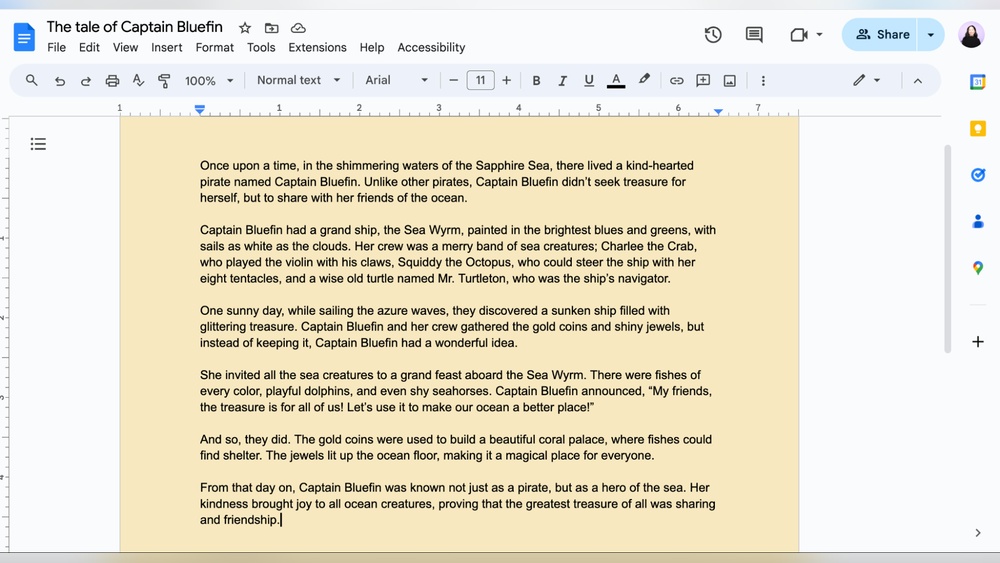
Want to make your Google Docs stand out or simply easier on the eyes? Changing the background color of your document can do just that.
Whether you’re working on a presentation, a report, or just want a fresh look, customizing the background color is a quick and effective way to personalize your workspace. In this guide, you’ll learn exactly how to change the background color in Google Docs step-by-step—no complicated tricks, just simple instructions you can follow right now.
Keep reading and transform your documents in seconds!
Change Background Color In Google Docs
Changing the background color in Google Docs can make your document stand out. It helps highlight important information and improves readability. The process is simple and takes only a few clicks.
This guide explains how to change the background color for your entire Google Docs document. Follow the steps below to customize your page color quickly.
Open Page Setup In Google Docs
Start by opening your Google Docs document. Click on the File menu at the top left corner. From the dropdown, select Page setup. This opens a new settings window for your document layout.
Select Background Color
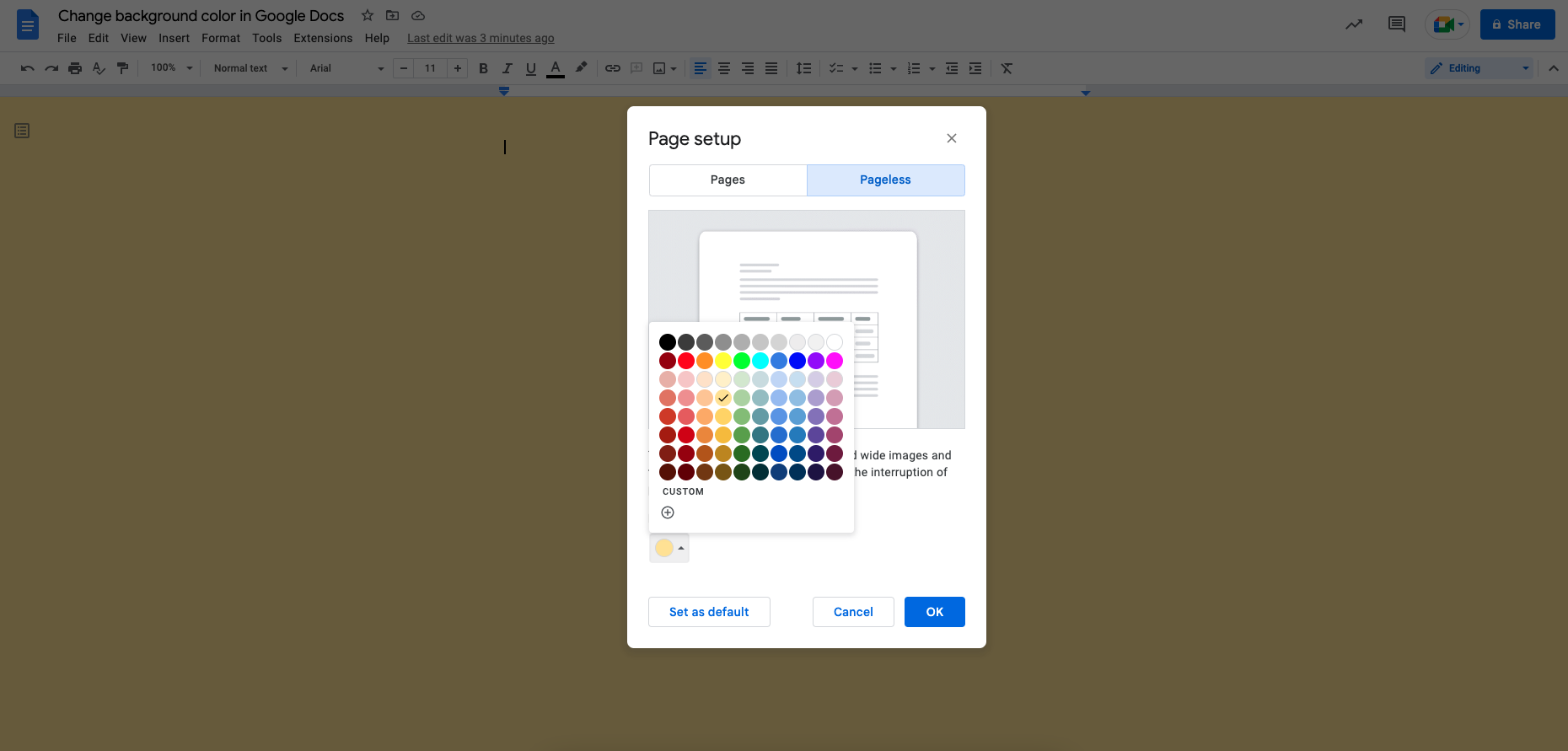
In the Page setup window, find the Page color option. Click on the color box next to it. A palette of colors will appear. Choose the background color you want for your document pages. You can select from standard colors or click Custom to pick your own shade.
Apply The Color To The Whole Document
Under the Apply to dropdown, make sure Whole document is selected. This ensures the background color changes on every page. After selecting the color and confirming the area to apply, click OK to save your settings. The new background color will appear immediately.
Accessing Page Setup
Accessing the Page Setup is the first step to change the background color in Google Docs. This section allows you to customize the look of your document. The process is simple and takes only a few clicks.
By opening Page Setup, you can find options for page size, margins, and color. It controls the entire document’s appearance. Knowing how to reach this menu saves time and effort.
Open Your Google Docs Document
Start by launching Google Docs and opening the file you want to edit. This ensures you make changes to the right document. Make sure you are signed in to your Google account.
Click On The File Menu
Look at the top-left corner of the screen. Click on the “File” menu to reveal a list of options. This menu holds many important settings, including Page Setup.
Select “page Setup” From The Dropdown
Scroll down the File menu and click on “Page Setup.” A new dialog box will appear. This box contains several settings to adjust your document’s layout and design.
Selecting Whole Document Option
Changing the background color of your entire Google Docs document creates a consistent look. Using the “Whole document” option applies the chosen color to every page. This method is simple and saves time compared to coloring pages individually.
Selecting the whole document ensures your background color covers all text areas. It works well for reports, presentations, or any file needing a uniform style. Follow clear steps to make the change easily.
Selecting The Whole Document Option
Start by opening your Google Docs file. Click File in the top menu. Then, choose Page setup from the dropdown list. A dialog box will appear.
In this box, find the Apply to dropdown menu. Click it and select Whole document. This tells Google Docs to change the background color for all pages, not just one.
Choosing Your Background Color
Next, click the color box next to Page color. A color palette will show. Pick the color that fits your style or project needs. You can choose from preset colors or create a custom shade.
Applying The New Background Color
After selecting your color, click the OK button. Google Docs will instantly update the background color across every page. Your whole document now has a fresh, new look.
Choosing A Page Color
Choosing a page color in Google Docs helps personalize your document. It can make your work stand out or make reading easier. A simple background color change can add style or improve focus on your content.
Changing the page color is quick and requires no special skills. The color applies to the whole document, keeping it consistent. This feature works well for presentations, reports, or creative writing.
Accessing The Page Setup Menu
Start by opening your Google Docs file. Click on the File menu at the top left. From the dropdown, choose Page setup. This opens a new window where you can adjust page settings.
Selecting The Desired Page Color
Inside the Page setup window, find the Page color option. Click the color box to open the palette. Pick a color that fits your document’s purpose. Light colors work best for readability.
Applying The Color To The Document
After choosing your color, look at the Apply to dropdown menu. Make sure Whole document is selected. Click OK to save changes. Your page color updates immediately across all pages.
Applying The Color Change
Applying the color change to your Google Docs document is a simple and quick process. It lets you customize the look of your pages and make your text stand out. The color you choose will fill the entire background of your document, giving it a fresh new appearance. Follow these clear steps to make the change happen smoothly.
Open Page Setup
Start by opening your Google Docs file. Look for the File option in the top menu bar and click it. A dropdown menu will appear. Find and select Page setup from the list. This opens the settings where you can adjust the background color.
Select Background Color
Inside the Page setup window, find the Page color box. Click on this box to open a palette of colors. You can choose from standard colors or click on Custom to create your own shade. Pick the color that fits your style or project needs.
Apply Color To Whole Document
Check the Apply to dropdown menu. Make sure Whole document is selected. This ensures the background color changes on every page, not just one. If you want only a part colored, other methods are needed, but for most uses, the whole document option works best.
Confirm And Save Changes
After choosing your color and confirming the area to apply it, click the OK button. Google Docs will instantly update your document’s background color. You can now see the new look and continue editing your text or add images with the new background in place.

Credit: www.businessinsider.com
Using Custom Colors
Using custom colors in Google Docs allows you to personalize your document background beyond the preset options. This feature helps you pick any shade that fits your style or branding. Custom colors provide more flexibility and make your document visually unique.
You can create colors by mixing red, green, and blue values or by entering a hex color code. This way, you get the exact color you want without limits.
Accessing The Custom Color Picker
First, open your Google Docs document. Then, click File in the top menu. Choose Page setup from the dropdown menu. In the pop-up window, find the Page color box and click it. This opens the color palette.
At the bottom of the palette, click Custom to open the custom color picker. Here, you can create a new color by adjusting the sliders or entering a hex code.
Selecting A Custom Color
Use the color sliders to change the red, green, and blue values. Watch the preview box to see your chosen color in real time. For more precision, enter the hex color code if you know it. This code starts with a followed by six letters or numbers.
Once happy with your selection, click OK to apply the custom color as your document background.
Applying And Saving The Custom Color
After selecting the custom color, ensure Whole document is chosen under the Apply to menu. Click OK in the Page setup window to save changes. Your entire document will now have the custom background color.
Remember, this background color applies to all pages. You can change it anytime by repeating these steps.
Changing Background On Mobile
Changing the background color on Google Docs mobile app differs from the desktop version. The mobile app has limited options for page background colors. You cannot directly change the whole document background color like on desktop. However, there is a simple workaround using the highlight or drawing tools. This method allows you to add color behind your text or create colored sections in your document.
Using The Highlight Tool To Add Background Color
Open your document in the Google Docs mobile app. Select the text you want to add background color to. Tap the “A” icon in the top menu to open text formatting options. Choose “Highlight” from the menu. Pick the color you want for the background. The selected text will now have a colored highlight behind it. This method works well for small sections or paragraphs.
Inserting A Colored Drawing For Full Background
Tap the “+” button in the top right corner. Choose “Drawing” from the menu. In the drawing window, tap the “Shape” icon. Select a rectangle and resize it to cover the entire drawing canvas. Tap the paint bucket icon to choose a fill color. Save and close the drawing. The colored rectangle will appear in your document. Adjust its position and size to cover the page area. Send the drawing behind the text by selecting “Wrap text” and then “Behind text.”
Limitations Of Background Color On Mobile
The mobile app does not support changing the entire page color like desktop. Highlighting only colors behind text, not the full page. Drawings add color but may affect text formatting. For full background changes, use the desktop version. Keep these limits in mind when editing on mobile devices.
Credit: www.indeed.com
Enabling Dark Mode On Mobile
Enabling dark mode on your mobile device helps reduce eye strain and saves battery life. Google Docs offers a dark theme that changes the background color to black or dark gray. This mode makes reading and editing documents easier in low-light settings. Activating dark mode on mobile is quick and does not require changing each document’s background color manually.
How To Turn On Dark Mode In Google Docs App
Open the Google Docs app on your mobile device. Tap the three horizontal lines in the top left corner to open the menu. Scroll down and select “Settings.” Find the “Theme” option and tap it. Choose “Dark” from the list of themes. The app will switch to dark mode immediately.
Using System Dark Mode To Change Google Docs Background
On Android or iOS, you can enable system-wide dark mode. This setting affects all apps that support dark themes, including Google Docs. Go to your device’s “Settings” and find the “Display” or “Appearance” option. Turn on “Dark Mode” or “Night Mode.” Google Docs will follow this setting and change its background color accordingly.
Benefits Of Using Dark Mode On Mobile
Dark mode reduces eye fatigue during long editing sessions. It helps save battery on devices with OLED screens. Reading text is easier in dim environments. The contrast between text and background improves focus. Dark mode also gives the app a modern and sleek look.
Using Browser Extensions For Dark Mode
Using browser extensions is a simple way to enable dark mode in Google Docs. These extensions change the background color of the page without altering your document. They work directly within your browser. This method is useful for users who want a darker screen for comfort or to reduce eye strain.
Most extensions offer easy toggles to switch between light and dark modes. They also allow customization of colors and brightness levels. This way, you can adjust the look to fit your preferences and environment. The changes appear instantly, making it quick and convenient.
Choosing The Right Dark Mode Extension
Pick an extension that works well with Google Docs. Look for high ratings and positive reviews. Check if the extension supports color customization. Some popular options include Dark Reader and Midnight Lizard. These are known for their reliability and features.
Installing And Activating The Extension
Go to your browser’s extension store. Search for the chosen dark mode extension. Click “Add to browser” to install it. After installation, click the extension icon near the address bar. Turn on dark mode with a single click. You can adjust settings from the extension menu.
Customizing Background Colors In Google Docs
Once dark mode is active, adjust the background color as needed. Extensions often provide sliders for brightness and contrast. Some let you pick specific colors for the background and text. Experiment with these settings for the best reading experience. Changes apply immediately and only affect your view.
Tips For Background Color Choices
Choosing the right background color in Google Docs enhances readability and sets the tone of your document. It influences how readers feel and understand your content. A good color choice keeps readers focused and makes your text easier to read.
Consider the purpose of your document and the audience’s comfort. Some colors work better for formal documents, while others suit creative projects. Balancing aesthetics and function is key to effective background color selection.
Choose Light Colors For Better Readability
Light backgrounds reduce eye strain and improve text visibility. Colors like white, pale yellow, or soft pastels work well. They create a clean, professional look that suits most documents.
Use High Contrast Between Text And Background
Ensure your text color stands out against the background. Dark text on a light background or light text on a dark background is easy to read. Avoid colors that clash or blend together.
Match Background Color To Document Purpose
Pick colors that fit your document’s theme. Blue or green tones feel calm and trustworthy, good for reports. Warm colors like orange or red attract attention but use them sparingly.
Test Colors On Different Screens
Colors may look different on various devices. Check your document on a phone, tablet, and computer. This helps confirm your background color stays clear and comfortable everywhere.
Keep Accessibility In Mind
Choose colors that are friendly for people with color blindness or vision difficulties. Tools like color contrast checkers help find safe combinations. Clear, simple colors make your document inclusive.
Credit: www.businessinsider.com
Frequently Asked Questions
How Do I Change The Page Background Color In Google Docs?
Open your Google Docs file, click File > Page setup, select “Whole document” in “Apply to,” pick a color under “Page color,” and press OK.
How To Make The Google Docs Background Black?
Open Google Docs mobile app, go to Menu > Settings > Theme, and select Dark. For desktop, install a dark mode extension like “Dark Mode Google Docs” from Chrome Web Store. This changes the interface background to black, improving readability and reducing eye strain.
How Do I Change The Background Color On Google?
To change the background color on Google Docs, open your document, click File > Page setup. Select “Whole document,” pick a color under “Page color,” then click OK. This changes the background color for the entire document.
How To Get Rid Of The Grey Background In Google Docs?
Open your Google Docs document, click File > Page setup, select “Whole document,” choose a white or desired color under Page color, then click OK. This removes or changes the grey background to your preferred shade.
How Do I Change The Background Color In Google Docs?
Go to File > Page setup, choose Page color, pick a color, and click OK.
Can I Change Background Color On Only One Page In Google Docs?
No, Google Docs only allows background color changes for the whole document.
Where Is The Page Color Option In Google Docs?
It is found under File > Page setup in the Google Docs menu.
Does Changing Background Color Affect Text Visibility In Google Docs?
Yes, choose a background color that contrasts well with your text color.
Can I Use Custom Colors For Background In Google Docs?
Google Docs offers preset colors; custom colors are not supported yet.
Will The Background Color Show When I Print My Google Doc?
No, background colors do not print by default in Google Docs.
Conclusion
Changing the background color in Google Docs is quick and simple. Follow the steps to personalize your document easily. A different background can make your text clearer and more attractive. Experiment with colors to find what suits your style best.
Keep your document readable and neat. Now, you can create documents that stand out without extra effort. Try it today and enjoy a fresh look for your files.