Want to make your Instagram Stories stand out with a fresh, eye-catching background color? Changing your IG Story background color is easier than you think—and it can completely transform the look and feel of your posts.
Whether you want a solid color to highlight your message or a custom shade that matches your style, you’re just a few taps away from creating Stories that grab attention and keep your followers engaged. Keep reading, and you’ll discover simple, step-by-step tips to master this cool Instagram trick and elevate your Stories like a pro!

Credit: www.youtube.com
Open Instagram Story Creator
Opening the Instagram Story creator is the first step to change your story background color. It gives you a blank canvas to work with. You can start adding colors, text, and images here.
Accessing the Story creator is quick and simple. It lets you customize your story with different tools. You control how your story looks from this screen.
Launch The Instagram App
Tap the Instagram icon on your phone to open the app. Make sure you are logged in to your account. The app opens to your home feed.
Access The Story Camera
Swipe right from your feed or tap the plus (+) icon at the top left. This action opens the Story camera interface. It shows the viewfinder and editing options.
Select The Create Mode
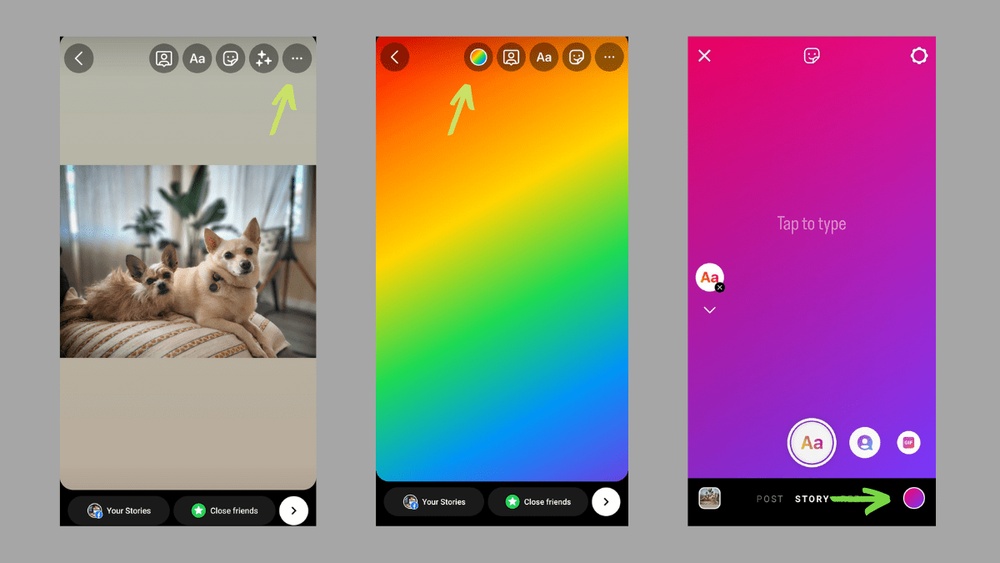
At the bottom, swipe to find the “Create” mode. It looks like a text icon or a “Aa” symbol. This mode is best for changing background colors without photos.
Prepare To Change Background Color
The screen now shows a plain background and editing tools. You can pick colors, add text, or use stickers here. This is where you start customizing your story background.

Credit: skedsocial.com
Add Photo Or Post To Story
Adding a photo or post to your Instagram Story lets you share moments with a creative touch. You can personalize your Story by changing the background color behind the photo or post. This makes your content more eye-catching and unique.
Instagram offers simple tools to customize the background. Use the draw tool for solid colors or add another image as a background. These options help you highlight your photo or post in a stylish way.
Add A Photo Or Post To Your Story
Open Instagram and tap the “+” icon or swipe right to open the Story camera. Choose a photo from your gallery or capture a new one. You can also tap the paper airplane icon below a post and select “Add post to your story.”
Change Background Color Behind The Photo Or Post
After adding your photo or post, tap the draw tool icon on the top right. Select a color from the palette. Hold your finger on the screen to fill the entire background with that color. This creates a solid, vibrant background behind your content.
Add A Custom Image Background
Tap the sticker icon and select the photo sticker option. Choose an image from your camera roll to use as a background. Resize and move it behind your main photo or post. Layering the images adds depth and style to your Story.
Access Draw Tool
The Draw Tool on Instagram Stories lets you change your story’s background color easily. It offers simple options to fill your screen with colors or add creative touches.
Finding and using the Draw Tool is quick and straightforward. This tool gives you control over how your story looks behind your photos or text.
Open Instagram Story Creation
Start by opening the Instagram app on your phone. Tap the plus icon or swipe right to access the story camera. You can take a new photo or upload one from your gallery.
Locate The Draw Tool Icon
On the top right of your screen, you will see several icons. Tap the pencil icon to open the Draw Tool. This icon represents the drawing and coloring options.
Select Your Color
After opening the Draw Tool, a color palette appears at the bottom. Swipe left or right to find the color you want. You can also press and hold a color to see more shades.
Fill The Background
To change the background color, press and hold your finger on the screen. The entire story background will fill with the selected color. This covers any existing image or text behind.
Adjust Your Design
If the color covers your content, use the undo button or the eraser tool. You can then redraw or adjust your story elements as needed.
Choose Background Color
Choosing the right background color can make your Instagram Story stand out. It sets the tone and highlights your content clearly. Instagram offers easy options to pick a color that fits your style or message.
Changing the background color is simple and fast. You can use preset colors or create your own custom shade. Both methods let you personalize your Story perfectly.
Select Preset Colors
Instagram provides a palette of preset colors for quick selection. These colors appear as dots at the bottom of the screen. Tap any dot to change the background instantly.
Preset colors offer vibrant and popular choices. They suit most moods and themes without extra effort. Use them to keep your Story bright and eye-catching.
Pick Custom Shades
For more control, Instagram lets you pick custom shades. Tap and hold a preset color dot to open the color slider. Slide your finger to find the perfect hue.
You can adjust brightness and saturation easily. This helps match your brand or personal vibe exactly. Custom shades create unique and memorable Stories.
Fill Background With Color
Filling the background with color on your Instagram Story can make your content stand out. This simple step helps highlight your message or photo clearly. You can choose any color to match your style or mood.
The process is easy and fast. No special tools needed. Just a few taps and your story looks fresh and vibrant.
Open Instagram Story Editor
Start by opening the Instagram app. Swipe right or tap the plus icon to create a new story. Choose a photo or start with a blank canvas.
Select The Draw Tool
Tap the draw icon at the top of the screen. It looks like a squiggly line. This tool lets you paint over the story background with your chosen color.
Pick Your Color
At the bottom, you will see color options. Swipe to find more colors or tap and hold a color to open the full palette. Pick the color you want for your background.
Fill The Background
Hold your finger down anywhere on the screen. The entire background will fill with the selected color. Lift your finger when done.
Add Stickers Or Text
After filling the background, add stickers, text, or other elements. This makes your story more engaging and personalized.
Credit: www.kapwing.com
Add Photo Background Instead
Changing your Instagram Story background can make your posts more attractive.
Instead of a plain color, use a photo as your background.
This method adds personality and style to your story.
Select Photo Sticker
Open Instagram and start a new story.
Tap the sticker icon at the top of the screen.
Choose the “Photo” sticker option from the list.
This lets you add a photo on top of your current story.
Choose Image From Gallery
After selecting the photo sticker, your gallery opens automatically.
Pick any image you want as your background.
The selected photo appears on your story screen.
Resize and move the photo to cover the entire background.
Now your story has a unique photo background.
Adjust Photo Background Size
Adjusting the photo background size is key to making your Instagram Story look balanced. It helps highlight the photo while keeping the background color visible.
This step is simple and improves your story’s overall appearance. You can control how much space the photo takes up on the screen.
Resize The Photo
Tap the photo to select it. Use two fingers to pinch inward or outward. Pinching inward makes the photo smaller. Pinching outward makes it bigger. Adjust until you like the size.
Move The Photo
Drag the photo to place it where it fits best. Place it in the center or off to one side. Moving the photo changes how the background color shows behind it.
Keep The Background Visible
Make sure the photo is not too large. A big photo can cover the background color. Leave some space around the photo to show the color clearly.
Layer Background Behind Post
Adding a background layer behind your Instagram Story post helps make it stand out. This technique changes the look of your story without altering the original post. It also allows you to use colors or images that match your style or message.
You can create a solid color background or use a photo as the background layer. This makes your story more appealing and eye-catching. The process is simple and works well for shared posts or your own content.
How To Add A Solid Color Background Layer
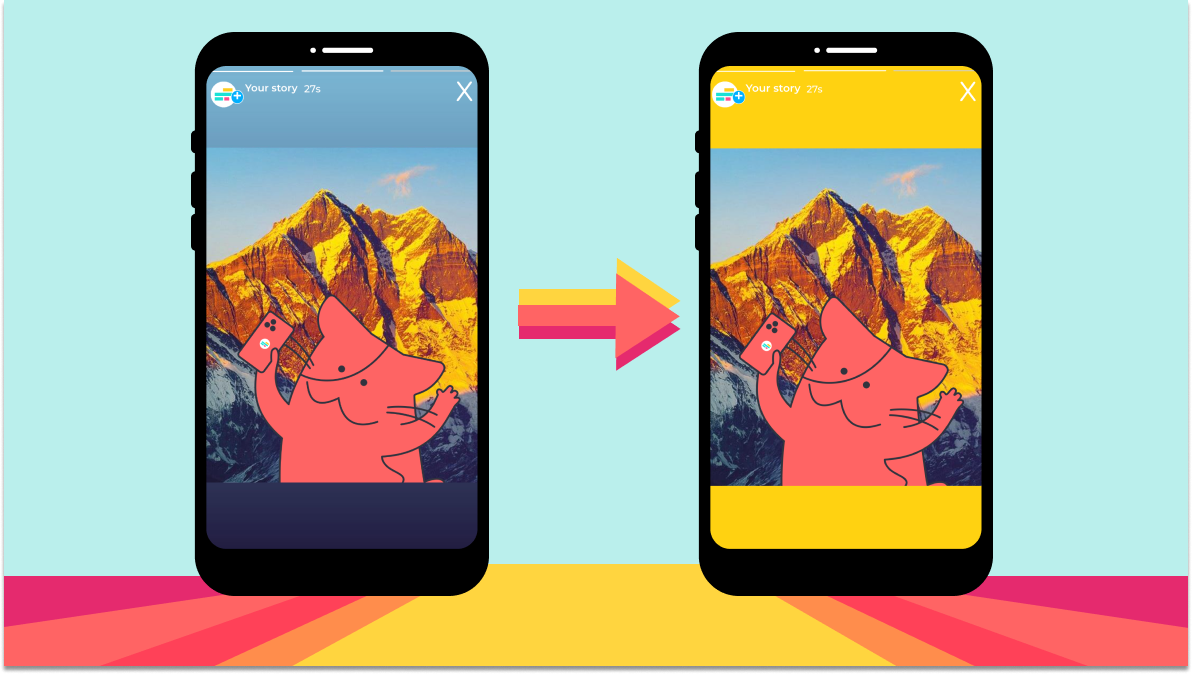
First, add the post to your Instagram Story. Tap the drawing tool at the top. Choose a color from the palette. Hold your finger down on the screen. The screen will fill with the selected color behind the post. Adjust the post size or position if needed.
Using A Photo As A Background Layer
After adding the post to your story, tap the sticker icon. Select the photo sticker option. Choose an image from your camera roll. Place the image behind the post by resizing and moving it. This creates a custom background that fits your story theme.
Tips For Layering Backgrounds Effectively
Keep the background simple to avoid distraction. Use colors that match your post’s mood. Make sure the post is clearly visible on top. Experiment with different images or colors. This helps create a unique and attractive story.
Customize Story Elements
Customizing your Instagram Story background color is just the start. You can make your stories stand out by adjusting various elements. These tweaks help create a unique look that fits your style. Simple changes like resizing posts or adding text can make a big impact. Let’s explore how to customize story elements to enhance your Instagram Story.
Resize Shared Post
After adding a shared post to your story, tap on it to resize. Drag the corners inward or outward to make it smaller or larger. Moving the post around lets you position it perfectly. Resizing helps balance the story’s layout and keeps the background visible. This control makes your story more attractive and easy to read.
Add Text And Stickers
Tap the text icon to add words to your story. Choose a font style and color that matches your background. Position the text where it fits best. Stickers add fun and personality. Use location tags, emojis, or GIFs to create interest. Adding these elements helps communicate your message clearly and grabs viewers’ attention.
Save And Share Your Story
Saving and sharing your Instagram Story after changing the background color is simple and quick. This step lets you keep your creative work or show it to friends and followers. Learn how to save your story and share it effectively.
Saving Your Instagram Story
After you finish editing, look for the download icon at the top of the screen. Tap it to save your story to your device. Your story will be stored in your phone’s gallery or camera roll. This way, you can access it anytime without opening Instagram.
Sharing Your Story With Followers
To share, tap the “Your Story” button at the bottom of the screen. Your story will be visible to all your followers for 24 hours. This is a great way to show your new background and any other edits you made.
Sharing Your Story Privately
You can also share your story with selected friends only. Choose the “Close Friends” option before posting. This limits who can see your story. It helps you control your audience and share more personal content.
Frequently Asked Questions
Can You Change The Background Color On An Instagram Story?
Yes, you can change the background color on an Instagram story. Use the draw tool, select a color, then tap and hold to fill the background. This lets you customize your story’s look easily before posting.
How Do I Change The Background Color In A Storyline?
To change the background color in a storyline, open the Home tab and click Player. Set Player Style to Modern. Select Colors & Effects, choose Custom, then pick your desired background color.
How Do I Change The Background Behind A Photo On Instagram?
To change the background behind a photo on Instagram, add the photo to your story. Use the draw tool to select and fill a solid color background by holding your finger on the screen. Alternatively, add a custom image from your camera roll behind the photo using layering.
How Do I Change My Instagram Background To Black?
Open Instagram app and go to your profile. Tap the menu icon, select Settings, then Theme. Choose “Dark” to change the background to black.
How Do I Change The Background Color On My Ig Story?
Open Instagram story, tap the drawing tool, hold a color to fill the background.
Can I Use Custom Colors For Ig Story Backgrounds?
Yes, you can select any color from the palette or use the color picker.
How To Change Background Color Behind A Shared Ig Post?
Add the post to your story, then use the draw tool to fill background color.
Is It Possible To Set A Gradient Background On Ig Stories?
Instagram does not support gradients directly, but you can create one externally and upload it.
How Do I Remove Or Reset The Background Color On Ig Story?
Tap the undo button or tap the erase tool to remove the background color.
Can I Change Story Background Color Without Adding Any Photo?
Yes, use the create mode in stories and select your desired background color.
Conclusion
Changing your Instagram Story background color is simple and fun. Use the draw tool or stickers to customize it easily. Choose colors that match your style or mood. This small change makes your stories more eye-catching. Practice a few times to feel confident with the steps.
Soon, your stories will look fresh and unique every time. Keep experimenting to find the best look for you. Happy storytelling!