
Is your cursor blending into the screen, making it hard to find or follow? Changing your cursor color can instantly boost your visibility and reduce eye strain, especially if you spend hours working or gaming on your computer.
Imagine having a cursor that stands out clearly against any background, making every click and movement effortless. In this guide, you’ll discover simple, step-by-step ways to change your cursor color on different devices. Whether you want a bright, bold pointer or something that suits your style, you’ll find easy tips to customize it just the way you like.
Ready to make your cursor work for you? Let’s dive in!
Credit: www.youtube.com
Change Cursor Color On Windows
Changing the cursor color on Windows helps improve visibility and personalizes your computer experience. Windows offers simple options to adjust the cursor color without extra software. Follow these steps to pick a color that suits your needs.
Access Ease Of Access Settings
Click the Start button on your desktop. Select the Settings gear icon to open the main menu. Find and click on Ease of Access. This section contains tools to improve your device’s usability.
Select Mouse Pointer Options
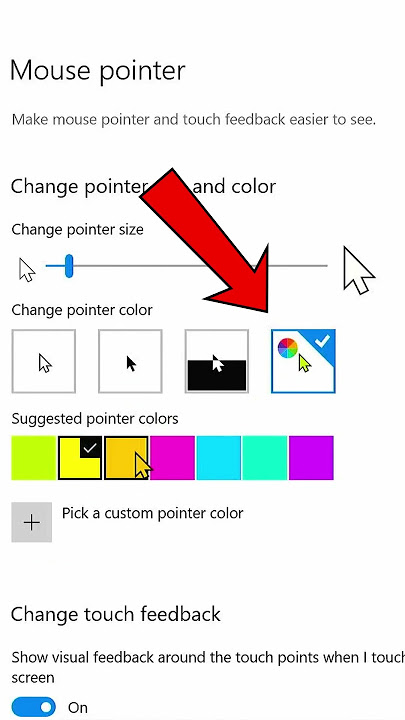
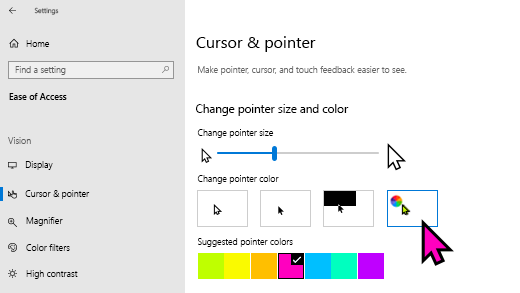
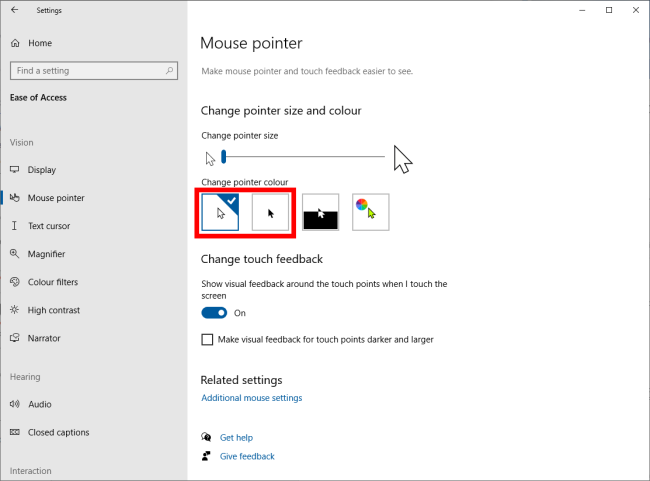
Inside Ease of Access, look for Mouse pointer on the left sidebar. Click it to view options for changing the pointer size and color. This area controls how your cursor looks on screen.
Pick A Predefined Or Custom Color
Windows shows several color choices for your cursor. Choose one of the predefined colors like white, black, or inverted. For a custom color, click on Pick a custom pointer color and select any shade you prefer. Your cursor color changes instantly.
Credit: www.softwarehubs.com
Adjust Cursor Size On Windows
Adjusting the cursor size on Windows helps improve visibility and comfort. Many users find a larger cursor easier to spot on busy screens. Windows offers simple settings to change the pointer size quickly. This guide shows how to find and set the size that suits you best.
Locate Pointer Size Controls
Start by clicking the Start button. Then open the Settings app. Next, select “Ease of Access” or “Accessibility.”
Look for the “Mouse pointer” option in the menu. Click it to open pointer settings. Here you can adjust the cursor size and color.
Choose Suitable Pointer Size
Find the slider labeled “Change pointer size.” Move the slider right to increase size.
Choose a size that makes the cursor easy to see but not too large. The change applies immediately so you can test sizes on the spot.
Select the size that feels most comfortable for your daily use. This simple step enhances your Windows experience.
Customize Cursor On Macos
Customizing the cursor on macOS lets you improve visibility and personalize your workspace. Changing the cursor color helps reduce eye strain and makes navigation easier. Apple offers built-in options to adjust cursor appearance without extra software.
Follow simple steps to modify cursor colors and outlines. These settings enhance the cursor’s look for better tracking on any background. The process is quick and works on the latest macOS versions.
Open System Settings
Start by clicking the Apple menu in the top-left corner of your screen. Select System Settings from the dropdown menu. This opens the main configuration panel for your Mac.
System Settings houses all options for managing your device’s behavior and appearance. It is the central place for accessibility adjustments, including cursor customization.
Navigate To Accessibility Display
Within System Settings, scroll down and find the Accessibility section. Click on it to open accessibility options. These tools help users with different needs improve their experience.
Next, select Display under the Accessibility menu. This area contains visual settings like cursor size and color adjustments. It is designed to make your screen easier to see and use.
Modify Pointer Outline And Fill Colors
In the Display settings, locate the options for Pointer Outline Color and Pointer Fill Color. Click the color swatches to pick new colors for each part of the cursor.
Choose colors that stand out against your desktop and app backgrounds. Changes apply immediately so you can see how the new colors look. Adjust until you find the perfect combination for your needs.
Credit: mcmw.abilitynet.org.uk
Change Cursor Color In Chrome
Changing the cursor color in Chrome can improve visibility and make browsing easier. This feature helps users who have difficulty seeing the default cursor. Chrome offers simple options to customize the cursor color quickly.
Go To Chrome Accessibility Settings
Open Chrome and click the three dots in the top-right corner. Select Settings from the menu. Scroll down and click on Advanced to expand more options. Find and click on Accessibility. This section contains tools to adjust your browsing experience.
Adjust Cursor And Touchpad Colors
Within Accessibility, look for the Cursor and touchpad settings. Here, you can change the cursor color from the default to a color that suits you better. Choose a color that stands out against your screen background. This makes the cursor easier to spot during browsing or work.
Use Cursor Themes And Styles
Using cursor themes and styles is an easy way to change your cursor color. Themes offer various designs and colors to suit your preferences. You can explore many options that fit your style and make your cursor easier to see.
Applying these themes is simple and fast. You do not need to use complex settings or tools. Just a few clicks will change your cursor’s look and color. This method works well for users who want a quick update.
Explore Available Cursor Themes
Start by looking at the available cursor themes. Many themes come with different colors and shapes. Some themes use bright colors to make the cursor stand out. Others have soft colors for a calm look.
You can find these themes in your system settings or online. Some apps and software also include built-in themes. Choose a theme that fits your needs and makes the cursor visible.
Apply Themes Via Command Palette
Using the Command Palette is a quick way to change the cursor theme. Open the Command Palette with the shortcut Ctrl+Shift+P or Cmd+Shift+P. Then type “theme” to see theme-related commands.
Select the option to change the cursor theme or color. Click on your preferred theme from the list. The new cursor color will apply immediately. This method saves time and lets you test themes fast.
Create Custom Cursor Colors
Custom cursor colors help your pointer stand out on any screen. This makes it easier to find and follow the cursor. You can choose colors that match your style or improve visibility.
Creating custom colors is simple. It involves picking a color and then applying it to your cursor. This section explains how to do both steps clearly.
Open Color Picker Tools
Start by opening a color picker tool on your computer or online. These tools let you select colors by adjusting sliders or entering color codes. You can find them in most graphic software or free websites.
Use the color picker to explore different shades and tones. Pick the exact color you want for your cursor. Note the color code if needed for later use.
Save And Apply Custom Colors
After selecting a color, save it in the color picker tool. Copy the color code if your system requires it. Next, go to your cursor settings on your computer.
Paste or select the saved color for your cursor. Apply the changes to see the new cursor color immediately. Test the cursor to ensure it is clear and visible on your screen.
Improve Cursor Visibility
Improving cursor visibility makes it easier to find and follow the pointer on your screen. This helps reduce eye strain and speeds up navigation. Adjusting the cursor color and size enhances visibility, especially for users with vision difficulties or on busy backgrounds.
Simple changes like choosing the right color and size can make a big difference. Here are two effective ways to improve your cursor’s visibility.
Select High-contrast Colors
Choose cursor colors that stand out against your desktop background. Bright colors like yellow, green, or red work well on dark backgrounds. On light backgrounds, darker colors like black or blue are easier to see. High contrast helps your eyes spot the cursor quickly.
Many operating systems offer preset color options with high contrast. You can also customize the color to match your preferences. This small change reduces confusion and helps you focus on your tasks.
Use Larger Cursor Sizes
Increasing the cursor size improves visibility on high-resolution screens. Larger cursors are easier to spot at a glance, especially during fast movements. This is useful for presentations or when working on detailed projects.
Most systems allow you to adjust the cursor size in the accessibility settings. Pick a size that feels comfortable and does not block too much of the screen content. A bigger cursor reduces the chance of losing it during work.
Troubleshoot Cursor Color Issues
Sometimes, changing the cursor color might not work as expected. Troubleshooting cursor color issues helps fix these problems quickly. Follow simple steps to identify and solve common problems. This guide focuses on checking system updates and resetting cursor settings to restore normal cursor behavior.
Check System Updates
Outdated system files can cause cursor color issues. Open your device’s settings and find the update section. Install all available updates to keep your system current. Restart your computer after updating. This step often fixes bugs affecting cursor appearance.
Reset Cursor Settings
Incorrect cursor settings may block color changes. Go to the mouse or accessibility settings on your device. Look for cursor or pointer options and reset them to default. Apply changes and test if the cursor color works correctly. Resetting clears any custom settings causing conflicts.
Third-party Cursor Customization Tools
Third-party cursor customization tools offer more options than built-in settings. They let you change cursor colors, shapes, and sizes with ease. These tools provide unique styles and effects to make your cursor stand out. Many users prefer these tools for better visibility and personalization. They work on different operating systems and are often free or low-cost.
Popular Software Options
Several popular tools allow easy cursor color changes. CursorFX offers many colorful and animated cursors. RealWorld Cursor Editor lets you create custom cursor designs. Stardock CursorFX supports cursor effects and animations. Mousecape is a good option for Mac users. These programs support various file formats and styles.
Installation And Usage Tips
Download software only from official or trusted sites. Follow installation steps carefully to avoid unwanted programs. After installation, open the app and explore cursor options. Choose a color or design that fits your style. Test the cursor to ensure it is visible and comfortable. Save your settings and restart your computer if needed. Keep your software updated for new features and security.
Keyboard Shortcuts For Cursor Settings
Keyboard shortcuts speed up changing cursor color and settings. You do not need to open multiple menus. Shortcuts let you adjust cursor features fast and easy. This saves time and effort for users who want quick changes.
Quick Access To Cursor Settings
Press Windows key + U to open Accessibility Settings directly. This is the fastest way to reach cursor options on Windows. From here, select Mouse pointer to change color and size.
On Mac, press Command + Space to open Spotlight Search. Type “Cursor” and select Cursor & Pointer settings. This shortcut brings you right to the cursor customization panel.
Toggle Cursor Features Easily
Use Ctrl + Shift + C in some apps to toggle cursor visibility. This helps when you want to quickly find your cursor on the screen. Some software allows this shortcut to switch cursor color or size.
In Windows Magnifier mode, press Ctrl + Alt + I to invert colors of the cursor. This makes the pointer more visible on various backgrounds. It is useful for users with vision challenges.
Frequently Asked Questions
How Do I Customize My Cursor Color?
Open Settings, go to Accessibility or Ease of Access, then select Mouse pointer. Choose a preset color or pick a custom one to change your cursor color.
How To Change Color Theme In Cursor?
Open Settings, go to Accessibility or Ease of Access, select Mouse pointer, then pick or customize your cursor color.
How Do I Change The Cursor Color In Chrome?
Open Chrome Settings, go to Accessibility, then Cursor and touchpad. Select a cursor color or customize it to your preference.
How Do I Change The Cursor Color From White To Black?
Open Settings and go to Accessibility or Ease of Access. Select Mouse pointer or Mouse pointer and touch. Choose black from the color options or pick a custom black color to change your cursor from white to black.
How Can I Change Cursor Color On Windows 10?
Go to Settings > Ease of Access > Mouse pointer to select a new cursor color.
Can I Customize Cursor Color On Mac Computers?
Mac does not support cursor color change natively; third-party apps are needed.
Is It Possible To Change Cursor Color In Google Chrome?
Yes, adjust cursor color via Chrome Settings > Accessibility > Cursor and touchpad.
How Do I Make My Cursor More Visible On Screen?
Change cursor size and color in accessibility settings for better visibility.
What Are The Best Cursor Colors For Visibility?
Bright colors like red, green, or yellow improve cursor visibility on most backgrounds.
Can I Change Cursor Color On Linux Operating Systems?
Yes, Linux allows cursor color changes through system settings or cursor themes.
Conclusion
Changing your cursor color can make your computer easier to use. It helps you find the pointer quickly on the screen. You can pick colors that suit your style or needs. The steps are simple and take only a few minutes.
Try different colors until you find the best one for you. Adjusting cursor size together with color can improve visibility even more. Keep your system settings updated for the best experience. Enjoy a more personalized and comfortable computer use every day.