Are you tired of your Google Calendar looking dull and hard to navigate? Changing the colors of your calendar can make your schedule clearer and more enjoyable to use.
Whether you want to quickly spot work meetings, family time, or personal tasks, assigning different colors helps you organize your day at a glance. In this guide, you’ll learn exactly how to change Google Calendar colors on both your computer and iPhone.
By the end, you’ll have a colorful, personalized calendar that makes managing your time easier and even a bit more fun. Let’s dive in!

Credit: www.youtube.com
Change Calendar Color On Desktop
Changing the color of your Google Calendar on a desktop helps organize your schedules. It makes identifying different calendars easy and quick. This simple customization improves your overall calendar experience.
Below are clear steps to change your calendar color on a desktop.
Open Google Calendar On Your Desktop
Start by going to calendar.google.com in your web browser. Make sure you are signed into your Google account. The main calendar page will load showing all your calendars.
Locate Your Calendar List
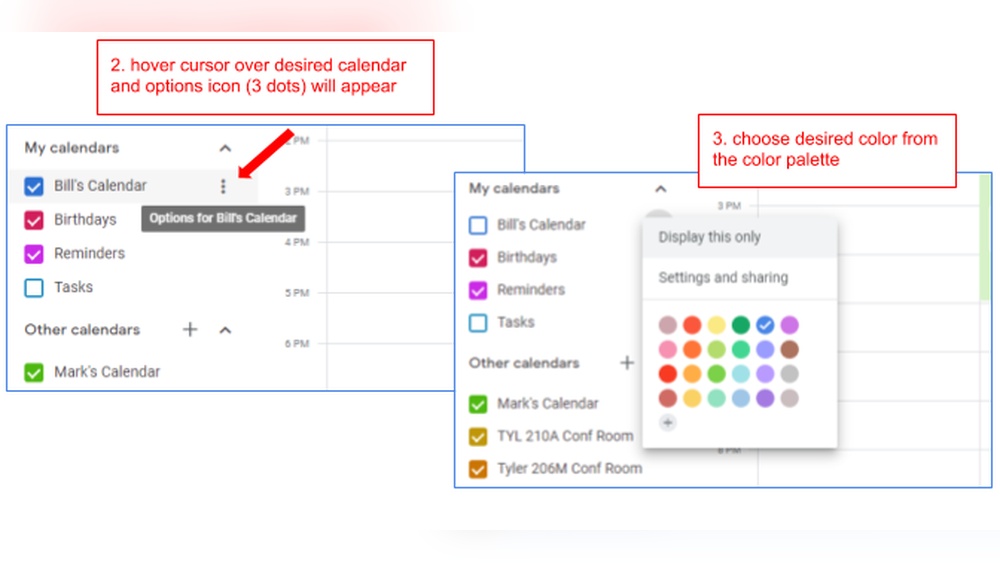
Look on the left side of the screen. Find the section labeled “My calendars.” This area lists all calendars linked to your account.
Select The Calendar You Want To Change
Hover your mouse over the calendar name. You will see three vertical dots appear next to it. Click these dots to open the calendar options menu.
Choose A New Color For Your Calendar
In the menu, you will see several color options. Click on any color to apply it immediately to the calendar. The calendar events will change to this new color.
Create A Custom Color
At the bottom of the color options, click the plus sign. A color picker window will open. Choose any custom color and save it. This color will now apply to your calendar.
Select Custom Colors With Hex Codes
Choosing custom colors with hex codes lets you personalize your Google Calendar. You can select exact shades that match your style or brand. This adds clarity and makes your events easy to spot.
Google Calendar allows adding colors using six-digit hex codes. Hex codes represent colors in web design and digital tools. Using hex codes ensures consistent color across devices and apps.
Select Your Calendar
Start by opening Google Calendar on your computer. Look for the calendar list on the left side. Find the calendar you want to change and click the three dots next to its name. This opens the color options menu.
Choose To Add A Custom Color
In the color menu, scroll down to find the plus sign or “Add custom color” option. Click this to open a new color picker window. Here, you can enter a hex code or pick a color manually.
Enter The Hex Code
Type your desired hex code into the box that starts with “”. Use codes like FF5733 for bright orange or 4A90E2 for blue. Press Enter or click outside the box to apply the color.
Save Your Changes
Once you enter the hex code, your calendar color updates immediately. Close the color picker window to save changes. Your events will now show in the new custom color.
Adjust Event Colors Individually
Changing event colors in Google Calendar helps keep your schedule clear and organized. You can assign different colors to individual events. This makes it easier to spot important appointments at a glance.
Adjusting event colors individually lets you highlight tasks without changing the whole calendar’s color. It adds a personal touch to your planning. Follow simple steps to customize event colors quickly.
Open Google Calendar And Select An Event
Go to your Google Calendar on a desktop or mobile device. Click or tap an event you want to change. This opens the event details window where you can edit the event.
Click The Color Palette Icon
Look for the color palette or paint bucket icon inside the event details. Click or tap it to see a list of color options. These colors are different from your calendar colors.
Choose Your Preferred Color
Select the color that fits the event type or priority. Google Calendar offers several preset colors. Pick one that stands out and helps you organize visually.
Save Your Changes
After choosing a color, click or tap the Save button. Your event will now display in the new color on your calendar. The change applies only to this event, not the whole calendar.
Modify Calendar Colors On Mobile
Changing calendar colors on your mobile device helps keep events organized. It makes your schedule easier to read and manage. The Google Calendar app allows quick color changes for each calendar.
Follow simple steps to customize colors directly from your phone. This way, you can spot your important events at a glance.
Open Google Calendar App
Start by opening the Google Calendar app on your mobile device. Make sure you are signed in to your Google account. The app displays all your calendars and events.
Access Calendar List
Tap the menu icon in the top left corner. Scroll down to find the list of your calendars. Each calendar has a small colored dot next to its name.
Select A Calendar To Change Color
Tap the three vertical dots next to the calendar you want to modify. This opens a menu with color options for that calendar.
Choose A New Color
Pick a color from the preset options shown. The color changes instantly and applies to all events in that calendar. If you want a custom color, some devices allow entering a hex code.
Save Your Changes
After selecting the color, simply exit the menu. The app saves your choice automatically. Your calendar events now appear with the new color on your mobile screen.
Use Color Coding For Organization
Color coding helps you see your schedule at a glance. It makes your calendar easier to read and manage.
Assigning different colors to events or calendars keeps tasks clear and separate. You avoid confusion and save time.
Identify Categories With Colors
Pick a color for each type of event or task. For example, use blue for work and green for personal activities.
This system lets you know what kind of event is coming up without reading details.
Prioritize Tasks Visually
Use bright colors for urgent tasks and lighter shades for less important ones. This helps you focus on what matters most.
Colors act as quick reminders for deadlines and priorities throughout your day.
Improve Collaboration
Share color-coded calendars with your team or family. Everyone can easily spot their own or shared events.
This reduces mix-ups and keeps everyone on the same page.
Customize Colors For Better Clarity
Google Calendar allows you to change default colors or add custom ones. Choose shades that feel natural and clear to you.
Custom colors help you create a system that fits your unique schedule and style.

Credit: www.appointmentreminders.com
Manage Multiple Calendars Colors
Managing colors for multiple Google Calendars helps keep your schedule clear and organized.
Assigning different colors to each calendar lets you see events at a glance.
This simple step reduces confusion and saves time when planning your day.
How To Assign Colors To Different Calendars
Open Google Calendar on your computer. Look at the left side under “My calendars.”
Find the calendar you want to change. Click the three dots next to it.
Select a color from the options or click “Add custom color” to choose your own.
Using Custom Colors For Better Visuals
Custom colors help match your personal style or work theme.
Click the plus sign in the color menu to open a color picker or enter a hex code.
Choose any shade to make your calendar stand out and easy to identify.
Changing Calendar Colors On Mobile Devices
Open the Google Calendar app on your phone. Tap the menu icon for “My calendars.”
Tap the calendar you want to edit. Choose “Color” and pick a new one.
The change will sync across all your devices automatically.
Set Default Calendar Colors
Setting default calendar colors in Google Calendar helps organize your schedule visually. Assigning colors to different calendars lets you spot events quickly. It also reduces confusion if you manage multiple calendars.
Google Calendar allows setting a default color for each calendar. This color appears on all events in that calendar. Changing the default color is simple and improves your workflow.
Access Your Google Calendar Settings
Open Google Calendar on your desktop browser. Look to the left sidebar under “My calendars.” Find the calendar you want to change. Click the three vertical dots next to its name to open options.
Choose A New Default Color
In the options menu, select a color from the preset list. You can also click the plus sign to add a custom color. Enter a hex code if you want a specific shade. The new color applies to all events in that calendar.
Save Changes And Refresh
After selecting a color, close the menu. The calendar’s events update immediately with the new color. Refresh your browser to ensure the change appears everywhere.
Add New Calendars With Custom Colors
Creating new calendars in Google Calendar helps organize your schedule better. Each calendar can have its own unique color. This makes it easier to spot events at a glance.
Assigning custom colors to new calendars adds a personal touch. It improves visual clarity and helps separate different types of activities. Follow these simple steps to add new calendars with custom colors.
Add A New Calendar
Open Google Calendar on your desktop. On the left side, find the “Other calendars” section. Click the plus (+) sign next to it. Select “Create new calendar” from the menu. Enter a name and description for your new calendar. Click “Create calendar” to finish.
Choose A Custom Color
After creating the calendar, find it under “My calendars.” Click the three dots next to the calendar name. A color palette will appear. Pick a color or click the plus sign to add a custom hex color code. This sets a unique color for your calendar.
Use Custom Colors For Better Organization
Custom colors help you quickly identify events from different calendars. Use bright colors for urgent tasks and soft colors for casual events. This visual cue saves time and keeps your schedule clear. Custom colors make managing multiple calendars simpler and more fun.
Troubleshoot Color Changes
Changing colors in Google Calendar is usually simple. Sometimes, colors do not update as expected. This section helps fix common color change problems.
Follow these tips to ensure your calendar colors show correctly. Clear steps make the process easier and faster.
Check Your Browser Or App
Use the latest version of your browser or Google Calendar app. Outdated software can cause color display issues. Refresh the page or restart the app after updating.
Clear Cache And Cookies
Cached data can block new color settings. Clear your browser cache and cookies to fix this. Then, reload Google Calendar to see the changes.
Verify Calendar Selection
Make sure you change the color of the correct calendar. Sometimes, you may edit a different calendar by mistake. Double-check the calendar name before picking a new color.
Sync Issues On Mobile Devices
Mobile apps may need time to sync color changes. Open the app and pull down to refresh. Check your internet connection to help syncing.
Use Supported Colors
Google Calendar offers a limited set of colors. Custom colors must use valid hex codes. Invalid colors may not apply or display correctly.

Credit: www.youtube.com
Tips For Effective Color Use
Using colors in Google Calendar helps organize your schedule clearly. Choosing the right colors makes it easier to spot events fast. It also reduces confusion and keeps your calendar neat. Here are some tips to use colors effectively.
Use Consistent Colors For Categories
Pick one color for each type of event. For example, use blue for work tasks and green for personal activities. This consistency helps you recognize event types without reading details.
Choose Easy-to-see Colors
Bright and clear colors stand out better on your screen. Avoid very light or very dark colors that are hard to read. Make sure the text on the event is visible against the background color.
Limit The Number Of Colors
Use a few colors only. Too many colors can make your calendar look confusing. Stick to five or fewer colors for simplicity and clarity.
Match Colors To Your Mood Or Priority
Assign colors based on importance or feelings. Use red for urgent tasks and yellow for low-priority ones. This method helps you focus on what matters most each day.
Adjust Colors For Different Calendars
If you use multiple calendars, give each one a unique color. This difference helps separate work events from family or social plans quickly.
Frequently Asked Questions
How Do I Customize Colors In Google Calendar?
Open Google Calendar on a computer. Hover over a calendar under “My calendars. ” Click the three-dot icon, then pick a color or add a custom hex code. This changes all events’ colors on that calendar instantly.
How Do I Change The Google Calendar Color On My Iphone?
Open the Google Calendar app on your iPhone. Tap an event, select Edit, then tap the calendar color. Choose a new color and save.
How To Set Google Calendar Default Color?
Open Google Calendar on desktop. Hover over your calendar under “My calendars. ” Click the three dots. Select a color or click the plus to add a custom hex color. This sets the default color for all events in that calendar.
How Do I Change The Appearance Of My Google Calendar?
Open Google Calendar, hover over a calendar, click the three-dot icon, and select a color or add a custom hex color.
How Do I Change Google Calendar Colors On Desktop?
Open Google Calendar, find your calendar under “My calendars,” click the three dots, and pick a color.
Can I Customize Google Calendar Colors On Iphone?
Yes, tap an event, hit “Edit,” choose the calendar color, select a new color, then save.
How Many Colors Can I Use In Google Calendar?
Google Calendar offers 12 preset colors and lets you add custom colors with hex codes.
Is It Possible To Set A Default Calendar Color?
Yes, click the three dots next to your calendar, then add a custom color as default.
Can I Color-code Individual Events Separately?
You can only change event color by assigning them to calendars with different colors.
How To Add Custom Colors In Google Calendar?
Click the plus sign in the color menu, enter a hex code, and save your custom color.
Conclusion
Changing Google Calendar colors helps organize your schedule clearly. You can quickly spot events by their colors. Use simple steps on your computer or phone to customize. Pick colors that match your tasks or moods. This small change makes your calendar easier to read.
Try different colors to find what works best. Keep your schedule bright and organized every day.