Are you tired of staring at a plain, dull Google Calendar every day? Imagine if your schedule could be as vibrant and organized as your life feels.
Changing colors on Google Calendar isn’t just about making it look pretty—it’s a powerful way to boost your productivity and reduce stress by visually separating your tasks and events. Whether you want to highlight important meetings, family time, or personal projects, customizing your calendar colors makes it easier to see what’s coming at a glance.
In this guide, you’ll learn simple, step-by-step methods to change colors on Google Calendar—both for entire calendars and individual events—using your computer or mobile device. Ready to transform your calendar into a colorful, efficient tool that works for you? Let’s dive in!
Set Calendar Colors On Desktop
Changing colors on Google Calendar helps organize your schedule visually. You can assign different colors to each calendar. This makes it easier to spot events at a glance. The desktop version offers simple ways to customize these colors.
Colors can be set for entire calendars or individual events. The process is quick and requires just a few clicks. Below are step-by-step instructions to set calendar colors on your desktop.
Change Entire Calendar Colors
Open Google Calendar on your computer. Look to the left side under “My calendars”.
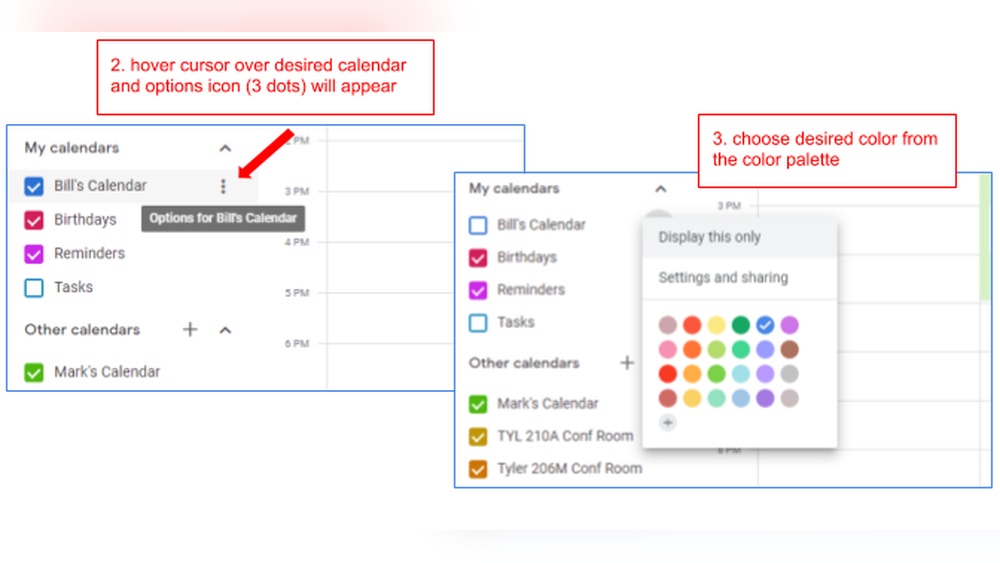
Hover your mouse over the calendar you want to change. Three dots will appear next to the name. Click these dots to open the color menu.
Choose a color from the preset options. For more choices, click the plus sign to add a custom color. Enter a hex code if you want a specific shade.
The calendar color updates immediately. All events in that calendar will show the new color.
Change Individual Event Colors
Go to Google Calendar and click the event you want to edit. A pop-up will appear with event details.
Click the pencil icon to open the edit screen. Near the calendar name, find the color dropdown menu.
Select a new color for this event. This color only applies to the chosen event, not the whole calendar.
Click “Save” to confirm the change. The event now stands out with its new color.
Change Calendar Colors On Mobile
Changing calendar colors on your mobile device helps keep your schedule organized. It also makes your Google Calendar easier to read at a glance. You can change colors for entire calendars or individual events right from your phone. This guide shows simple steps to customize colors on the Google Calendar mobile app.
Access Google Calendar Settings
Open the Google Calendar app on your mobile device. Tap the three horizontal lines in the top left corner. This opens the main menu. Scroll down and select “Settings” to see your calendar list.
Select The Calendar To Change
In Settings, find the calendar you want to change. Tap the calendar’s name to open its options. You will see a “Color” option below the calendar details.
Choose A New Color
Tap “Color” to view preset colors. Pick the color you want for the calendar. The change applies immediately and updates your calendar view.
Change Color Of Individual Events
Open the event you want to edit by tapping it. Tap the pencil icon to enter edit mode. Tap the color palette icon. Select the new color for the event. Tap “Save” to confirm your choice.
Modify Individual Event Colors On Desktop
Changing the color of individual events on Google Calendar helps organize your schedule visually. On a desktop, you can easily modify event colors to highlight priorities or group similar tasks. This feature makes your calendar clearer and more personalized.
Open Your Google Calendar
Start by opening Google Calendar in your web browser. Make sure you are signed in to your Google account.
Select The Event To Edit
Find the event you want to change. Click on it once to open the event details window.
Click The Edit Icon
In the event details, click the pencil icon. This opens the event in editing mode.
Choose A New Color
Next to the calendar name, find the color dropdown menu. Click it to see color options.
Save Your Changes
Select your preferred color and then click the “Save” button. Your event now shows the new color.

Credit: www.youtube.com
Adjust Event Colors On Mobile App
Adjusting event colors on the Google Calendar mobile app helps organize your schedule visually. Colors make it easier to spot important events at a glance. You can change colors for single events or whole calendars using just a few taps.
This guide shows how to adjust event colors on the mobile app quickly. Follow these simple steps to brighten up your calendar and improve your time management.
Open The Event To Edit
Start by opening the Google Calendar app on your phone. Find the event you want to change the color of. Tap on the event to view its details. This step gets you ready to customize the event’s appearance.
Tap The Edit Icon
Look for the pencil icon on the event page. Tap this icon to enter edit mode. Editing lets you change the event’s color along with other details. Without this, you cannot access the color options.
Select A New Color
In edit mode, find the color palette icon. Tap the color palette to open color choices. Pick a color that suits the event type or priority. The app shows several preset colors to choose from.
Save Your Changes
After selecting your preferred color, tap the “Save” button. Saving applies the new color to the event immediately. Your calendar now shows the event in the chosen color for easy recognition.
Use Custom Colors With Hex Codes
Google Calendar allows you to use custom colors for better organization. You can choose any color using hex codes. This helps match your calendar to your style or brand.
Custom colors make events stand out and improve visual clarity. You do not need to stick with the default colors Google provides. Using hex codes gives you full control over your calendar’s look.
How To Add A Custom Color Using Hex Codes
On your desktop, find the calendar list on the left side. Hover over the calendar name under “My calendars”. Click the three dots that appear next to it. Select the plus sign (+) at the bottom of the color options.
Enter your hex code in the box that appears. For example, type FF5733 for a bright orange color. Click “OK” or “Add” to save the new color. The calendar will update with this custom color immediately.
Finding The Right Hex Code For Your Colors
Hex codes are six-digit codes used to display colors online. Each code starts with a followed by numbers and letters. Use websites like color pickers or graphic tools to find the hex code you want.
Pick colors that are easy to see on your screen. Avoid very light or very dark colors that might be hard to read. Test your chosen color on a sample event before final use.
Changing Individual Event Colors With Custom Hex Codes
Google Calendar does not allow hex codes directly for single events by default. But you can change the event’s color by assigning it to a calendar with a custom hex color.
Create a new calendar with your preferred hex color. Then, move or create events inside that calendar. This method lets you apply custom colors to specific events indirectly.

Credit: www.appointmentreminders.com
Color Code Calendars For Better Organization
Color coding calendars helps keep your schedule clear and easy to follow. It lets you see different activities at a glance. Each color shows a type of task or event. This method reduces confusion and saves time.
Assigning colors to calendars or events separates work, family, and personal plans. It creates a visual guide that improves focus and planning. Everyone can quickly identify what is coming next without reading details.
How To Assign Colors To Entire Calendars
On your computer, find the calendar list on the left side. Hover over the calendar name under “My calendars.” Click the three dots that appear next to the name. Choose a color from the palette or click the plus sign to add a custom color. Enter a hex code for a specific shade if needed.
On the mobile app, tap the menu icon with three lines. Select “Settings” and then pick the calendar to color code. Tap “Color” and pick the color you want. The calendar’s events will now appear in this color.
How To Change Colors For Individual Events
Open Google Calendar on your desktop and click the event to edit. Press the pencil icon to enter edit mode. Find the calendar name dropdown and select a new color for this event. Click “Save” to update.
In the mobile app, tap the event and then the pencil icon. Tap the color palette icon that appears. Choose a new color and tap “Save.” This color change will only affect this event.
Benefits Of Using Color Codes In Google Calendar
Colors help you spot important events quickly. They reduce the chance of missing appointments. Visual differentiation improves how you manage your time. It makes your calendar easier to scan and understand.
Using colors also helps balance different parts of your life. You can assign work, family, and social activities unique colors. This balance keeps your schedule clear and manageable.
Apply Color Labels To Track Events
Color labels help organize your Google Calendar visually. They let you see event types at a glance. Using colors makes managing busy schedules easier.
Assigning colors to events improves focus. You can quickly spot meetings, deadlines, or personal time. This simple step keeps your calendar tidy and clear.
How To Assign Colors To Individual Events
Open your Google Calendar on desktop or mobile. Click or tap the event you want to color. Select the edit icon to open event details.
Look for the color palette near the calendar name. Choose a color that fits the event type. Save your changes to apply the new color.
Changing Colors For Entire Calendars
Hover over the calendar name on desktop or tap settings on mobile. Find the color option for the calendar. Pick a color from the preset list or add a custom shade.
Changing the calendar color updates all events linked to it. This helps group related events by color automatically.
Using Custom Colors For Better Tracking
Click the plus sign in the color menu to add a custom color. Enter a hex code or pick a shade that suits your needs. Custom colors make your calendar unique and easier to interpret.
Custom labels help differentiate events that standard colors cannot represent. This feature is useful for detailed planning.
Tips For Choosing Effective Colors
Choosing effective colors for Google Calendar helps you stay organized and focused. Colors guide your eyes and highlight important tasks. They make your schedule easier to read and manage.
Good color choices reduce confusion and improve your time management. Use colors to group similar events or separate work from personal life. Thoughtful colors create a clear visual map of your day.
Use Contrasting Colors For Clarity
Select colors that stand out from each other. This difference helps you quickly spot events. Avoid colors that blend or look too similar. Clear contrast keeps your calendar easy to scan at a glance.
Limit The Number Of Colors
Too many colors cause distraction and clutter. Stick to five or fewer colors for simplicity. Each color should represent a specific type of event. This practice keeps your calendar clean and easy to understand.
Choose Colors That Match Your Mood
Pick colors that make you feel calm or energized. Soft blues and greens soothe the eyes. Bright reds and oranges can signal urgency or important tasks. Use colors that help you stay motivated and alert.
Keep Accessibility In Mind
Make sure colors are easy to distinguish for everyone. Avoid combinations that are hard to see, like red and green. Test your colors for color blindness compatibility. This ensures your calendar works well for all users.
Use Custom Colors For Personal Touch
Google Calendar allows adding custom colors with hex codes. Choose shades that fit your style or brand. Custom colors make your calendar unique and enjoyable to use. Personalization encourages regular calendar checks.
Sync Color Settings Across Devices
Keeping your Google Calendar colors consistent on all devices helps you stay organized. It avoids confusion when you check your calendar on your phone, tablet, or computer. Syncing color settings means the colors you choose appear everywhere automatically.
Google Calendar syncs colors through your Google account. When you change a calendar’s color on one device, that change updates on all other devices linked to the same account. This keeps your schedule clear and easy to read no matter where you access it.
Enable Calendar Sync In Google Account Settings
Make sure calendar sync is turned on in your Google account. On your mobile device, open Settings and find Accounts or Google. Select your Google account and check that Calendar sync is enabled. Without this, colors and events won’t update across devices.
Change Calendar Colors On Desktop
Open Google Calendar on your computer browser. Find your calendar under “My calendars” on the left side. Hover over it and click the three dots. Pick a color from the palette or add a custom hex color. This change syncs with other devices automatically.
Update Event Colors On Mobile App
Open the Google Calendar app on your phone or tablet. Tap the event you want to change. Tap the pencil icon to edit. Select the color palette icon and pick a new color. Save the event. The new color appears on your desktop and other synced devices.
Check Sync Status For Troubleshooting
If colors do not update across devices, check sync status. On mobile, go to Settings > Accounts > Google and confirm Calendar sync is active. On desktop, refresh your browser or sign out and back in. This often fixes syncing issues quickly.

Credit: www.youtube.com
Troubleshoot Color Changes In Google Calendar
Changing colors in Google Calendar helps organize events visually. Sometimes, color changes do not show correctly. Troubleshooting color issues can restore proper display. Follow simple steps to fix common problems fast.
Check Browser And App Updates
Old versions of browsers or the Google Calendar app cause display issues. Update your browser or app to the latest version. This step ensures new features and fixes work well. Restart after updating to apply changes fully.
Clear Cache And Cookies
Cached data can block new color settings from appearing. Clear the browser cache and cookies regularly. This refreshes the calendar and removes old files. After clearing, reload Google Calendar to see if colors update.
Verify Calendar And Event Color Settings
Incorrect color selection may confuse calendar views. Double-check the color chosen for the calendar or event. Use the color picker carefully and save changes. Remember, event colors override calendar colors for that event only.
Sync Issues Between Devices
Colors may differ on desktop and mobile if syncing fails. Check internet connections and sync settings on all devices. Force sync by refreshing the calendar or reopening the app. This helps keep colors consistent everywhere.
Disable Browser Extensions
Extensions sometimes interfere with Google Calendar’s display. Disable browser extensions one by one to find the culprit. Refresh Google Calendar after disabling each extension. If colors return, remove or update the problematic extension.
Frequently Asked Questions
How Do I Customize Colors In Google Calendar?
Open Google Calendar, click the calendar or event, select the color option, then pick or add a custom color. Save changes.
How Do I Change My Google Color Palette?
To change your Google color palette, open Google Calendar. Select a calendar or event, click the color icon, then pick or add a new color. Save changes to update the palette instantly.
How To Set Google Calendar Default Color?
Open Google Calendar settings, select your calendar, then choose a new default color from the palette or add a custom one.
How Do I Edit Colors In The Calendar App?
To edit colors in the calendar app, open the calendar or event. Click the color option and select a new color. Save changes to apply.
How Do I Change Colors On Google Calendar Desktop?
Hover over the calendar name, click three dots, and pick a color or add a custom one.
Can I Customize Individual Event Colors On Google Calendar?
Yes, open the event, click the edit icon, then select a new color.
How To Change Google Calendar Colors On Mobile App?
Open the menu, go to Settings, select the calendar, and tap Color to choose.
Is It Possible To Add Custom Colors To Google Calendar?
Yes, click the plus sign in color options and enter a hex code.
Do Color Changes Apply To All Events In A Calendar?
Changing the calendar color affects all its events unless individual events are recolored.
Can I Use Google Calendar Colors To Organize Tasks?
Yes, assigning colors helps visually separate events and tasks by type or priority.
Conclusion
Changing colors on Google Calendar helps organize your schedule better. Use simple steps to customize entire calendars or single events. Color coding makes it easier to spot important dates quickly. Try different colors to find what works best for you.
Keep your calendar clear and visually appealing every day. This small change can improve how you manage your time. Start personalizing your Google Calendar now and enjoy a more organized life.