Have you ever wished you could switch up your iPhone’s screen colors for a fresh look or to make things easier on your eyes? Inverting colors on your iPhone can do just that.
Whether you want to reduce eye strain during late-night scrolling or simply give your display a unique twist, knowing how to invert colors is a handy trick. In this guide, you’ll discover simple steps to invert colors on your iPhone, explore quick ways to flip your photos, and learn how to make those changes permanent if you want.
Ready to transform your screen experience? Keep reading to unlock the easy methods that anyone can follow.

Credit: osxdaily.com
Invert Colors Settings
The Invert Colors settings on iPhone change the screen colors. This feature helps users who prefer a different color scheme. It can reduce eye strain and improve screen visibility.
iPhone offers two types of color inversion. These are Classic Invert and Smart Invert. Each type works differently and suits different needs.
Classic Invert
Classic Invert reverses all colors on the screen. Whites become black, blacks become white, and all other colors flip. This setting changes everything, including images and media.
This mode is useful for people who need high contrast. It can make text easier to read in low light.
Smart Invert
Smart Invert reverses most colors except images, media, and some apps. It keeps photos and videos looking normal. This mode is less harsh on visual content.
It works well for users who want a dark mode feel. It does not affect all colors equally but aims for balance.
How To Access Invert Colors Settings
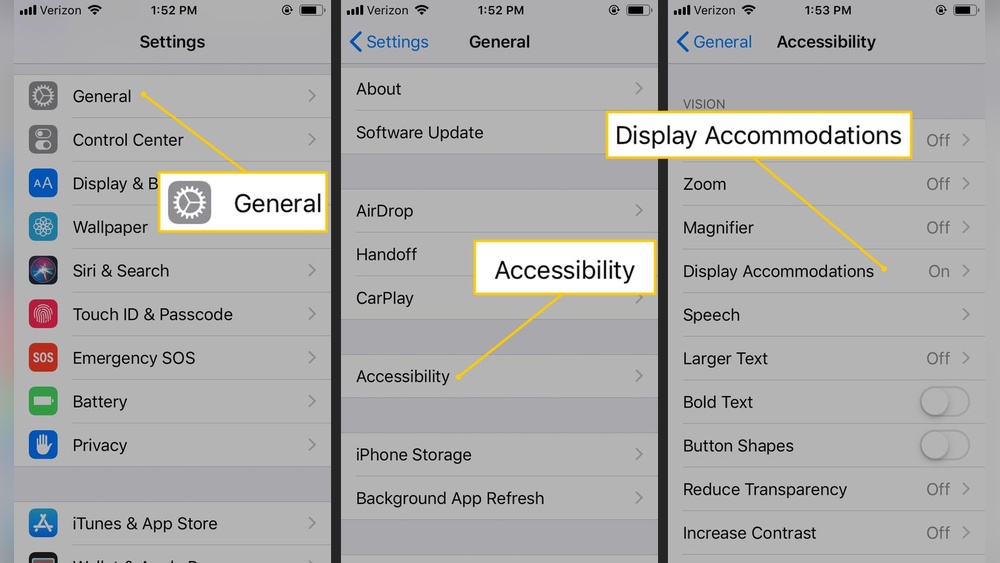
Open the Settings app on your iPhone. Scroll down and tap Accessibility. Then select Display & Text Size. Here, find the Invert Colors option.
Toggle Classic Invert or Smart Invert to turn the feature on. You will see the screen colors change immediately.
Using Accessibility Shortcut
You can set Invert Colors as a shortcut. Go to Accessibility in Settings. Scroll down to Accessibility Shortcut. Select Classic Invert or Smart Invert.
After this, triple-click the side button to quickly switch invert colors on or off. This saves time and effort.
:max_bytes(150000):strip_icc()/002_how-to-invert-colors-on-iphone-4154078-dd9162b55b204a17babdbf4dc82a2a89.jpg)
Credit: www.lifewire.com
Classic Invert Mode
Classic Invert Mode is a color inversion feature on the iPhone. It reverses the colors on your screen to create a high-contrast display.
This mode helps people who have difficulty reading text on bright backgrounds. It works by swapping bright colors with dark ones and vice versa.
Unlike Smart Invert, Classic Invert changes all colors, including images and media. This makes everything appear in inverted colors, which may look unusual to some users.
How To Enable Classic Invert Mode
Open the Settings app on your iPhone. Scroll down and tap on Accessibility. Select Display & Text Size. Tap on Classic Invert. Toggle the switch to turn it on.
Benefits Of Using Classic Invert
It reduces eye strain in low-light environments. It can improve readability for users with visual impairments. It offers a quick way to switch to a dark-themed view.
Limitations Of Classic Invert Mode
All colors, including photos and videos, get inverted. This can make images look strange or unclear. Some apps may not display correctly with Classic Invert enabled.
Smart Invert Mode
Smart Invert Mode is a useful feature on iPhone that changes screen colors. It reverses most colors but keeps images and media the same. This helps to reduce eye strain without affecting pictures or videos. Smart Invert is ideal for reading in low light or for those sensitive to bright screens.
This mode works by inverting the colors of the user interface while leaving key elements intact. It offers a better experience compared to Classic Invert, which flips all colors, including photos and apps. Smart Invert helps maintain the natural look of your content while providing a darker screen.
How To Enable Smart Invert Mode On Iphone
Open the Settings app and tap Accessibility. Select Display & Text Size. Scroll down and tap Smart Invert. Toggle the switch to turn it on. Your screen colors will invert except for images and media. To turn off, toggle the switch again.
Benefits Of Using Smart Invert Mode
It reduces eye strain in dark environments. Maintains the natural colors of photos and videos. Saves battery life on OLED iPhones by using darker colors. Makes text easier to read without harsh white backgrounds. Works well with most apps and system interfaces.
When To Use Smart Invert Mode
Use it during night time or in dim places. Helpful for people with light sensitivity. Useful for reading articles or eBooks on iPhone. When you want a dark mode without losing image colors. Great for reducing glare while using your phone in bed.
Accessing Accessibility Options
Accessing the accessibility options on your iPhone is the first step to invert colors. This feature helps users reduce eye strain and improve screen visibility. The accessibility settings are easy to find and use.
You can quickly reach these options through the Settings app. The menu is designed to be simple, with clear labels and helpful descriptions. Finding the right setting takes only a few taps.
Open The Settings App
Locate the gray gear icon on your home screen. Tap it once to open the Settings menu. This app controls all the main functions of your iPhone.
Navigate To Accessibility
Scroll down in Settings until you see “Accessibility.” Tap this option. It contains features to help users with different needs.
Find Display & Text Size
Inside Accessibility, look for “Display & Text Size.” This section includes options related to screen colors and text appearance.
Choose Color Inversion
Scroll down to find “Invert Colors.” Tap it to open the inversion options. You can select either Classic or Smart Invert from here.
Step-by-step Activation
Activating color inversion on your iPhone is simple and quick. This feature changes your display colors to their opposites. It helps reduce eye strain and improves screen visibility in dark settings. Follow these clear steps to enable color inversion on your device.
Open The Settings App
Find and tap the Settings icon on your iPhone home screen. This app controls all your device preferences and features.
Navigate To Accessibility
Scroll down and select Accessibility. This menu offers options to improve your phone’s usability.
Select Display & Text Size
Inside Accessibility, tap Display & Text Size. Here, you can adjust how text and colors appear on your screen.
Enable Color Inversion
Choose either “Smart Invert” or “Classic Invert.” Smart Invert reverses colors except images and media. Classic Invert reverses all colors on the screen.
Use The Accessibility Shortcut For Quick Access
Go back to Accessibility and tap Accessibility Shortcut at the bottom. Select Color Inversion to toggle it on or off quickly with a triple-click of the side button.
Credit: www.iphonelife.com
Using Triple-click Shortcut
The triple-click shortcut on iPhone offers a quick way to invert colors. This method activates color inversion instantly. It is useful for users who need fast access to this feature.
You can set up the shortcut in the Accessibility settings. After setup, pressing the home or side button three times toggles color inversion. This saves time compared to navigating menus every time.
How To Enable The Triple-click Shortcut
Open the Settings app on your iPhone. Scroll down and tap on Accessibility. Find the Accessibility Shortcut option at the bottom. Select Color Filters or Classic Invert from the list. This activates the triple-click shortcut for color inversion.
Using The Triple-click Shortcut
Press the home button or side button three times quickly. The screen colors will invert immediately. Press the button three times again to return to normal colors. This toggle works anywhere on your iPhone.
Benefits Of The Triple-click Shortcut
It provides fast access to color inversion. No need to open Settings each time. Helps users with visual sensitivity or low light conditions. Makes reading on the iPhone easier on the eyes.
Invert Colors For Photos
Inverting colors on photos can create unique visual effects and help with viewing images in different light conditions. On iPhones, there are ways to flip or invert colors for photos, either temporarily or permanently.
This section explains how to invert colors on photos using built-in tools and accessibility settings. You will learn simple steps to change the look of your images directly on your device.
How To Flip A Photo Using The Photos App
Flipping a photo creates a mirror image. This changes the photo’s orientation but does not change colors.
- Open the Photos app and pick your photo.
- Tap Edit in the top-right corner.
- Tap the Crop and Rotate icon at the bottom.
- Tap the Flip icon (triangle with a circle).
- Tap Done to save your flipped photo.
Using Accessibility Settings To View Inverted Colors
You can view photos with inverted colors using the iPhone’s accessibility feature called Classic Invert.
This does not save the changes but shows the photo with opposite colors on the screen.
- Open Settings on your iPhone.
- Go to Accessibility > Display & Text Size.
- Turn on Classic Invert.
- Open your photo in the Photos app to see the color inversion.
Third-party Apps For Permanent Color Inversion
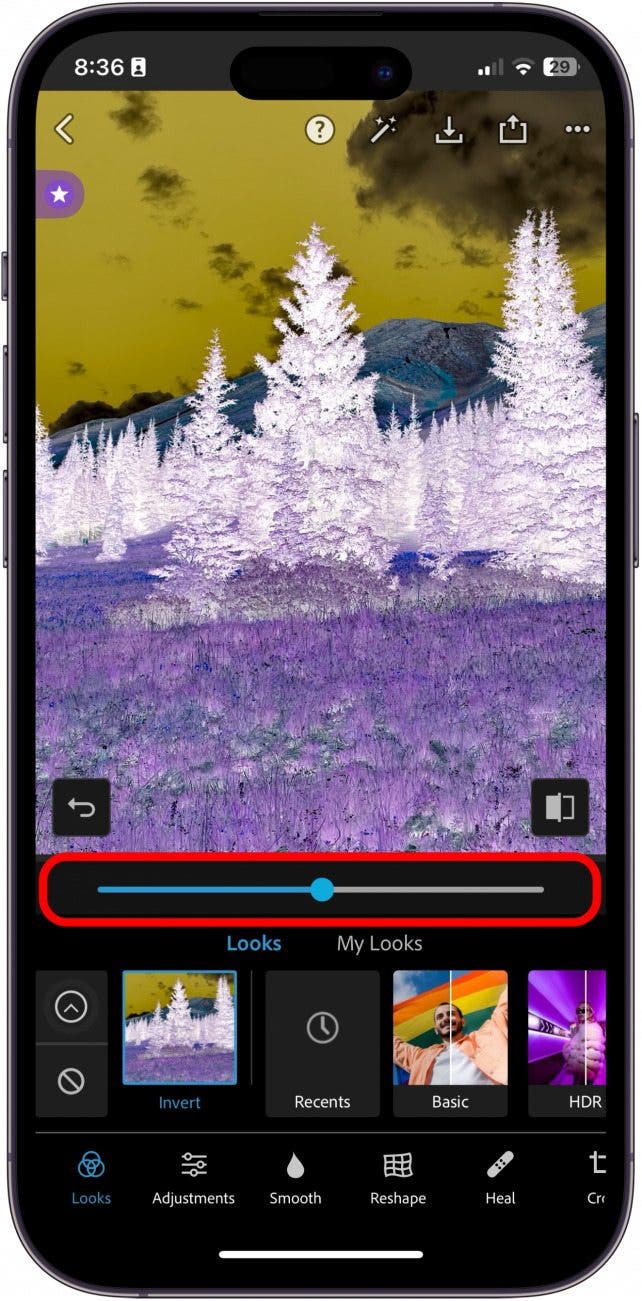
To save photos with inverted colors, use third-party photo editing apps.
These apps offer tools to invert colors and save the edited photos permanently.
- Search the App Store for “photo color invert” apps.
- Download and open your chosen app.
- Import the photo and use the invert color tool.
- Save the edited photo to your library.
Flipping Photos In Photos App
Flipping photos in the iPhone Photos app offers a quick way to change the perspective of your images. This feature mirrors your photo horizontally, creating a reversed version. It is useful for correcting photos or adding creative effects without needing extra apps.
The Photos app includes simple tools that let you flip images easily. The process is fast and saves the flipped version directly to your library. This keeps your original photo intact while creating a new, mirrored one.
How To Flip A Photo In The Photos App
Start by opening the Photos app on your iPhone. Choose the photo you want to flip. Tap the “Edit” button in the top-right corner to enter editing mode. Next, select the Crop and Rotate icon at the bottom of the screen. You will see a Flip icon in the top-left corner that looks like a triangle with a circle around it. Tap this Flip icon once to flip your photo horizontally. Finally, tap “Done” to save your flipped photo to your library.
What Flipping A Photo Does
Flipping a photo creates a mirrored effect. It swaps the left and right sides of the image. This changes the photo’s perspective but keeps all other details the same. Flipping can fix photos that appear reversed or enhance your creative projects by offering a fresh view.
Limitations Of Flipping Photos In The Photos App
The Photos app can only flip images horizontally. It does not invert colors or flip vertically. To invert colors permanently on a photo, you need a third-party app. For temporary color inversion while viewing, use the iPhone’s Accessibility settings.
Third-party Apps For Color Inversion
Third-party apps provide extra options for color inversion on iPhone. These apps offer more control and features beyond the built-in settings. They can invert colors for images, videos, or the entire screen with ease.
Many apps focus on accessibility or photo editing. Some allow you to save inverted images permanently. Others offer filters that improve readability or reduce eye strain.
Color Inversion Apps for PhotosApps like “Invert Colors Photo Editor” let you invert photo colors quickly. They support various image formats and provide easy sharing options. These apps often include other editing tools like brightness and contrast adjustments.
Screen Color Inversion ToolsSome apps invert the entire screen colors to help with eye comfort. They work by applying filters over all apps and interfaces. This helps users who need consistent color inversion without changing individual photos.
Accessibility-Focused Color AppsApps designed for accessibility improve usability for colorblind or visually impaired users. They offer customizable inversion modes and color adjustments. These apps often include voice guidance and other helpful features.
Choosing the Right AppLook for apps with good reviews and easy navigation. Check if the app supports your iOS version and device. Test free versions before purchasing to find the best fit for your needs.
Tips For Eye Comfort
Using color inversion on your iPhone can reduce eye strain in low-light environments. It helps by changing bright backgrounds to dark ones, making the screen easier to look at. Here are some tips for eye comfort when inverting colors on your iPhone.
Enable True Tone And Night Shift
True Tone adjusts the screen’s color based on ambient light. Night Shift reduces blue light, which can cause eye fatigue. Use these features along with color inversion to protect your eyes.
Adjust Brightness Manually
Lower your screen brightness to a comfortable level. Too much brightness can strain your eyes even with inverted colors. Use the Control Center to quickly adjust brightness anytime.
Use Classic Invert Over Smart Invert
Classic Invert reverses all colors, including images and media. Smart Invert keeps images normal but changes most interface colors. Classic Invert offers better contrast for reading and reduces glare.
Limit Screen Time
Take breaks regularly to rest your eyes. Follow the 20-20-20 rule: every 20 minutes, look at something 20 feet away for 20 seconds. This reduces eye strain from prolonged screen use.
Reduce Glare With Screen Protectors
Matte screen protectors can cut down glare. They help your eyes focus better on inverted colors. This simple addition improves comfort during long reading or browsing sessions.
Frequently Asked Questions
Can You Invert Colors On A Photo On An Iphone?
Yes, you can invert colors on an iPhone using Accessibility’s Classic Invert to view or third-party apps to save edited photos.
How Do I Invert Colors On A Photo?
Open your photo in an editing app like Snapseed or Photoshop Express. Use the app’s invert color tool, then save the image. Alternatively, enable Classic Invert in iPhone Accessibility settings to view inverted colors but not save them.
How To Put Iphone On Invert Colors?
To invert colors on your iPhone, go to Settings > Accessibility > Display & Text Size. Enable “Classic Invert” to invert screen colors instantly. Disable it to revert. For permanent photo color inversion, use a third-party app like Snapseed or Photoshop Express.
How Do I Turn On Inverted Colors?
To turn on inverted colors on iPhone, open Settings, tap Accessibility, select Display & Text Size, then enable Classic Invert. This changes screen colors instantly. To revert, disable the same setting.
What Is Color Inversion On Iphone?
Color inversion reverses screen colors to improve visibility and reduce eye strain.
How Do I Turn On Color Inversion On Iphone?
Go to Settings > Accessibility > Display & Text Size > Invert Colors, then toggle on.
What’s The Difference Between Classic And Smart Invert?
Classic Invert reverses all colors; Smart Invert excludes images and media for better viewing.
Can Inverting Colors Help With Eye Strain?
Yes, it reduces brightness and glare, making screen use easier on the eyes.
Does Color Inversion Affect Battery Life On Iphone?
No, color inversion has minimal impact on battery consumption.
Can I Invert Colors For Specific Apps Only?
No, color inversion applies system-wide and cannot be set for individual apps.
Conclusion
Inverting colors on your iPhone is quick and easy. You can use Accessibility settings to see colors inverted instantly. Flipping a photo with the Photos app creates a mirrored image. Remember, color inversion on the screen does not save the change.
For permanent edits, a third-party app may help. Experiment with these options to find what fits your needs best. This simple feature can improve your viewing experience. Keep your iPhone settings handy to switch colors anytime.