Struggling with bright screens or eye strain on your Chromebook? Inverting colors can be a simple yet powerful way to make your display easier on your eyes.
Whether you want to reduce glare, improve readability, or just try a fresh look, knowing how to invert colors on your Chromebook puts control right at your fingertips. In this guide, you’ll discover easy steps and quick shortcuts to switch your screen’s colors instantly.
Keep reading, and you’ll learn how to customize your viewing experience in seconds—no tech expertise needed!
Keyboard Shortcut For Color Inversion
Using a keyboard shortcut is the fastest way to invert colors on a Chromebook. This feature helps reduce eye strain and improves screen visibility. It is especially useful in low-light environments or for people with visual impairments.
The shortcut combines three keys pressed at the same time. It is simple and easy to remember. You do not need to open any menus or settings to use it.
How To Use The Keyboard Shortcut
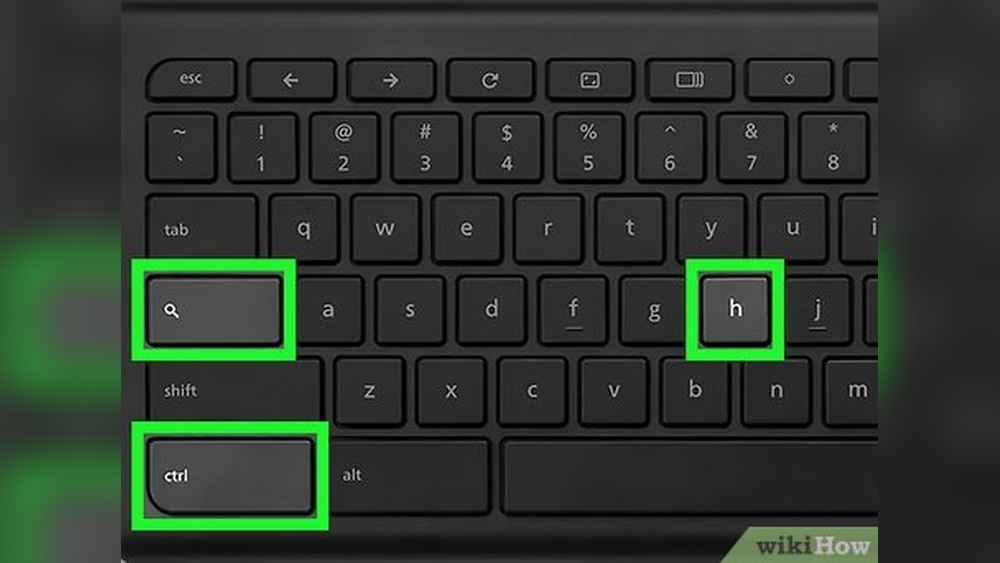
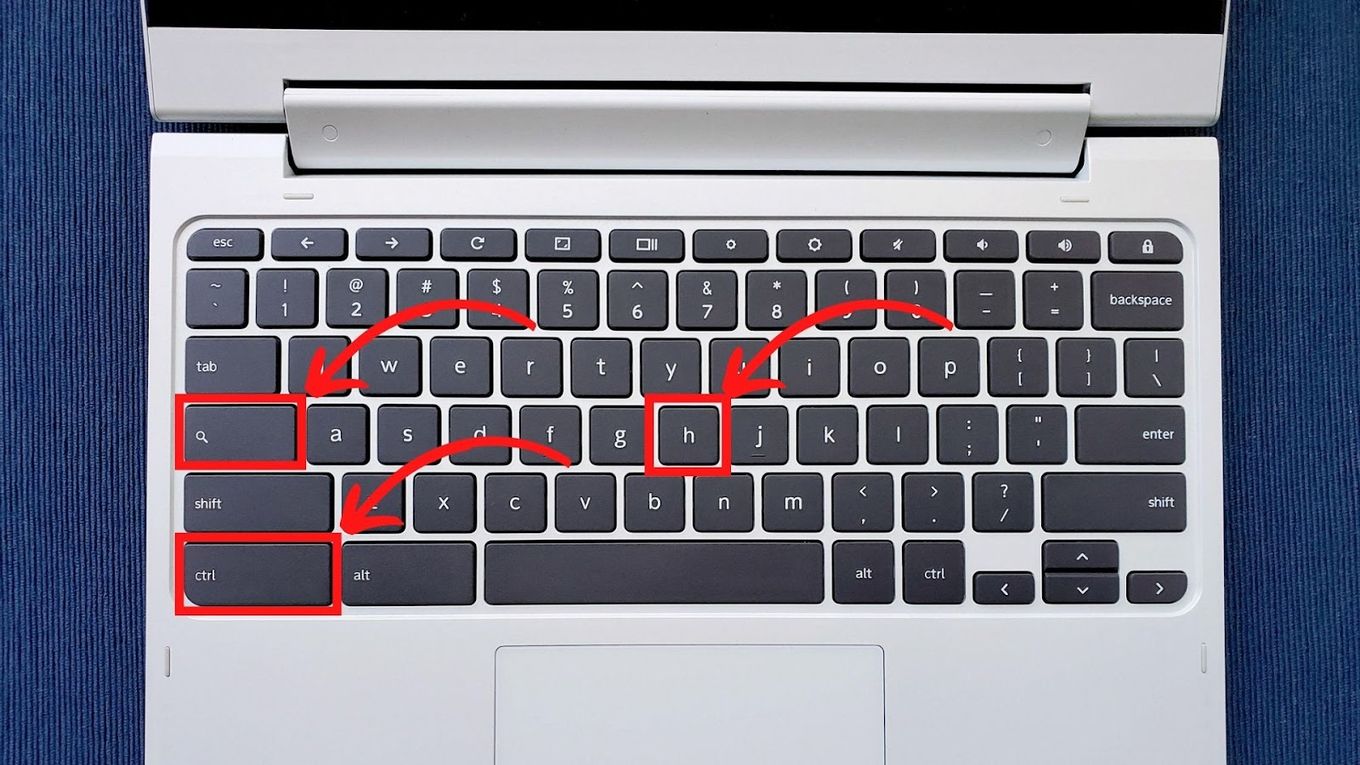
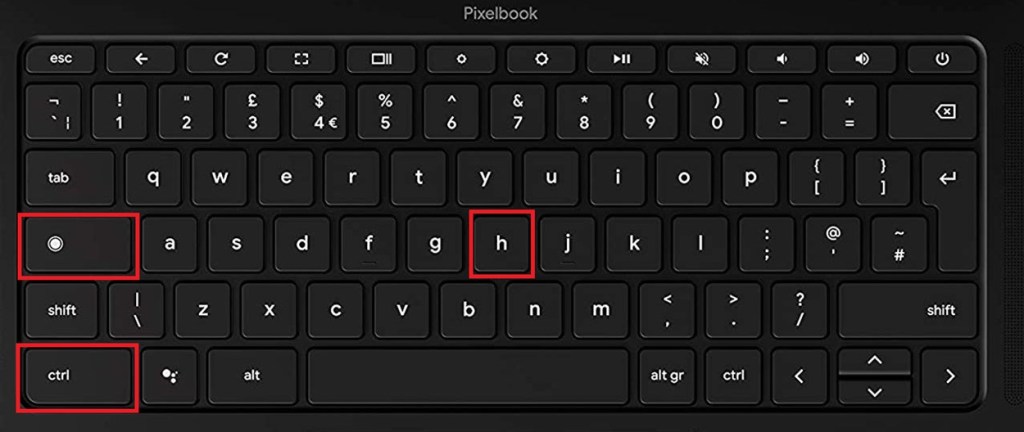
Press the Ctrl key, the Search key, and the H key together. The screen colors will invert immediately. This means dark colors become light, and light colors become dark.
To return to the normal display, press the same keys again. This toggle makes switching very convenient.
Where Is The Search Key?
The Search key looks like a magnifying glass. It is located where the Caps Lock key usually is on other keyboards. On Chromebooks, this key helps find apps and files quickly.
Using the Search key in the shortcut helps keep the process simple. You do not need to remember complicated key combinations.
Benefits Of Using The Shortcut
The shortcut saves time and effort. You can invert colors instantly without interrupting your work. It also helps reduce screen glare and makes text easier to read.
This feature is built into Chrome OS, so no extra apps or extensions are needed. The shortcut works on all Chromebooks, making it accessible to everyone.
Accessing Accessibility Settings
Accessing the accessibility settings on your Chromebook is the first step to invert colors. These settings help users adjust their screen for better visibility and comfort. The process is simple and quick, even for beginners.
Chromebooks offer built-in tools that make it easy to change display colors. You can find these options in the main settings menu. Once inside, you will see various accessibility features designed to improve user experience.
Open Chromebook Settings
Click the clock at the bottom-right corner of the screen. Then select the gear icon to open Settings. This is where you control all device preferences.
Navigate To Accessibility
Scroll down the Settings menu to find the “Advanced” section. Click it to expand more options. Then select “Accessibility” to view available features for users with different needs.
Manage Accessibility Features
Inside Accessibility, click on “Manage accessibility features.” This page shows all tools you can turn on or off. Look for “Use high contrast mode” to invert colors easily.
Enabling High Contrast Mode
Enabling High Contrast Mode on your Chromebook is a simple way to invert colors for better screen visibility. This feature helps reduce eye strain and makes text easier to read. It changes the color scheme to high contrast, which inverts colors effectively.
High Contrast Mode is ideal for users who need clearer visuals or prefer a different screen look. Activating it takes only a few steps and works across most apps and web pages on your Chromebook.
Accessing Chromebook Settings
First, click the clock area at the bottom right of your screen. Then select the gear icon to open Settings. This menu controls all your Chromebook’s options, including accessibility features.
Finding Accessibility Options
In Settings, scroll down and click on “Advanced” to expand more options. Next, find and select “Accessibility.” This section holds tools designed to improve your device’s usability.
Turning On High Contrast Mode
Within Accessibility, click “Manage accessibility features.” Look for the “Display” section. Here, toggle on the switch next to “Use high contrast mode.” Your screen colors will invert immediately.

Credit: www.businessinsider.com
Using Chrome Os Flags For Color Inversion
Using Chrome OS flags for color inversion offers a unique way to change your Chromebook’s display colors. Chrome OS flags are experimental features hidden inside the browser. They allow users to enable or test new options before they become standard.
Inverting colors through Chrome OS flags can improve visibility and reduce eye strain. This method is helpful for users needing better contrast or those who prefer a darker screen. It works differently from the usual accessibility settings and keyboard shortcuts.
What Are Chrome Os Flags?
Chrome OS flags are special settings not found in the regular menu. They let you activate new features that Google is still testing. These features may not be fully stable but can offer extra customization.
How To Access Chrome Os Flags
Open the Chrome browser on your Chromebook. Type chrome://flags in the address bar and press Enter. This will open the flags page with a long list of options. Use the search box to find specific flags by name.
Enable Color Inversion Flag
Search for “Invert” or “Color inversion” in the flags page. Find the flag related to color inversion. Click the drop-down menu next to it and select “Enabled.” After enabling, click the “Restart” button to apply the changes.
Using The Inverted Colors Feature
Once enabled, the screen colors will invert based on the flag’s function. Test it by browsing different pages or using apps. If the colors seem odd, return to the flags page and disable the flag for normal colors.
Risks Of Using Chrome Os Flags
Flags are experimental and may cause bugs or crashes. Use them carefully, especially if you rely on your Chromebook for daily work. Always save your work before enabling or disabling any flag.
Customizing Color Filters
Customizing color filters on a Chromebook allows you to change how colors appear on your screen. This feature helps those who need better visibility or want to reduce eye strain. You can adjust settings to invert colors or apply other color filters. These options make your Chromebook easier to use in different lighting conditions.
Color filters are part of the accessibility tools on your Chromebook. They give you control over how the display looks without changing the whole system theme. Customizing these filters can improve your reading experience and make content stand out clearly.
How To Access Color Filters Settings
Open the Chromebook settings by clicking the clock in the bottom right. Then select the gear icon to enter the main menu. Scroll down and find “Accessibility.” Click on it to see more options. Under “Manage accessibility features,” locate the “Display” section. Here you can find the color filters options to customize.
Types Of Color Filters Available
Chromebooks offer several color filters to choose from. You can select “Invert colors” to reverse the screen colors. There is also “Grayscale” to remove color entirely. Other filters include “High contrast white” and “High contrast black.” Each filter changes the look of your screen in different ways. Try each one to see what suits your needs best.
Adjusting Color Filter Intensity
Some Chromebook models let you adjust filter strength. This means you can control how strong the color change appears. Use the slider in the settings to increase or decrease the effect. This helps you find a balance between visibility and comfort. Adjust the intensity until the screen looks just right for you.
Using Keyboard Shortcuts For Quick Access
Chromebooks have shortcuts for quick color filter changes. Press Ctrl + Search + H to toggle color inversion. This shortcut works instantly and saves time. It is useful if you want to switch filters fast. Remember the shortcut to make your screen easier to view anytime.
Benefits Of Color Inversion
Color inversion on a Chromebook changes the screen colors to their opposite shades. This simple switch helps in several practical ways. It can improve screen visibility and reduce eye strain. Many users find text and images easier to see with inverted colors. This setting is especially useful in low-light environments or for users with vision difficulties.
Using color inversion can also reduce the glare from bright screens. It makes reading for long periods more comfortable. This feature supports accessibility by making digital content clearer and more readable. It is a quick and easy way to customize your Chromebook experience.
Improves Readability
Inverted colors can make text stand out more sharply. This helps users read without squinting. It is beneficial for people with certain vision impairments. High contrast between background and text reduces visual confusion.
Reduces Eye Strain
Bright screens cause eye fatigue over time. Color inversion lowers screen brightness and glare. This softens the light entering your eyes. Using this mode helps prevent headaches and tired eyes.
Enhances Accessibility
Color inversion supports users with visual disabilities. It helps people who struggle with color blindness. Adjusting screen colors makes content more accessible. This feature promotes inclusivity in digital use.
Boosts Focus In Low Light
In dark rooms, bright screens can be distracting. Inverted colors create a gentler screen glow. This helps maintain focus without discomfort. It is ideal for working late or in dim conditions.
Troubleshooting Color Inversion Issues
Troubleshooting color inversion on a Chromebook can solve common display problems. Sometimes, colors do not invert correctly or the screen looks odd. These issues can affect your viewing experience and make it hard to use your device.
Understanding simple fixes helps keep your Chromebook running smoothly. Follow clear steps to identify and correct color inversion problems fast. This guide covers common issues and easy solutions.
Checking Keyboard Shortcuts
Color inversion often uses the shortcut Ctrl + Search + H. Confirm you press all keys together. If nothing happens, try rebooting your Chromebook. A stuck key or keyboard glitch can stop the command.
Verifying Accessibility Settings
Open Settings and go to Accessibility. Find “Use high contrast mode” or “Invert colors.” Make sure these are turned on. Sometimes settings reset after updates or restarts. Turning them off and on can help.
Updating Chromebook Software
Older software may cause display issues. Check for updates in Settings > About Chrome OS. Install any available updates. Updated software improves compatibility and fixes bugs.
Resetting Chromebook Settings
Resetting your Chromebook can fix complex problems. Go to Settings > Advanced > Reset settings. Choose “Powerwash” to restore factory defaults. Back up important files before resetting.
Testing External Displays
If using an external monitor, check its color settings. Some monitors have their own color controls. Connect the Chromebook to another screen to see if the issue persists. This helps find the source of the problem.
Color Inversion For Eye Strain Relief
Color inversion on a Chromebook offers a simple way to reduce eye strain. This feature changes the screen colors to their opposite shades. Dark backgrounds replace bright whites, easing the eyes during long screen use.
Many people find bright screens tiring, especially in low light. Inverting colors can lower glare and make reading easier. It helps users work longer without discomfort or headaches.
How Color Inversion Helps Reduce Eye Strain
Bright screens cause the eyes to work harder. Color inversion swaps white backgrounds with black ones. This change lowers brightness while keeping text clear.
Reduced glare means less stress on the eyes. Color inversion also cuts blue light, which can disrupt sleep. Using this feature can make screen time more comfortable.
Activating Color Inversion On Chromebook
Press Ctrl + Search + H to invert colors quickly. This shortcut toggles the feature on and off instantly. No need to dig through menus.
Alternatively, open Settings, then go to Accessibility. Find “Manage accessibility features” and turn on “Use high contrast mode.” This also inverts colors for eye comfort.
When To Use Color Inversion
Try color inversion during night work or in dark rooms. It reduces the harshness of bright screens in low light. Use it whenever your eyes feel tired or strained.
This feature suits students, office workers, and anyone using a Chromebook for hours. It creates a gentle display that eases visual fatigue.
Quick Toggle Tips For On-the-go Use
Quick toggling of color inversion on a Chromebook helps users switch views fast. This is useful for reducing eye strain or improving visibility in different lighting. Knowing easy shortcuts makes it simple to adjust settings without digging through menus.
Here are some quick toggle tips for using color inversion on the go. These methods save time and keep your workflow smooth.
Using Keyboard Shortcut For Instant Color Inversion
Press Ctrl + Search + H to invert colors immediately. The Search key is the one with a magnifying glass icon. This shortcut works anywhere on the Chromebook. Tap it again to turn off color inversion quickly.
Accessing High Contrast Mode Via Accessibility Settings
Open Settings and select Accessibility. Click on Manage accessibility features. Toggle on Use high contrast mode to invert colors system-wide. This mode stays active until you turn it off.
Adding Accessibility Features To The Shelf For Fast Access
Right-click the accessibility icon on the shelf. Choose Always show accessibility options. This adds a quick access menu. You can toggle color inversion without opening full settings. It’s handy for quick changes when moving around.
Credit: alvarotrigo.com
Combining Color Inversion With Other Accessibility Features
Combining color inversion with other accessibility features on a Chromebook enhances usability for many users. It helps reduce eye strain and improves screen readability. Using these features together creates a more comfortable and personalized experience.
Chromebooks offer several accessibility tools that work well with color inversion. These features support users with visual impairments or those who prefer different screen settings. Exploring these options can make your Chromebook easier to use every day.
Adjusting Text Size And Color Inversion
Increasing text size makes reading easier on an inverted screen. Larger fonts reduce the effort needed to see words clearly. This feature pairs well with color inversion to improve overall visibility.
To adjust text size, go to Settings > Accessibility > Manage accessibility features. Then, find the text size option and increase it as needed.
Using Screen Magnifier Alongside Color Inversion
The screen magnifier zooms in on parts of the screen. It helps users focus on small text or images. Combining it with color inversion highlights content while making it easier to see.
Enable the screen magnifier in Settings > Accessibility. Turn on the feature and adjust the zoom level to fit your needs.
Enabling High Contrast Mode With Color Inversion
High contrast mode changes colors to make text and images stand out. When used with color inversion, it provides a clearer view of the screen. This setup is ideal for users with low vision.
Activate high contrast mode by going to Settings > Accessibility > Manage accessibility features. Toggle on the “Use high contrast mode” option.
Combining Color Inversion With Spoken Feedback
Spoken feedback reads screen content aloud. It helps users who struggle to read text on an inverted screen. Using this feature together improves navigation and understanding.
Turn on spoken feedback in Settings > Accessibility. Enable “ChromeVox” to start hearing text and interface elements read aloud.
Credit: beebom.com
Frequently Asked Questions
How To Turn On Invert Colors On Chromebook With Keyboard?
Press Ctrl + Search + H simultaneously to invert colors on a Chromebook. Press again to revert to normal colors.
How Do I Invert Colors In Google Chrome?
Press Ctrl + Search + H to invert colors instantly in Google Chrome. Repeat to revert. Alternatively, enable high contrast mode via Settings > Accessibility > Manage accessibility features > Use high contrast mode. This improves visibility and reduces screen glare.
What Key Do You Press To Invert Colors?
Press Ctrl + Search + H simultaneously to invert colors on a Chromebook. Press again to revert to normal colors.
How Do I Invert The Screen On A Chromebook?
Press Ctrl + Search + H to invert colors on a Chromebook. To toggle off, press the same keys again. Alternatively, enable high contrast mode in Settings > Accessibility > Manage accessibility features.
How Do I Invert Colors On A Chromebook Quickly?
Press Ctrl + Search + H to invert colors instantly on your Chromebook screen.
Where Is The Invert Colors Option In Chromebook Settings?
Find it under Settings > Accessibility > Manage accessibility features > Use high contrast mode.
Can I Use A Keyboard Shortcut To Invert Colors On Chromebook?
Yes, press Ctrl + Search + H to toggle color inversion with a shortcut.
What Is The Benefit Of Inverting Colors On Chromebook?
It reduces eye strain and improves screen visibility in low light or glare.
How Do I Turn Off Inverted Colors On My Chromebook?
Use the same shortcut Ctrl + Search + H or toggle off high contrast mode.
Does Inverting Colors Affect Chromebook Performance?
No, inverting colors only changes display visuals and does not impact performance.
Conclusion
Inverting colors on your Chromebook is quick and easy. Use the shortcut Ctrl + Search + H to toggle it on or off. You can also enable high contrast mode in accessibility settings. This helps reduce eye strain and makes the screen easier to read.
Trying these simple steps can improve your Chromebook experience. Keep this guide handy for whenever you need to adjust your display colors.