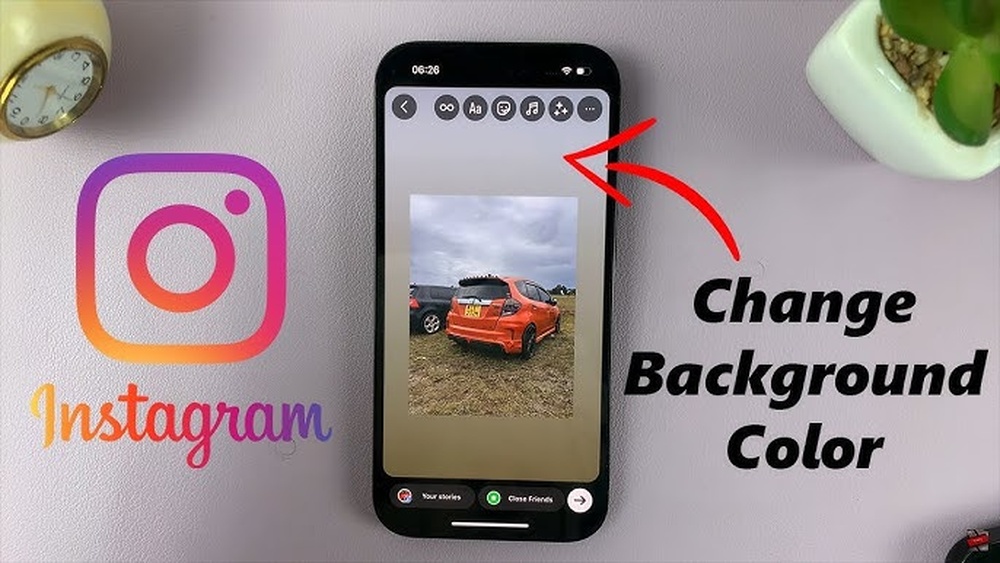
Want to make your Instagram Stories stand out with a fresh, eye-catching background color? Changing the background color on your Instagram Story is easier than you think—and it can instantly boost your story’s appeal.
Whether you’re sharing a selfie, a quote, or a product, the right background color sets the mood and grabs attention. In this guide, you’ll learn simple, step-by-step ways to change your Instagram Story background color like a pro. Stick with me, and soon you’ll be creating stories that pop and keep your followers coming back for more!

Credit: skedsocial.com
Open Instagram Story
Changing the background color on an Instagram Story is simple and quick. Open your story, tap the draw tool, and pick a color to fill the screen. This lets you create a colorful backdrop behind your photos or text easily.
Uploading a photo or video is the first step to customize your Instagram Story background. Choose any image or clip saved on your device to start. This lets you use personal media as a backdrop.
Instagram allows easy access to your camera roll for quick uploads. Select the photo or video that fits your story theme best. After uploading, you can change the background color behind it.
Select Your Media
Open Instagram and swipe right to enter the Stories camera. Tap the gallery icon at the bottom left. Browse your photos and videos carefully. Tap on the one you want to upload.
The selected media appears full screen. You can resize or move it to adjust its position. This flexibility helps create a balanced story design.
Adjust Background Color
Tap the three dots or the drawing tool icon. Choose a pen style from the options shown. Pick a color from the palette or use the dropper tool for a custom shade.
Hold down on the screen to fill the background with your chosen color. The photo or video stays visible above the colored background. This highlights your media while adding style.
Layer And Edit Your Story
Use stickers or text to add extra details. Drag your photo or video to place it correctly over the background. Resize or rotate as needed for a perfect fit.
Experiment with different colors and layers until you like the look. This simple process enhances your story’s visual appeal quickly.

Credit: mashable.com
Upload Photo Or Video
Adding a photo background behind your Instagram Story post makes your story more eye-catching. It helps your post stand out with a custom look. This method works well for sharing posts, quotes, or announcements.
You can use any photo from your camera roll as a background. Adjusting the size and position creates a neat layered effect. This simple trick adds depth without complex editing tools.
Share The Post To Your Story
Start by selecting the post you want to share on Instagram. Tap the paper plane icon below the post. Choose “Add post to your story” from the menu. This opens the story editor with your post ready to edit.
Add Your Background Photo
Tap the sticker icon at the top of the screen. Select the photo sticker option. Pick any photo from your camera roll to use as a background. The photo appears on top of the post by default.
Move The Background Behind The Post
Tap and hold the background photo sticker. Drag it carefully behind your post image. The post should now be visible on top. This layering gives a clear foreground and background effect.
Resize And Position Elements
Use pinch gestures to resize the background photo. Move it to cover the entire screen or a part you want. Adjust the post image size and position as needed. Balance both layers for a clean, attractive story.

Credit: publer.com
Frequently Asked Questions
How Do I Change A Background Color On An Instagram Story?
Open Instagram Stories and upload a photo or create a blank story. Tap the three dots, select “Draw,” choose a pen and pick a color. Hold and drag your finger on the screen to fill the background with the chosen color.
How Do I Put A Background Behind A Picture On An Instagram Story?
To add a background behind a picture on Instagram Story, share the post first. Then, tap the sticker icon, select a photo from your camera roll, and add it. Hold and drag this photo down to place it behind the original post.
Resize and reposition as needed before posting.
How To Change Background Color On Instagram Stories When Reposting Without?
To change the background color when reposting on Instagram Stories, tap the draw tool. Choose a color and hold the screen to fill it. Then add the reposted content on top. This creates a custom background without default colors.
How To Make Story Background Black?
Open Instagram Stories, upload a photo, tap the draw tool, select the pen, choose black color, then fill the background.
How Do I Change The Background Color On Instagram Story?
Open Instagram Story, tap the drawing tool, choose a color, then tap and hold the screen.
Can I Use Custom Colors For Instagram Story Backgrounds?
Yes, use the color dropper tool to select any color or mix your own.
How To Add A Solid Color Background Behind Instagram Story Photos?
Upload the photo, then use the drawing tool with your chosen color and hold to fill.
Is It Possible To Change Background Color After Adding Stickers?
Yes, change the background first, then add stickers or text on top.
How Do I Create A Gradient Background In Instagram Stories?
Instagram doesn’t support gradients natively; use external apps to create gradients first.
Can I Use Photos As Backgrounds In Instagram Stories?
Yes, upload any photo from your gallery to use as your story background.
Conclusion
Changing the background color on Instagram Stories is simple and fun. You can make your stories stand out with just a few taps. Experiment with different colors to match your style or mood. Practice a few times to get comfortable with the tools.
This small change can improve your story’s look instantly. Keep sharing creative stories to engage your followers. Enjoy customizing your Instagram Stories with your favorite colors today!