
Are you looking to make your Google Doc stand out by having pages in two different colors? Whether you want to highlight important sections or simply add a splash of creativity, changing page colors can make a big difference.
But here’s the catch—Google Docs doesn’t offer a direct way to color individual pages differently. Don’t worry, though. You’ll discover simple, clever tricks to get the job done. By the end, you’ll know exactly how to give your document that unique, colorful touch that grabs attention and keeps readers engaged.
Ready to transform your Google Doc? Let’s dive in!
Set Page Color In Google Docs
Changing the page color in Google Docs can enhance your document’s look and feel. It helps highlight sections or match your branding colors. Google Docs allows easy changes to the entire page color using simple settings.
Setting the page color changes the background behind your text. This feature works for all pages at once. To have different colors on separate pages, a creative workaround is needed.
How To Access Page Setup In Google Docs
First, open your Google Docs document. Click on the File menu at the top left. Scroll down and select Page setup. A new window will open with various page options.
Selecting A Page Color
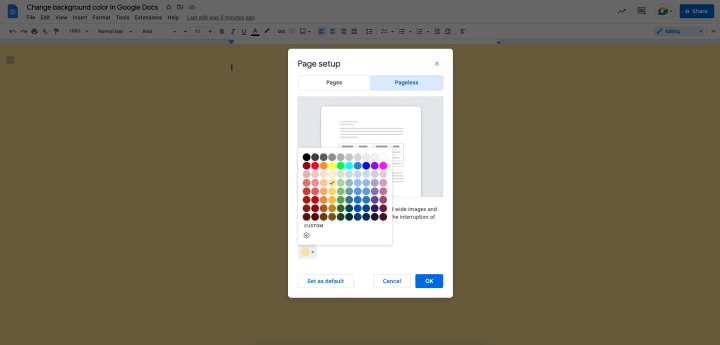
In the Page setup window, find the Page color option. Click on the color box to open the color palette. Choose any color from the default palette. You can also add a custom color using the hex code or color picker.
Applying And Saving The Color
After selecting your preferred color, click the OK button. The page background will instantly change to the new color. This color applies to all pages in the document. To keep this change, save your document.
Limitations Of Page Color Options
Changing page colors in Google Docs can brighten your document. You might want each page to have a different color for better organization or style. Google Docs offers a simple way to change the background color. But it has some limits that may affect your design plans.
Page Color Applies To Entire Document
Google Docs lets you set one page color for the whole document. You cannot assign different colors to individual pages. The color change affects every page at once. This makes it hard to create multi-colored documents within a single file.
No Built-in Support For Multiple Page Colors
There is no built-in feature to use two or more page colors. Users cannot customize colors page by page. This limitation restricts creative page layouts. It also limits visual cues that could help readers navigate large documents.
Workarounds Can Be Complicated
Some try to add colored shapes or images to mimic page colors. These methods are tricky and require extra effort. Shapes may move or overlap text as you edit. This makes the document harder to manage and less stable.
Printing And Exporting Issues
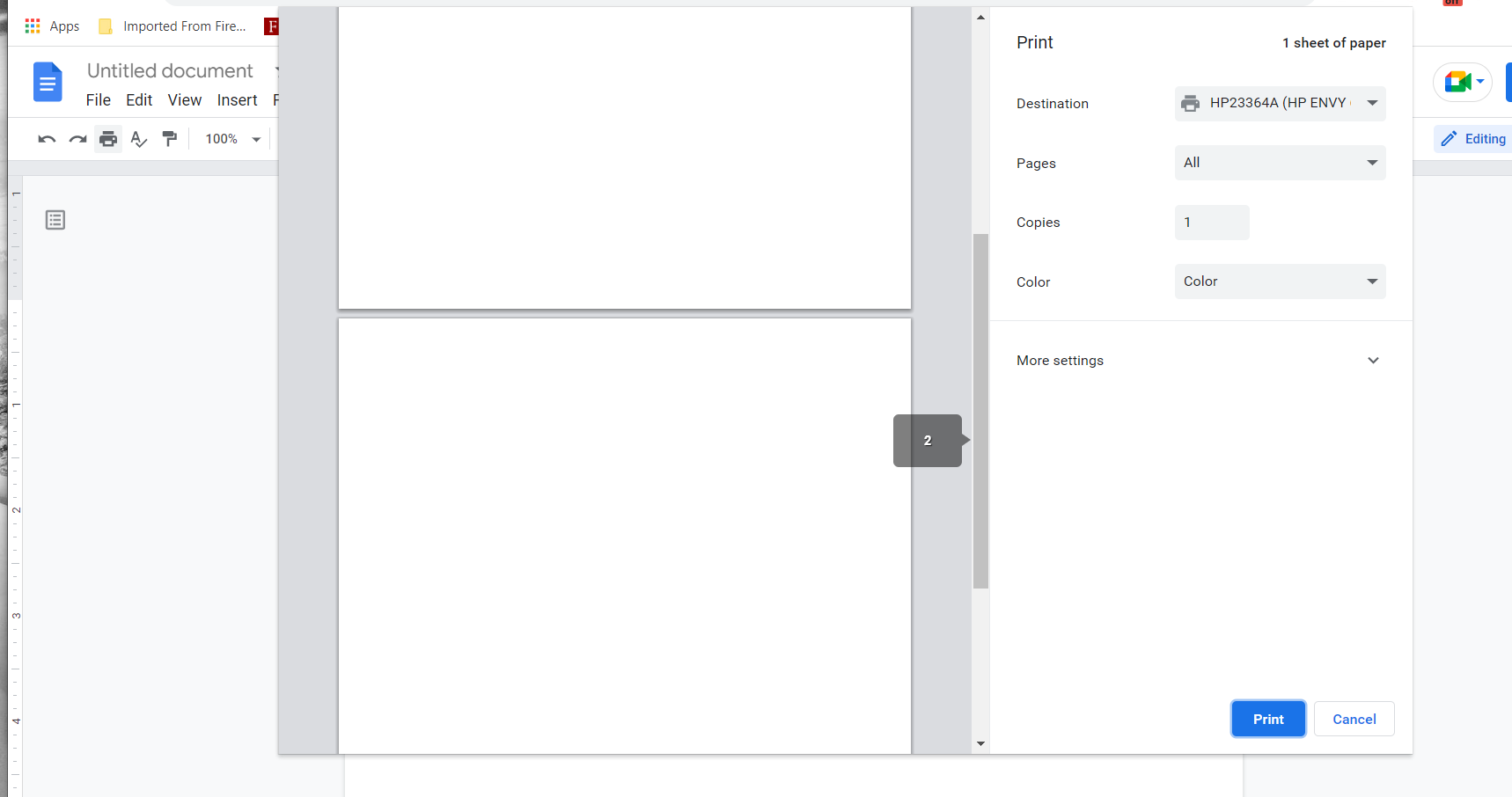
Colored backgrounds may print differently on paper. Colors might not appear as intended on all printers. Exporting files to PDF or other formats can also change colors. This reduces the consistency of your document’s look across devices.
Limited Color Choices
Google Docs offers a basic palette of colors. Users can add custom colors with hex codes. Still, options are limited compared to graphic design tools. This can restrict the style and branding of your documents.
Workaround For Different Colors On Pages
Google Docs does not allow different background colors on separate pages directly. The page setup option changes the color for the entire document. Still, there is a simple workaround. This method uses shapes to simulate different page colors. It works well for short documents or sections that need color differentiation.
Using this trick, you can create a colored shape behind your text. It gives the illusion of a colored page. You can place different colored shapes on different pages. This way, each page looks like it has its own background color.
Creating A Colored Shape To Cover The Page
Open your Google Doc and go to the page you want to change. Click on Insert in the top menu, then select Drawing and choose + New. In the drawing window, click on the Shape icon.
Select a rectangle shape and draw it to cover the entire canvas area. Use the blue squares to resize the shape as needed. Click on the paint bucket icon to pick a fill color for the shape. Choose the color you want for the page background. Click Save and Close to insert the shape into your document.
Adjusting The Shape Behind The Text
Once the shape is inserted, click on it to select it. Click on the three-dot menu or right-click and choose Wrap text. Set the text wrapping to Behind text. This places the colored shape behind your page text. Resize or move the shape to cover the entire page area properly.
This step creates the effect of a colored page. You can add multiple drawings for different pages. Change the color of each shape to match your design needs.
Copying And Positioning Colored Shapes On Other Pages
To add different colors on other pages, copy the shape by selecting it and pressing Ctrl+C (or Command+C on Mac). Then paste it on the next page with Ctrl+V (or Command+V). Change the fill color of the new shape by double-clicking it and selecting a new color.
Move and resize the shape as needed to fit the page. Repeat for each page that needs a different color. This method works best for short documents or pages with minimal editing.
Using Colored Shapes Behind Text
Using colored shapes behind text is a smart way to create two different colors on Google Doc pages. This method adds color blocks without changing the entire page background. It gives control over where and how colors appear on your document.
Colored shapes act like highlights or colored panels behind your text. You can place them on one side of the page or cover half the page. This approach works well for making sections stand out or creating a split-color page effect.
Insert A Shape In Google Docs
Start by clicking the “Insert” menu. Choose “Drawing” and then “+ New” to open the drawing tool. Click the “Shape” icon and pick a rectangle or any shape you want. Draw the shape to the size you need for your page area.
Choose And Apply The Color
After drawing the shape, click the paint bucket icon. Pick the color you want for the shape background. Use light or soft colors to keep the text readable. You can also use custom colors by entering hex codes.
Place The Shape Behind The Text
Click “Save and Close” to add the shape to your document. Resize and move it to cover the desired area. Select the shape, then click “Image options” and find the text wrapping settings. Choose “Behind text” to let your text appear over the shape.
Adjust Shape Size And Position
Drag the shape edges to fit the page section you want colored. Align it carefully to avoid covering important text. You can add multiple shapes for different colors on the same page. This way, you create a visually appealing two-color layout.
Inserting Colored Tables For Page Background
Using colored tables lets you create pages with different background colors in Google Docs. Insert a full-page table and fill it with your chosen color. This method helps separate sections visually without changing the entire document’s background.
What Are Colored Tables For Page Backgrounds?
Colored tables help create the illusion of different page colors in Google Docs. They act as a background color by filling a whole page or part of it with color. This method works well because Google Docs does not allow different page colors natively.
Using a table lets you add color to a specific area. You can adjust the table size to cover a full page. This gives the effect of having pages with different colors in one document.
How To Insert A Colored Table
Start by placing your cursor where you want the colored page. Go to the Insert menu and select Table. Choose a 1×1 table for a single cell.
Next, click inside the table. Use the table properties to set the cell’s background color. Pick the color that you want for your page. This table will act as your page background.
Adjusting Table Size To Cover The Page
Click on the table border to select it. Drag the edges to cover the entire page area. Make sure the table covers from top to bottom and side to side. This creates the full background color look.
Set the table borders to zero or transparent. This removes the visible lines around the colored area. The page will look like it has a solid colored background.
Adding Text Over The Colored Table
Click inside the colored table cell to add your text. The text will appear on top of the colored background. Adjust text color for contrast and readability. Use black or white text depending on the background color.
You can add images, lists, or other content inside the colored table. This makes your page both colorful and functional.
Credit: www.indeed.com
Adding Custom Colors With Hex Codes
Adding custom colors with hex codes lets you choose exact shades for your Google Doc pages. Hex codes are six-digit color codes that represent specific colors on the web.
This method gives you more control than default color options. You can match brand colors or favorite shades easily.
What Is A Hex Code?
A hex code starts with a symbol followed by six letters or numbers. Each pair controls red, green, and blue colors.
For example, FF5733 is a bright orange-red color. It is precise and works across many apps and websites.
How To Find The Hex Code You Want
You can find hex codes using online color pickers. Many free tools let you click colors and copy their hex codes.
Design software like Photoshop or Canva also shows hex codes for any color you select.
Applying Hex Codes In Google Docs
Open your Google Doc and go to File > Page setup. Click on “Page color” to open the color menu.
At the bottom, choose “Custom” or “+” to enter a hex code. Type or paste your hex code, then click OK.
The page background changes to your custom color instantly.
Ensuring Text Readability On Colored Pages
Changing the background color of pages in Google Docs can make your document more lively and engaging. However, colored pages may affect how easily readers see your text. Ensuring text readability on these pages is key. Good contrast between text and background helps readers focus without strain.
Choosing the right text color for each page color improves clarity. Simple color choices keep your content clear and professional. Small adjustments can make a big difference in how your document looks and reads.
Choose High Contrast Text Colors
Use text colors that stand out from the page color. For dark backgrounds, white or light-colored text works best. For light backgrounds, black or dark-colored text is easier to read. Avoid using colors too close to the background shade.
Test Your Colors On Different Screens
Colors may look different on phones, tablets, or computers. Check your document on multiple devices to ensure text remains clear. Adjust colors if text looks dull or hard to read on any screen.
Use Simple Fonts And Sizes
Clear fonts help text stay readable on colored pages. Choose standard fonts like Arial or Times New Roman. Keep font size at least 12 points. Avoid fancy or thin fonts that blend with the background.
Limit The Number Of Colors
Too many colors can confuse readers and reduce readability. Stick to two or three colors in your document. Use one color for the background and another for the text. This keeps your document neat and easy to follow.

Credit: www.teacherspayteachers.com
Applying Gradient Colors In Google Slides
Applying gradient colors in Google Slides adds a smooth blend of two or more colors. This effect makes your slides more attractive and vibrant. Gradients create depth and visual interest that flat colors cannot achieve.
Google Slides offers simple tools to create custom gradients. You can choose the colors, direction, and style easily. This section shows how to apply gradient colors step-by-step.
Open The Fill Color Menu
First, select the shape or text box you want to color. Click the paint bucket icon in the toolbar. This opens the fill color menu with different color options.
Choose Gradient Option
In the fill color menu, click “Gradient.” You will see preset gradients and an option to customize. Select the “Custom” gradient to create your own.
Select Colors For Gradient
Pick the start color by clicking the color stop on the gradient bar. Choose any color from the palette or enter a hex code. Repeat for the end color to set the gradient’s finish.
Adjust Gradient Direction
Change the gradient angle by dragging the slider or entering a number. You can make the gradient vertical, horizontal, or diagonal. This controls how colors blend across the shape.
Apply And Save Gradient
After adjusting colors and direction, click “Done.” The shape now shows your custom gradient. You can copy and paste this style to other slides for a consistent look.
Exporting Docs With Multiple Page Colors
Exporting Google Docs with multiple page colors can be tricky. Google Docs does not support different background colors on separate pages directly. You must use workarounds to keep your colors after exporting. Understanding these options helps keep your document’s look intact outside Google Docs.
Saving or sharing your document with varied page colors needs careful steps. Common export formats include PDF, Word, and plain text. Each handles colors differently. This affects how your colored pages appear after export.
Exporting As Pdf To Preserve Page Colors
PDF format keeps page colors well. You must set page colors in Google Docs before export. Use the Page Setup menu to choose the background color for each page. Then, download your document as a PDF file. This method keeps the colors visible in the exported file.
Using Google Slides For Different Page Colors
Google Slides lets you create slides with different background colors. Convert your Google Doc content into slides. Assign different colors to each slide background. Export the slides as a PDF or image files. This approach mimics multi-colored pages effectively.
Exporting As Word Document With Color Limitations
Word documents support page background colors but differently. Google Docs exports to Word without keeping page colors. You need to add colors manually in Word after export. This option suits users who can edit the file later in Word.
Credit: support.google.com
Tips For Consistent Color Usage
Using colors consistently in your Google Doc helps readers focus and understand content better. Choosing the right colors and applying them carefully creates a professional and clear look. Consistent color use avoids confusion and keeps your pages visually balanced.
Here are practical tips to keep your color usage steady across different pages.
Choose A Simple Color Palette
Pick two or three colors that work well together. Stick to these colors throughout the document. This makes your pages look connected and neat.
Maintain High Contrast For Readability
Use colors that make text easy to read. Light backgrounds with dark text or dark backgrounds with light text work best. Avoid colors that strain the eyes.
Use Color To Highlight, Not Overwhelm
Reserve bright colors for important sections or headings. Keep the main content area in softer shades. This guides readers’ attention without distraction.
Test Colors On Different Devices
Check how your colors look on phones, tablets, and computers. Colors may appear different on each screen. Adjust if some colors look dull or too bright.
Apply Colors Consistently To Similar Sections
Use the same color for similar page types or sections. For example, all introduction pages in blue and all conclusion pages in green. This helps readers know what to expect.
Frequently Asked Questions
How To Make Different Pages Different Colors In Google Docs?
Google Docs does not support different colors for individual pages. Change page color via File > Page setup applies to all pages. Use section breaks and insert colored shapes behind text for a single page color effect.
How To Make A Google Slide With Two Different Colors?
To create a Google Slide with two different colors, insert a shape covering half the slide. Then, apply distinct fill colors to each half using the fill color tool. Adjust the shape’s size and position for a clean, two-toned appearance.
How To Make Alternating Colors In Google Docs?
Select the rows or cells in Google Sheets. Click Format > Alternating colors. Choose a style and colors to apply alternating row colors.
How To Color Only One Page?
To color only one page, insert a colored shape behind your content on that page. Adjust its size to cover the page fully.
How Do I Make Two Pages Different Colors In Google Docs?
Use a drawing box with color on one page since Google Docs can’t color pages separately.
Can I Change Background Color For Only One Page?
Google Docs only allows changing all pages’ background color, not single pages directly.
What’s The Easiest Way To Color Alternate Pages?
Insert colored text boxes or shapes on pages you want different colors.
How To Add Custom Colors To Google Docs Pages?
Go to File > Page setup > Page color, then use the custom color option.
Can I Use Hex Codes To Pick Page Colors?
Yes, Google Docs lets you enter hex codes for precise page colors.
Why Can’t I See Different Page Colors In Google Docs?
Google Docs applies page color to the whole document, not individual pages.
Conclusion
Changing page colors in Google Docs adds visual interest and clarity. Use page breaks and colored shapes to simulate different page colors. Keep text readable by choosing contrasting colors. Experiment with simple tools for the best look. This method helps organize your document and makes it easier to follow.
Try these steps and see how your document stands out. Simple changes can improve your Google Docs experience.