Are you tired of staring at the plain white background in your Google Docs? Changing the page color can make your documents more visually appealing, easier on your eyes, and even help you stay focused.
If you’ve ever wondered how to change the page color in Google Docs but didn’t know where to start, you’re in the right place. This simple tweak can transform your workspace and boost your creativity. Keep reading, and you’ll learn exactly how to customize your page color step-by-step—no technical skills needed!
Change Page Color In Docs
Changing the page color in Google Docs helps make your document more visually appealing. It also reduces eye strain by using softer backgrounds. This feature is simple to use and works well for different document types.
Follow the steps below to easily change the page color in your Google Docs file.
How To Access Page Setup In Google Docs
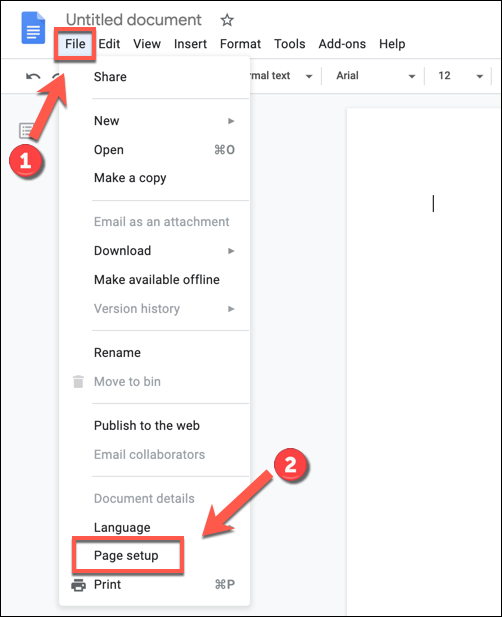
Open your Google Docs document. Click on the “File” menu in the top left corner. From the dropdown, select “Page setup.” This opens a new window where you can adjust page settings.
Selecting A New Page Color
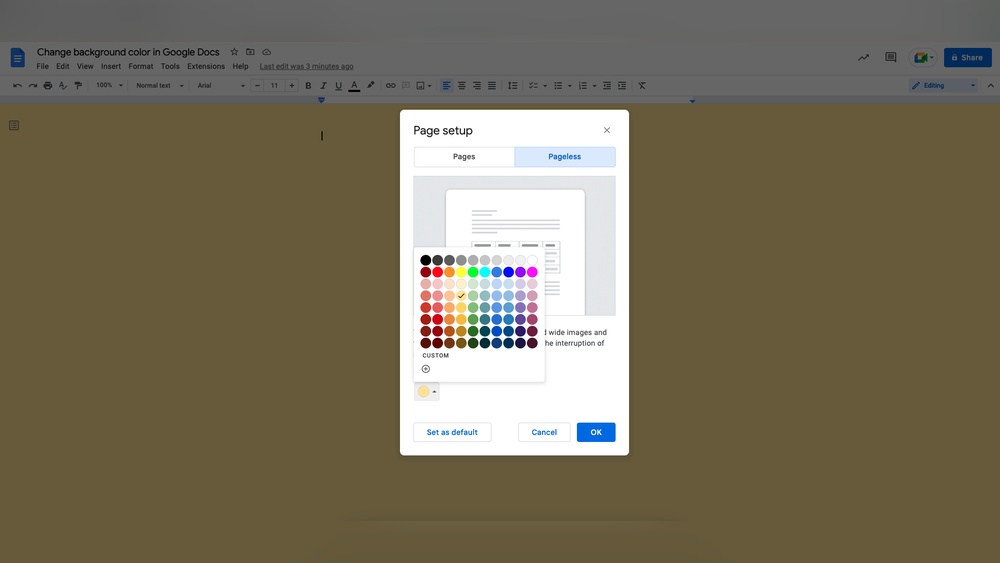
Inside the Page setup window, find the “Page color” option. Click on the color box to open the color palette. Choose your preferred color by clicking on it. You can pick from standard colors or create a custom one.
Applying And Saving The Page Color
After selecting the color, click the “OK” button in the Page setup window. The page color will change immediately. To keep this color for future documents, click “Set as default” before clicking “OK.”
Accessing Page Setup
Accessing the Page Setup in Google Docs is the first step to changing your document’s page color. This setting controls the look and layout of your entire page.
Finding the Page Setup option is simple and quick. It allows you to change the background color and other page settings like margins and orientation.
Opening The File Menu
Begin by opening your Google Docs document. Look at the top left corner for the “File” menu. Click on it to reveal a dropdown list of options.
Selecting Page Setup
Scroll down the File menu until you see “Page setup.” Click on it. This opens a new window with various page settings.
Understanding Page Setup Options
Inside Page Setup, you can change page size, orientation, and color. The color option lets you pick a new background color for your page.
Selecting Custom Colors
Selecting custom colors in Google Docs lets you personalize your document’s look. You can pick any shade beyond the default options. This helps your document stand out or match a specific theme.
The process is simple and quick, even for beginners. Custom colors provide flexibility and creative freedom for your page background.
Selecting A Custom Color From The Color Picker
Open your Google Docs document. Click on File in the top menu. Choose Page setup from the dropdown. You will see a Page color option here.
Click the small color box next to it. A color palette will appear. At the bottom, click on Custom to open the color picker. Use the sliders or enter a hex code to pick your desired shade. After choosing, click OK to apply it.
Using Hex Codes For Precise Color Selection
Hex codes are six-digit codes that represent exact colors. If you know the hex code of your favorite color, enter it in the custom color box. This method ensures your page color is always consistent.
Hex codes start with a , followed by six letters or numbers. For example, FF5733 is a bright orange. Using hex codes is perfect for matching brand colors or specific themes.
Saving Your Custom Color Choice
After selecting a custom color, Google Docs remembers it for your current session. This makes it easy to switch back if needed. However, it resets when you close the document.
To keep your favorite color, note the hex code or take a screenshot. You can reuse it anytime by entering the code again in the custom color picker.
Using Default Color Options
Using the default color options in Google Docs lets you quickly change your page’s background. This method uses preset colors built into Google Docs. It is simple and fast. You do not need special skills or tools.
Changing the page color can make your document easier to read. It also helps your work stand out. The default color options offer a good choice of colors. These colors suit most needs and keep your document professional.
Start by opening your Google Docs document. Click on the File menu at the top left. From the dropdown, choose Page setup. This opens a new window where you can change page settings.
Selecting A Default Color
In the Page setup window, find the Page color option. Click the color box to open the color palette. You will see a range of preset colors to choose from. These include white, light gray, pale yellow, and soft blue.
Applying The Color
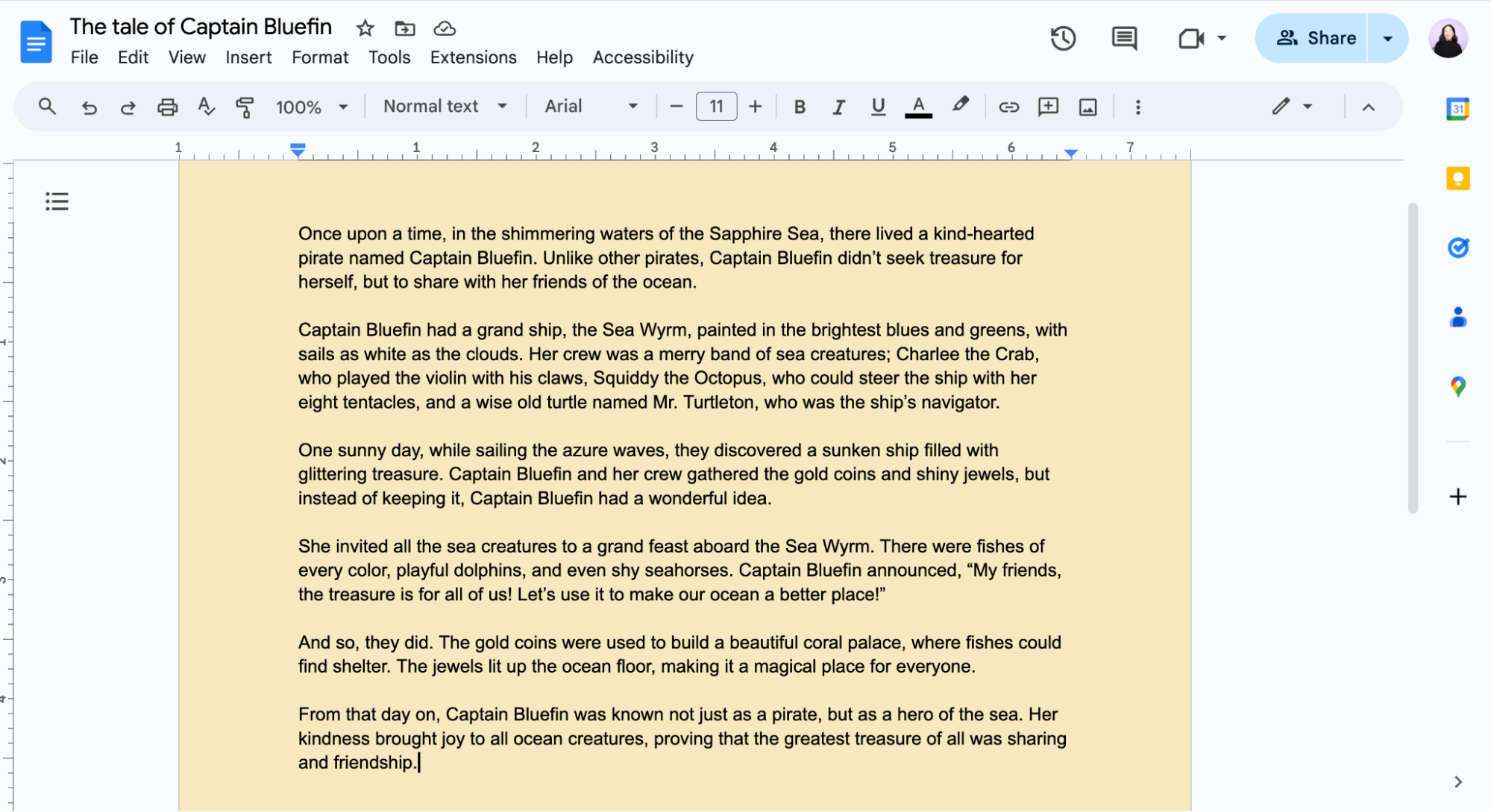
Click on the color you want. The page preview will show your choice immediately. Once you are happy with the color, click OK. The entire document’s background changes to that color.
Resetting To Default
You can return to the original white background anytime. Open Page setup again and click the white color in the palette. Confirm by clicking OK. This resets your document’s page color to default.
Saving Color Changes
Saving color changes in Google Docs ensures your page looks just right every time you open it. After you pick a new page color, it stays saved with your document automatically. No extra steps needed to keep your changes.
Google Docs saves all edits, including page color, as you work. This means you do not have to worry about losing your background color change. The next time you open the document, your chosen color appears immediately.
It is important to double-check the color after saving. Sometimes, a quick refresh or reopening the file helps confirm the new color is applied correctly. This simple step prevents surprises when sharing your document.
How Google Docs Saves Page Color Changes
When you change the page color in Google Docs, the system stores the setting in the document file. This saves the color as part of your document’s layout. You do not need to save manually; Google Docs handles it for you.
Confirming Your Color Change
To confirm your change, close the document and open it again. Look at the page background to see if it kept your new color. This quick check ensures your settings are correct and visible to others.
Sharing Documents With Custom Colors
When you share your Google Doc, the page color stays the same for all viewers. This helps keep your document’s style consistent. Make sure the recipient uses a compatible app or browser to see the colors properly.
Credit: zapier.com
Changing Color For Multiple Pages
Changing the page color for multiple pages in Google Docs can enhance your document’s visual appeal. Unlike editing a single page, adjusting multiple pages requires a consistent approach. Google Docs uses a single background color for the entire document. This means you cannot set different colors for individual pages directly.
To change the color for multiple pages, you actually change the background color for the whole document. This affects all pages at once. Here are simple steps to do this effectively.
How To Change Background Color For The Entire Document
Open your Google Docs document. Click on File in the top menu. Select Page setup from the dropdown. In the popup, find the Page color option. Choose your desired color from the palette. Click OK to apply the change.
The color will now appear on all pages of your document. This method works well for documents where a uniform color is preferred.
Using Section Breaks For Different Page Colors
Google Docs does not allow different colors on separate pages by default. A workaround is to use section breaks with different background colors in images or shapes. Insert a colored shape or image behind text on specific pages. Adjust transparency to keep text readable.
This method is more time-consuming. It works best for short documents or special pages.
Tips For Maintaining Readability
Choose light colors for backgrounds to keep text clear. Dark text on a light background works best. Avoid bright or neon colors that strain eyes. Test your document on different screens to ensure readability.
Customizing Chrome Background
Customizing the Chrome background improves your Google Docs experience. It changes the look of your browser, making it more pleasant for long work sessions. Simple tweaks in Chrome can create a fresh workspace vibe. This helps reduce eye strain and keeps you focused.
There are easy ways to change the Chrome background. You can pick colors or themes to suit your style. This customization works alongside changing page colors in Google Docs.
Using The “customize Chrome” Option
Open a new tab in Google Chrome. Find the “Customize Chrome” icon at the bottom-right corner. Click the pencil icon to open background options. Choose “Change theme” or “Color and theme” from the menu. Pick a color, a preset theme, or upload your own image. The new background will appear immediately in your browser.
Enabling Dark Theme In Chrome Settings
Click the three-dot menu on the top-right of Chrome. Select “Settings” from the dropdown list. Scroll to the “Appearance” section. Find the “Theme” option and click it. Choose “Dark” to enable a dark background. This changes the whole browser theme to dark mode, easing eye strain.
Benefits Of Customizing Chrome Background
Custom backgrounds make your workspace unique and enjoyable. They help reduce distractions with softer colors. Switching themes can boost comfort during long writing hours. It also aligns your browser look with your Google Docs page color.
Enabling Dark Theme In Chrome
Enabling the dark theme in Google Chrome changes the browser’s look to reduce eye strain. It applies a dark background to browser elements and websites that support it. This makes reading and editing Google Docs easier, especially in low light.
The dark theme does not change the actual page color in Google Docs but affects the overall viewing experience. It helps users focus on content without harsh bright light on the screen.
Accessing Chrome Settings To Enable Dark Theme
Open Google Chrome on your computer. Click the three-dot menu at the top-right corner. Select Settings from the dropdown menu. Scroll down to find the Appearance section.
Activating Dark Theme In Chrome
In the Appearance section, locate the Theme option. Click it to open the Chrome Web Store themes page. Search for a dark theme or select Dark if available. Click Add to Chrome to apply the theme.
Using System Dark Mode For Chrome
Chrome can follow your computer’s dark mode setting. On Windows, go to Settings > Personalization > Colors and select Dark. On Mac, open System Preferences > General and choose Dark appearance. Chrome will switch to dark mode automatically.
Applying Themes For Consistency
Applying themes in Google Docs helps keep your document colors consistent. Consistency makes your work look neat and professional. Themes include coordinated colors for backgrounds, text, and accents. This approach saves time by setting all colors at once.
Themes ensure your page color matches other elements. This creates a uniform look across your document. It is especially useful for reports, presentations, and brochures. Using themes also improves readability and visual appeal.
How To Access Themes In Google Docs
Open your Google Docs document. Click on the “Format” menu in the toolbar. Select “Theme” from the dropdown list. A sidebar with theme options appears on the right side. Choose the theme that fits your style or purpose.
Applying A Theme To Change Page Color
Pick a theme to automatically apply matching colors. The page background will change according to the theme’s color palette. Text and other elements adjust to match these colors. This keeps all parts of your document visually aligned.
Customizing Themes For Unique Page Colors
You can tweak theme colors to suit your preference. In the theme sidebar, click “Customize.” Change the background color to your desired shade. Adjust text and accent colors to complement the background. This customization helps maintain consistency while adding your touch.

Credit: www.businessinsider.com
Tips For Better Color Choices
Choosing the right page color in Google Docs can improve readability and make your document visually appealing. Simple color choices help your readers focus on the content. Avoid colors that strain the eyes or distract from the text. Here are some tips for better color choices to enhance your Google Docs pages.
Use Light Background Colors
Light colors reduce eye strain and improve text visibility. Soft pastels or pale shades work well. Avoid dark colors behind black text, as it lowers contrast. White or off-white backgrounds remain the safest choice for most documents.
Consider Text Color Contrast
Make sure your text stands out against the background. Dark text on light backgrounds is easiest to read. If you pick a dark page color, switch your text to white or light gray. High contrast helps readers finish your document without fatigue.
Match Colors To Your Content
Choose colors that fit the tone of your document. Professional documents benefit from subtle, neutral colors. Creative or casual papers allow brighter colors. Use colors to highlight important sections or headings without overwhelming the page.
Limit The Number Of Colors
Too many colors distract and confuse readers. Stick to one background color per page. Use font colors sparingly to highlight key points. Consistent color use creates a cleaner, more polished look for your document.
Test Colors On Different Screens
Colors can appear different on monitors and mobile devices. Preview your document on multiple devices. Choose colors that look good everywhere. This step ensures all readers have a pleasant experience with your document.
Credit: www.howtogeek.com
Frequently Asked Questions
How Do I Change The Color Of My Google Page?
Open a Google Doc, click File > Page setup, then select a new page color and click OK. To change Chrome’s color, use Customize Chrome or enable Dark theme in settings.
Why Won’t Google Docs Let Me Change The Page Color?
Google Docs allows page color changes only via File > Page setup. If option is missing, check document permissions or browser issues.
How Do I Change The Google Sheet Background Color?
To change Google Sheets background color, select cells, click the fill color icon in the toolbar, and pick your desired color.
How Can You Change The Page Setting Of A Google Docs Document?
Open your Google Docs document, click File, then select Page setup. Choose your desired page color and click OK to apply changes.
How Do I Change Page Color In Google Docs?
Go to File > Page setup, then select “Page color” and choose your desired color.
Can I Set Different Page Colors For Each Page?
Google Docs does not support different colors on separate pages.
Will Changing Page Color Affect Printing?
Page colors may not print unless your printer supports color backgrounds.
How To Reset Page Color To White In Google Docs?
Open Page setup and select white as the page color.
Can I Use Custom Colors For Page Background?
Yes, Google Docs lets you pick from standard colors or custom hex codes.
Does Changing Page Color Affect Shared Document Viewers?
All viewers see the page color unless they use a different editor.
Conclusion
Changing the page color in Google Docs is quick and simple. Just open your document and go to File > Page setup. Choose the color that suits your needs and click OK. This small change can make your document easier to read or more visually appealing.
Experiment with different colors to find what works best. Now, your Google Docs pages can look just the way you want them. Try it today and enjoy a personalized writing space.