Are you tired of staring at the same dull colors every time you open Outlook? Changing the color of your Outlook can refresh your workspace and make your email experience more enjoyable.
Whether you want a sleek dark mode to ease eye strain or a vibrant theme to boost your mood, customizing Outlook’s colors is easier than you think. In this guide, you’ll learn simple steps to change the overall app color, tweak the background of your emails, and even set your favorite theme as the default.
Keep reading, and you’ll transform your Outlook into a personalized, visually pleasing hub in no time!
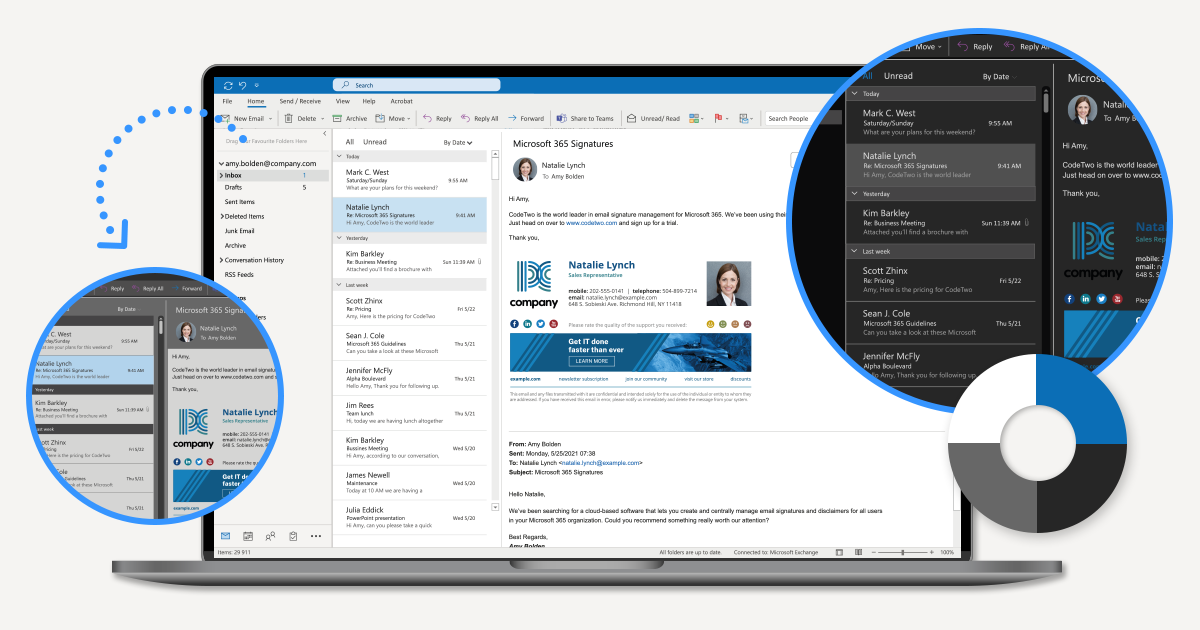
Credit: www.codetwo.com

Credit: exclaimer.com
Frequently Asked Questions
How Do I Change The Color Of Microsoft Outlook?
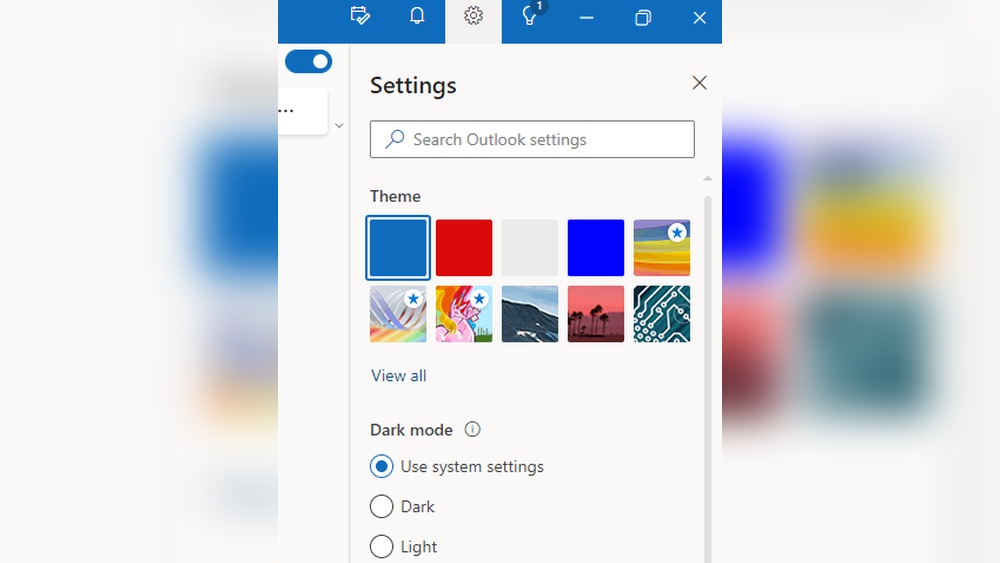
Open Outlook and go to File > Options > General. Under “Personalize your copy of Office,” select a new Office Theme. Click OK to apply. For Outlook on the web or the new app, click the Settings gear > General > Appearance, choose a theme, and save changes.
How Do I Change My Outlook Email Appearance?
Open Outlook settings, select General or Appearance. Choose a theme like Dark or Light. For email colors, use the Page Color option in a new message. Save styles to apply default colors. Click Save or OK to confirm changes.
How Do I Change My Outlook Back To Normal Color?
To change Outlook back to normal color, open File > Options > General. Under “Personalize your copy of Office,” select the desired Office Theme and click OK. For the new Outlook or Outlook on the web, click Settings > General > Appearance, choose a theme, and save changes.
How Do I Change The Outlook Theme To Classic?
Open Outlook, click File > Options > General. Under “Personalize your copy of Office,” select “Classic” from the Office Theme dropdown. Click OK to apply the classic theme.
How Do I Change The Overall Color Theme In Outlook?
Go to File > Options > General. Under “Personalize your copy of Office,” pick a theme.
Can I Switch Outlook To Dark Mode Easily?
Yes, in Outlook settings, choose Appearance and select Dark theme to enable dark mode.
How To Change The Background Color Of A New Email?
Open a new email, go to Options > Page Color, and pick your desired color.
Is It Possible To Customize Outlook Colors On The Web?
Yes, click the gear icon, go to General > Appearance, and select a color theme.
Can I Make My Color Theme Changes Permanent In Outlook?
Yes, after choosing a theme, click OK or Save to keep your changes.
How Do I Reset Outlook Colors To Default Settings?
Go back to the theme settings and select the default or “Colorful” option.
Conclusion
Changing the color of Outlook helps create a more comfortable workspace. You can easily switch themes in both desktop and web versions. Personalizing your email background makes messages clearer and more attractive. Try different colors to find what suits your style best.
Keep these simple steps handy for quick changes anytime. Enjoy a fresh, colorful Outlook experience every day.