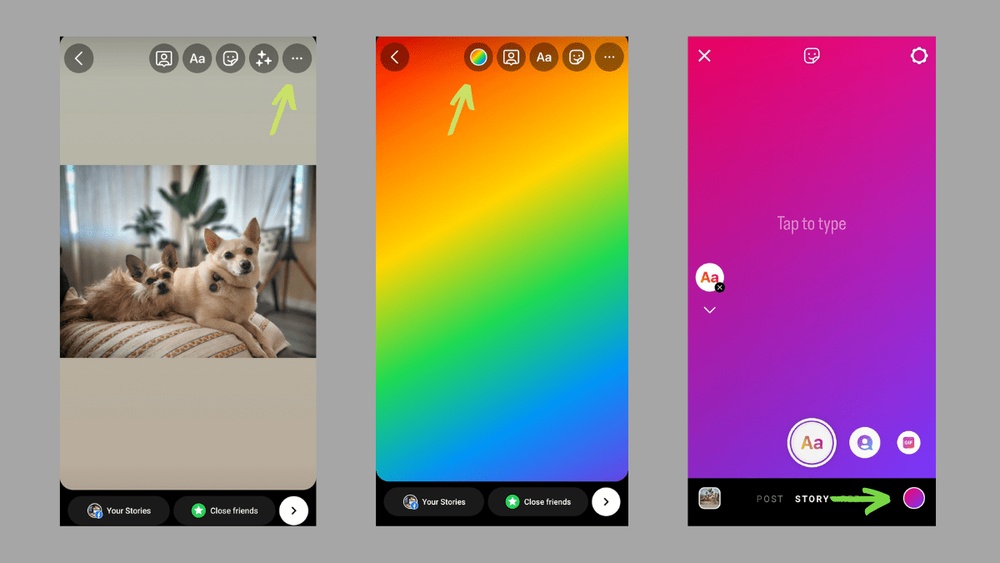
Want to make your Instagram Stories stand out with a fresh, eye-catching background? Changing the background color of your story is a simple trick that can instantly boost your content’s appeal and grab your followers’ attention.
Whether you’re sharing a photo, a post, or just a plain message, customizing your story’s background lets you express your style and keep your audience engaged. In this guide, you’ll learn exactly how to change your Instagram Story background color step-by-step—no complicated tools, no guesswork.
Ready to transform your stories and make every post pop? Let’s dive in!
Instagram Story Background Basics
Changing the background color of your Instagram Story helps make your content stand out. It adds a personal touch and matches your style. Understanding the basics is key to creating eye-catching stories quickly.
Instagram offers simple tools to change your story background. These tools are easy to use and work well for beginners. Knowing how to use them makes your stories more engaging.
How Instagram Story Background Works
Instagram Stories let you share photos or videos that disappear after 24 hours. You can add text, stickers, and drawings. The background color sets the mood behind your content or text.
The background can be a solid color or an image. Solid colors help highlight your message. Image backgrounds add creativity and depth.
Tools To Change Story Background Color
Instagram has built-in tools for background colors. The main tool is the “Draw” feature. You pick a color and hold your finger on the screen to fill the background.
Another method is using the “Create” mode. It allows adding colored backgrounds with text or stickers. Both methods are fast and do not need extra apps.
Best Practices For Choosing Background Colors
Choose colors that match your brand or mood. Bright colors grab attention. Soft colors create a calm feeling. Contrast is important for text readability.
Test different colors to see what works best. Avoid colors that blend with your text. Clear contrast makes your story easier to read.
Credit: www.kapwing.com
Accessing Story Creation Tools
Accessing the story creation tools on Instagram is the first step to change your story background color. These tools give you the options to customize and enhance your story easily.
Start by opening the Instagram app on your phone. The story creation interface is designed to be user-friendly and quick to navigate.
Opening The Instagram App
Tap the Instagram icon to launch the app. Ensure you are logged into your account. The home screen shows your feed and stories.
Entering Story Mode
Swipe right from the home screen or tap your profile picture at the top-left corner. This action opens the story camera and editing area.
Using The Story Tools Menu
Look for icons on the screen such as text, stickers, and drawing tools. These icons let you add elements and change background colors.
Selecting A Photo Or Creating A Blank Story
Choose a photo from your gallery or create a blank story by tapping the “Create” option. The blank canvas allows full control over background color.
Changing To A Solid Color Background
Changing to a solid color background on Instagram Stories creates a clean and simple look. It helps your message or photo stand out clearly. This style works well for quotes, announcements, or just a pop of color.
Instagram has easy tools that let you pick any color you want. You do not need special apps or skills to do this. Follow the steps below to change your story background to a solid color.
Open Instagram Story And Select Your Photo
Start by opening the Instagram app on your phone. Tap the plus icon or swipe right to open the Story camera. Choose a photo from your gallery or take a new picture. This image will appear above the solid color background you will add.
Access The Drawing Tool To Choose A Color
Tap the drawing icon at the top of the screen. It looks like a squiggly line. At the bottom, you will see different brush options and a color palette. Select any color you want for your background.
Fill The Background With The Chosen Color
Hold your finger on the screen and keep it pressed for a few seconds. The entire background will fill with the color you picked. Your photo or text will remain visible on top of this solid color.
Adjust And Save Your Story
If you want, add stickers, text, or drawings on top of your new background. When you are happy with the look, tap “Your Story” to share it with your followers. Your solid color background will make your story bright and eye-catching.
Using Custom Colors For Backgrounds
Using custom colors for Instagram Story backgrounds lets you create unique, eye-catching posts. This feature helps your stories stand out and match your personal style or brand colors. You can select any color beyond Instagram’s default palette. This adds creativity and freshness to your content.
Custom colors allow precise control over the background shade. You can pick colors that reflect your mood or fit a theme. Changing background colors is simple and quick. It makes your stories more attractive and engaging for viewers.
How To Access The Color Picker Tool
Open Instagram and start creating a new story. Add a photo or video or choose a plain background. Tap the draw tool icon on the top right. Select the color bar at the bottom to open the color picker. Here, you see a range of colors and a gradient slider.
Choosing A Custom Color
Press and hold any color in the default palette. The color picker will expand with a gradient. Slide your finger to find the perfect shade. Release your finger to select that custom color. This color now applies to your brush or background fill.
Applying The Custom Color As Background
After selecting the color, hold your finger on the screen for a few seconds. The screen fills with your chosen color. This covers the entire background behind your photo or text. You can then add stickers, text, or drawings on top.
Tips For Using Custom Background Colors
Pick colors that contrast well with your text for easy reading. Use lighter colors for a soft, calm look. Darker colors create bold and dramatic effects. Experiment with different shades to find what fits your story best. Keep your brand colors consistent for professional appearance.
Adding Photo Backgrounds
Adding photo backgrounds to your Instagram Story creates a unique look. It helps your content stand out and feel personal. You can use any image as a background behind your main photo or text.
This method gives more style than plain color backgrounds. It also matches your mood or theme perfectly. Let’s explore how to add photo backgrounds quickly and easily.
Choose A Background Photo
First, open Instagram and go to Story mode. Tap the gallery icon to pick a photo from your camera roll. Select an image that fits your story theme or color scheme.
Bright or simple pictures work best to keep your story clear. Avoid busy photos that can distract from the main content.
Add Your Main Story Content
After setting the background, add your main photo or video. Tap the sticker icon and choose the “Photo” sticker. Pick the content you want to highlight.
Place this content on top of the background image. Resize and move it so viewers focus on it easily.
Adjust The Layering And Size
Use two fingers to resize the background or main photo. Tap and hold to move layers forward or backward. Ensure the background stays behind your main content.
This adjustment helps your story look neat and professional. Layering controls the visual order of elements in your story.
Enhance With Text Or Drawings
Add text or drawings to complement your photo background. Use simple fonts and colors that contrast with the background. This improves readability and style.
Draw tools also help fill empty spaces or highlight parts of your story. Keep it minimal to avoid clutter.
Layering Photos Behind Posts
Layering photos behind posts on Instagram Stories creates a unique and eye-catching look. This technique lets you customize your story background beyond plain colors. You can place images behind your main post to add texture, depth, or a personal touch. It works well for sharing memories, promoting events, or just making your story more fun.
Using layers helps your content stand out in the crowded Instagram feed. It also enhances the visual appeal without needing extra apps. The process is simple and can be done right in Instagram’s story editor. Here is how to layer photos behind posts effectively.
Open Instagram Story And Add Your Post
Start by opening Instagram and creating a new story. Tap the post you want to share from your feed. This will add it to your story as the main layer. The post stays on top, so everything else goes behind it.
Add A Photo From Your Camera Roll
Next, tap the sticker icon and select the photo sticker option. Choose an image from your camera roll to use as a background. Resize and move it to cover the whole screen behind your post. This photo will act as a custom background.
Adjust The Photo Layer Behind The Post
To place the photo behind your post, drag the image carefully. Instagram allows layering, so make sure the post stays in front. Pinch or expand the background photo to fit your desired look. This step helps create a neat, layered effect.
Use The Draw Tool For Solid Color Backgrounds
For a solid color background, select the draw tool. Pick a color and hold your finger on the screen. The color fills the whole story screen behind your post. This method is fast and adds a clean backdrop to highlight your post.
Using The Draw Tool Effectively
Using the Draw Tool effectively can change your Instagram Story background color fast. It lets you fill the whole screen with one color or create smooth gradients. This tool gives control over your story’s look without needing extra apps.
Simple steps and a steady hand help you use the Draw Tool well. It works best for bold backgrounds or subtle color changes behind your photos and text. Let’s explore how to use this tool for a clean, colorful story background.
How To Select The Draw Tool
Open Instagram Story and tap the draw icon at the top right. You will see different pen options: pen, marker, neon, and eraser. Choose the pen style that fits your design idea. Each pen draws a different line texture.
Choosing The Right Color
Tap the color bar at the bottom to open the palette. You can pick any color or hold and slide to find more shades. Use the eyedropper tool to match colors from your photo or background for harmony.
Filling The Background With Color
After picking a color, press and hold anywhere on the screen. The entire background will fill with that color. This is a quick way to change your story background without covering photos or stickers.
Using The Eraser To Fix Mistakes
If you draw outside the lines or cover something by mistake, select the eraser tool. Swipe over the area you want to fix. The eraser helps keep your background neat and clean.
Combining Draw Tool With Stickers And Text
Use the draw tool to create a simple background. Then add text or stickers on top for a clear message. This layering makes your story stand out and look polished.

Credit: www.youtube.com
Incorporating Stickers And Effects
Incorporating stickers and effects enhances Instagram Story backgrounds creatively. These elements add personality and flair. They make your stories stand out. Use them to complement your chosen background color. Stickers and effects can highlight important parts or add fun details. They are easy to apply and customize directly within the app.
Using Stickers To Complement Background Colors
Tap the sticker icon after setting your background color. Choose from emojis, GIFs, location tags, or polls. Pick stickers that match or contrast your background. This creates visual interest and balance. Resize or rotate stickers to fit your story layout. Place them strategically to draw attention without cluttering.
Applying Effects For Dynamic Backgrounds
Instagram offers effects like filters, shadows, and sparkles. Select effects that enhance the mood of your background color. Apply effects lightly to keep the story clear and readable. Use effects to add depth or texture behind your text or images. Experiment with different effects to find the best fit for your story theme.
Layering Stickers And Effects For Unique Stories
Combine stickers and effects for a layered look. Add a sticker, then apply an effect to it or the background. This technique creates a sense of depth and creativity. Use layering to highlight specific story elements or create a theme. Adjust opacity and size to maintain a clean, attractive design.
Tips For Eye-catching Backgrounds
Creating eye-catching backgrounds for your Instagram Stories grabs attention fast. A strong background makes your message clear and your story stand out.
Simple changes can improve the look and feel of your story. Using the right colors and effects helps your story look professional and fun.
Use Solid Colors For Clean Looks
Solid colors create a neat and tidy background. Choose colors that match your brand or mood. Bright colors catch the eye, while soft tones feel calm.
Use Instagram’s draw tool to fill the screen with one color. Hold your finger on the screen to apply the color quickly.
Try Gradient Or Blurred Backgrounds
Gradients add depth and style to your story. Blend two or more colors for a smooth transition. Blurred backgrounds keep focus on your text or stickers.
Use apps or Instagram’s editing tools to create these effects. They add a modern and stylish touch.
Add Texture With Patterns Or Images
Patterns or subtle images make backgrounds more interesting. Use light patterns to keep the focus on your message. Avoid busy images that distract viewers.
Choose backgrounds that fit your story theme. Upload photos or use stickers to create unique textures.
Match Backgrounds To Your Content
Pick background colors that highlight your text or photos. Contrast helps text stand out clearly. Use dark backgrounds with light text or vice versa.
Test different colors to see what looks best. A good match keeps your story easy to read and visually appealing.
Troubleshooting Common Issues
Changing the background color of your Instagram Story may seem simple. Yet, some users face issues during the process. Troubleshooting common problems helps fix these quickly. This section covers frequent challenges and easy solutions.
App Not Responding When Changing Background
Sometimes, the Instagram app freezes or does not react. Close the app completely. Restart your phone and open Instagram again. Check for any updates in the app store. An outdated app often causes bugs.
Background Color Option Missing
Not all Instagram versions have the same features. The background color tool may be missing if your app is old. Update the app to the latest version. If the problem stays, log out and back in to refresh your account settings.
Color Does Not Fill Entire Background
When the color covers only part of your story, use the draw tool. Tap the pen icon, select a color, then hold your finger on the screen. This fills the whole background with the chosen color.
Cannot Change Background Behind Shared Posts
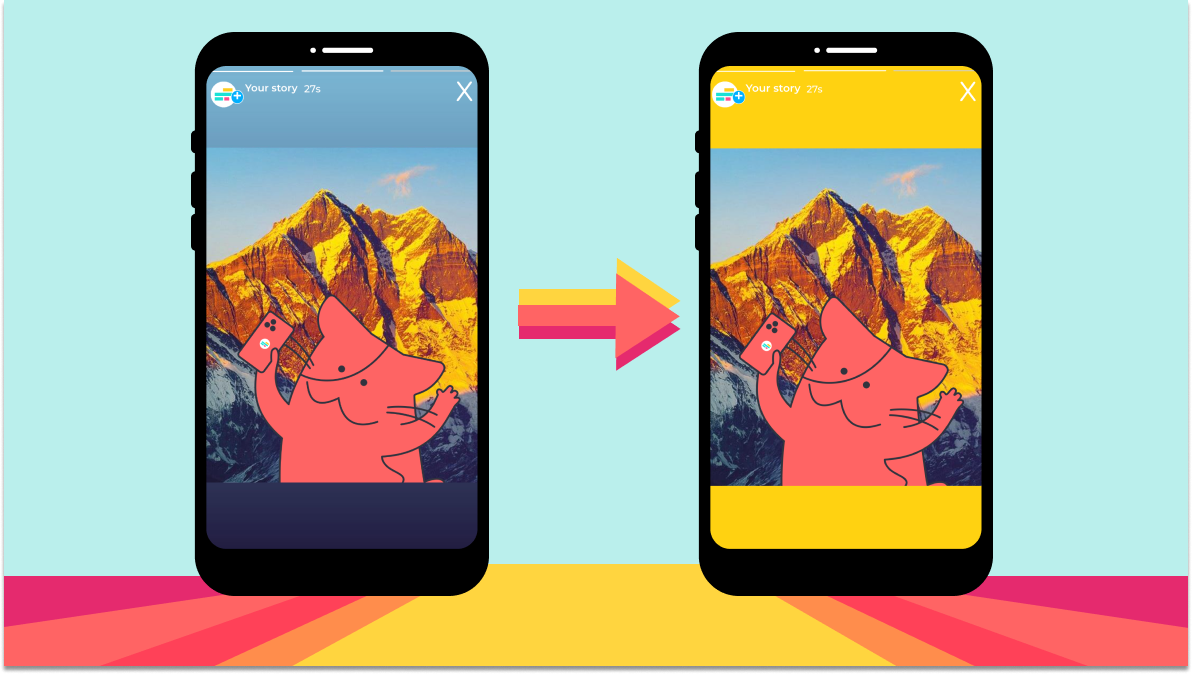
Instagram places a blurred background by default for shared posts. To change it, add the post to your story first. Then select the draw tool, pick a color, and hold on the screen. This covers the blur with your color choice.

Credit: skedsocial.com
Frequently Asked Questions
Can You Change The Background Color On An Instagram Story?
Yes, you can change the background color on an Instagram story. Use the Draw tool to select and hold a color, then tap and hold the screen to fill the background. This lets you customize story backgrounds with solid colors easily before posting.
How Do I Change The Background Color In A Storyline?
To change the background color in a storyline, open the Home tab and click Player. Set Player Style to Modern, then select Colors & Effects. Choose Custom and pick your desired background color from the selector.
How Do I Change The Background Behind A Photo On Instagram?
To change the background behind a photo on Instagram, add the photo to your story first. Use the draw tool to fill the background with a solid color by holding your finger on the screen. Alternatively, add a custom image from your camera roll and place it behind the photo using layering.
Why Is The Instagram Story Background Blue?
The Instagram story background turns blue by default when no custom color or image is selected. Users can change it using the draw tool or color picker. Blue often appears as a default or automatic shade to highlight content clearly and maintain visual consistency.
How Do I Change The Instagram Story Background Color?
Open Instagram Story, tap the pen icon, select color, then hold on screen to fill background.
Can I Use Custom Colors For Instagram Story Backgrounds?
Yes, tap the color wheel to pick custom shades beyond default options.
How To Make Instagram Story Background A Solid Color?
Choose the pen tool, pick a color, and press and hold the screen.
Is It Possible To Change Background After Adding A Photo?
Yes, use the draw tool with a color, then place the photo on top.
How Can I Add Gradient Or Multiple Colors To Story Background?
Instagram does not support gradients; use third-party apps to create and upload colored backgrounds.
Can I Change Background Color For Text-only Instagram Stories?
Yes, select the Create mode, then pick and hold a color to fill the background.
Conclusion
Changing your Instagram Story background color is simple and fun. Just follow the steps carefully. Choose colors that match your style or message. Experiment with solid colors or images behind your content. This small change can make your stories more eye-catching.
Keep practicing to create stories that stand out. Enjoy sharing your creativity with friends and followers.