Your cursor is more than just a tiny arrow on your screen—it’s your guide through every click, scroll, and drag. But have you ever found it hard to spot or wished it stood out more?
Changing the cursor color can make your computer experience easier and more personalized. Whether you want a bright color that’s easy on your eyes or a stylish look that matches your setup, you’re just a few steps away from customizing it.
You’ll learn simple, clear ways to change your cursor color on different devices and even how to install unique cursor designs. Ready to make your cursor truly yours? Let’s dive in!
Change Cursor Color On Windows
Changing the cursor color on Windows helps improve visibility and personalizes your computer. It is simple and takes just a few steps. Adjusting the cursor color can reduce eye strain and make it easier to find on the screen. Follow these instructions to change your cursor color quickly.
Access Mouse Pointer Settings
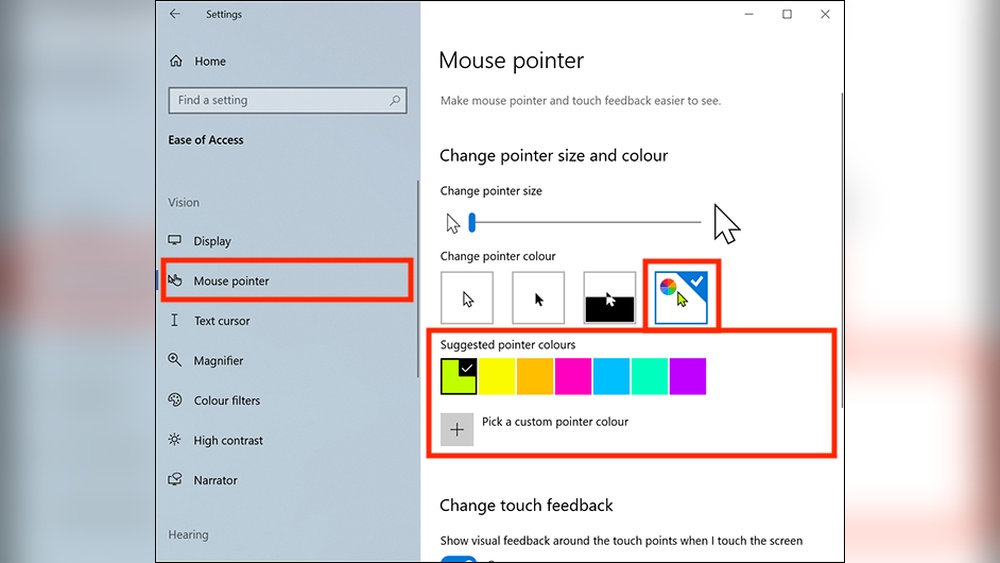
Open the Start menu and click on Settings. Select “Accessibility” from the options. Scroll down and choose “Mouse pointer and touch.” This page controls the cursor size and color. Here, you can start changing your cursor’s appearance easily.
Pick A Predefined Color
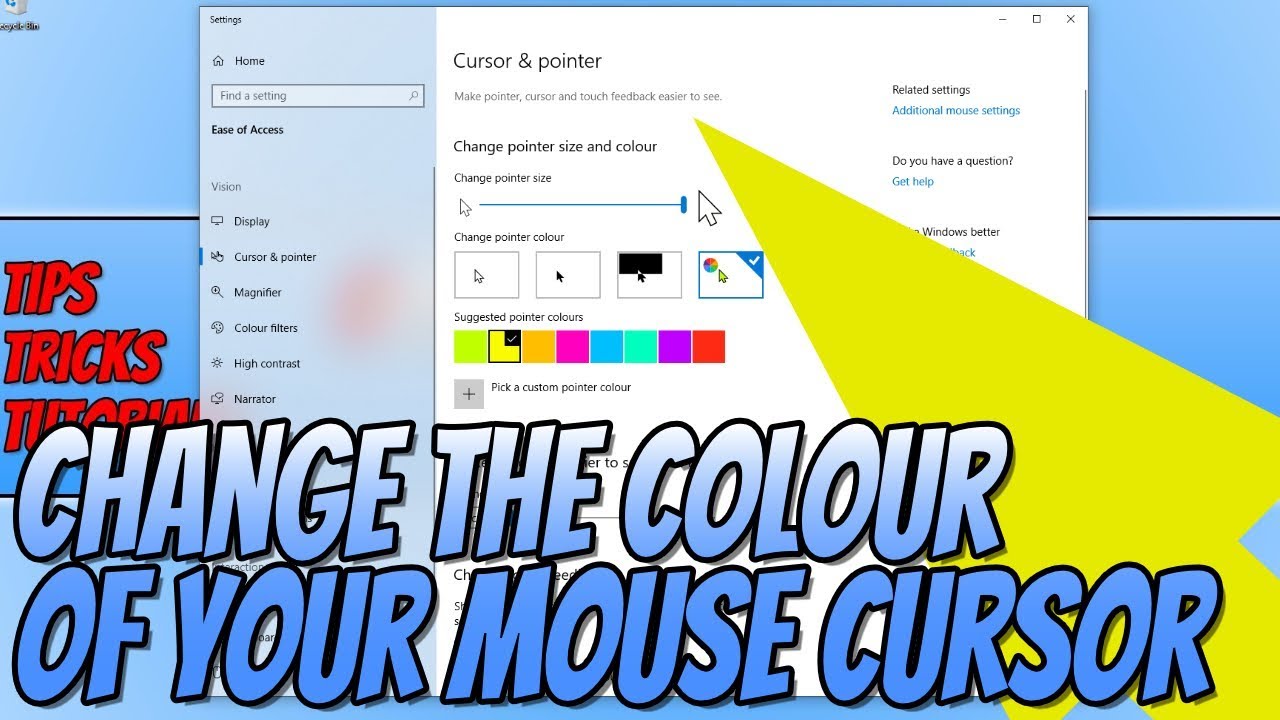
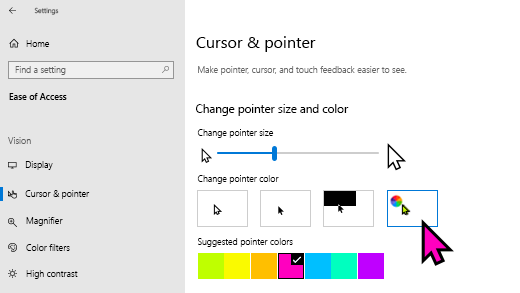
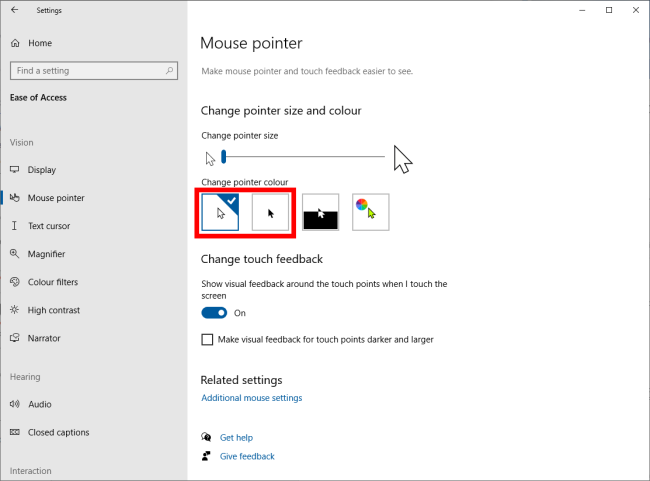
On the Mouse pointer settings page, find the “Change pointer color” section. You will see several color options including white, black, and inverted. Choose a color by clicking on one of the predefined circles. The cursor color changes immediately to show your selection.
Select A Custom Color
For more color choices, click the “+” button under the predefined colors. A color picker will open, allowing you to select any color you want. You can adjust the shade and brightness until you find the perfect cursor color. Click “Done” to apply your custom color to the cursor.
Credit: www.youtube.com
Adjust Cursor Size On Windows
Adjusting the cursor size on Windows helps improve visibility and ease of use. It is especially useful for users with vision difficulties or high-resolution screens. Windows provides simple settings to make the cursor larger or smaller quickly. You can change the size without needing extra software or tools.
Use Size Slider
Open the Windows Settings by clicking the Start menu and selecting Settings. Then, choose Accessibility from the menu. Click on Mouse pointer and touch to access cursor options. You will see a size slider under the Cursor size section. Move the slider left or right to decrease or increase the cursor size. Changes apply immediately, so you can see the effect in real time. Adjust the size until the cursor feels comfortable for your eyes.
Combine Size And Color Changes
In the same Mouse pointer and touch menu, you can also change the cursor color. Select from default colors or choose a custom color for better contrast. Changing both size and color together makes the cursor easier to spot on the screen. This is helpful during presentations or when using multiple monitors. Experiment with size and color combinations to find the best look and visibility for your needs.
Customize Cursor On Mac
Customizing the cursor on your Mac helps make it easier to see and use. Changing the cursor’s color and size improves visibility, especially for those with vision difficulties. Mac offers built-in options to adjust the cursor without extra software.
Open Accessibility Settings
Click the Apple menu at the top left of your screen. Select “System Preferences” from the dropdown. Find and click on “Accessibility.” This section includes tools to help customize your Mac’s display and input options. Scroll down and select “Display” from the left menu. Here you can change cursor settings easily.
Modify Cursor Size And Color
In the Display settings, find the “Cursor” tab. Use the slider to increase or decrease the cursor size. Larger cursors are easier to spot on the screen. Below the size slider, you will see options to change the cursor’s outline and fill colors. Click the color box next to “Outline” to pick a new border color. Click the box next to “Fill” to select a new cursor color. Choose colors that stand out well against your background. Changes apply immediately, so you can see how it looks right away. Adjust these settings until the cursor feels comfortable to use.
Use Custom Cursor Files
Using custom cursor files offers a simple way to change your cursor color and style. These files replace the default cursor with designs you prefer. Custom cursors can be colorful, themed, or animated. This method works on most Windows systems and lets you personalize your pointer easily.
Download Cursor Packs
Start by finding cursor packs online. Many websites offer free collections in different colors and styles. Choose a pack that fits your taste. Download the file to your computer. Usually, these files come in a .zip format.
Extract And Install Files
After downloading, open the .zip folder. Extract the files to a new folder. Look for files with extensions like .cur or .ani. Some packs include an install file. If you find one, right-click and select “Install.” If not, you will install manually.
Apply Custom Cursor
Open your computer’s Mouse settings. Go to the “Pointers” tab. Click “Browse” to find the extracted cursor files. Select the cursor you want for each pointer role. Click “Apply” and then “OK.” Your new cursor color and style will appear immediately.
Change Cursor Color In Chrome
Changing the cursor color in Chrome helps improve visibility and ease of use. This feature benefits users who want a more personalized browsing experience. Chrome allows you to adjust the cursor color through its accessibility settings. The steps are simple and quick to follow.
Navigate To Accessibility Features
Open the Chrome browser on your computer. Click the three-dot menu in the top-right corner. Select Settings from the dropdown menu. Scroll down and click Advanced to expand more options. Find and click on Accessibility settings. This section contains tools to customize Chrome for better usability.
Select Cursor And Touchpad Options
Inside Accessibility settings, locate the Cursor and touchpad options. Here, you can change the cursor color to suit your preference. Choose from preset colors or pick a custom color using the color picker. Adjusting the cursor color makes it easier to spot on any webpage. After selecting the color, close the settings tab. The new cursor color applies immediately in Chrome.
Credit: www.softwarehubs.com
Customize Cursor In Vscode
Customizing the cursor in Visual Studio Code (VSCode) helps improve visibility and suits your coding style. Changing the cursor color makes it easier to spot, reducing eye strain during long coding sessions. VSCode offers simple ways to adjust the cursor color through its settings and themes.
Open Command Palette
Start by opening the Command Palette in VSCode. Press Ctrl + Shift + P on Windows or Cmd + Shift + P on Mac. This opens a quick search box where you can access many settings and commands. Typing commands here helps you change your editor’s appearance fast.
Choose Cursor Color Theme
Next, type Preferences: Color Theme in the Command Palette. You will see a list of color themes designed for VSCode. Many themes include different cursor colors that stand out clearly. Select a theme that changes your cursor color to your liking.
You can also customize cursor color manually by editing the settings.json file. Add the setting "editor.cursorForeground": "FF0000" to change the cursor to red, for example. This option lets you pick any color code you prefer.
Download Trusted Cursor Resources
Downloading trusted cursor resources ensures a safe and smooth customization process. Using reliable sources prevents malware and file corruption. It also guarantees quality cursor designs that work well on your device.
Explore well-known websites that offer a variety of cursor packs. Always verify the safety of files before installation to protect your system.
Top Websites For Cursor Packs
Several popular sites host free and paid cursor packs. DeviantArt has a vast collection created by designers worldwide. Custom Cursor offers easy downloads and simple installation steps. RW-Designer provides unique and creative cursor sets. These sites update their content regularly and offer user reviews to help choose the best cursors.
Check File Safety
Always scan downloaded files with antivirus software. Avoid files from unknown or unverified sources. Look for user ratings and comments about the cursor pack. Use trusted websites that provide secure downloads. Keep your system updated to reduce security risks while installing new files.
Troubleshoot Cursor Color Issues
Cursor color issues can disrupt your computer experience. Sometimes, the color does not change as expected or reverts back. Fixing these problems requires simple steps. Troubleshooting helps restore the cursor’s visibility and style. It ensures your settings work correctly and your mouse functions smoothly.
Try the methods below to resolve cursor color problems fast. These steps suit most Windows users and need no advanced skills.
Reset Cursor Settings
Resetting cursor settings often fixes color glitches. Open your system’s Mouse settings panel. Find the “Pointers” tab and select “Use Default.” This action returns the cursor to its original style and color. Apply the changes and check your cursor color again. Resetting clears any conflicting customizations that may cause issues.
Update Mouse Drivers
Outdated or faulty mouse drivers can cause cursor color problems. Updating drivers improves hardware compatibility and performance. Go to Device Manager and find your mouse under “Mice and other pointing devices.” Right-click the mouse and select “Update driver.” Choose to search automatically for updated driver software. Follow prompts to complete the update. Restart your PC to apply changes and test the cursor color again.
Enhance Accessibility With Cursor Customization
Changing the cursor color is a simple way to improve computer accessibility. Customizing the cursor helps users with vision difficulties or color blindness. It makes the cursor easier to find and follow on the screen. This small change can reduce eye strain and increase comfort during computer use.
Improve Visibility
Choosing a bright or contrasting cursor color boosts visibility. A clear cursor helps users track movements faster. Different backgrounds can make the default cursor hard to see. Changing the color solves this problem quickly. Users can pick colors that stand out from their screen background. Larger cursor sizes combined with color changes increase visibility even more.
Combine With Other Accessibility Features
Cursor customization works well with other tools. High contrast modes make text and images easier to read. Screen magnifiers enlarge parts of the screen, helping users focus on details. Speech recognition allows hands-free control. Using these features together improves overall computer usability. It creates a tailored experience for each user’s needs. Adjusting cursor color is a key part of this setup.
Tips For Smooth Cursor Customization
Customizing your cursor color can improve visibility and add a personal touch to your computer. Smooth customization requires a careful approach to avoid glitches or unwanted changes. Follow these tips to ensure a seamless experience while changing your cursor color.
Backup Current Settings
Always save your current cursor settings before making changes. This helps you restore the original look if something goes wrong. On Windows, go to Mouse settings and note your current pointer scheme. On Mac, remember the default cursor options in Accessibility settings. Keep a copy of any custom cursor files you use. Backing up prevents frustration and saves time.
Test Changes Before Finalizing
Try out new cursor colors before applying them permanently. Use the preview option in your system’s settings to see how the cursor looks. Check if the new color is easy to spot on your screen. Make sure it does not blend with your wallpaper or app backgrounds. Testing helps avoid discomfort and ensures better visibility.
Credit: mcmw.abilitynet.org.uk
Frequently Asked Questions
How Do I Customize My Cursor?
Customize your cursor by adjusting size and color in system settings or installing custom cursor files. On Windows, go to Settings > Accessibility > Mouse pointer. On Mac, open System Preferences > Accessibility > Display. Download cursor packs online, then replace default cursors via Mouse settings.
How Do I Change The Cursor Color In Chrome?
Open Chrome Settings, go to Accessibility, then Cursor and Touchpad. Choose your preferred cursor color to apply changes instantly.
How To Change Theme Color In Cursor?
Open the Command Palette with Ctrl+Shift+P (Windows) or Cmd+Shift+P (Mac). Type “theme,” select “Preferences: Color Theme,” then pick your desired theme color.
How To Change Mouse Rgb Color In Windows 11?
Open Settings with Windows + I. Go to Accessibility > Mouse pointer. Select a pointer style and pick your desired RGB color. Save changes to apply the new mouse RGB color in Windows 11.
How Can I Change Cursor Color On Windows 10?
Go to Settings > Accessibility > Mouse pointer. Choose a new color under “Change pointer color. ”
Is It Possible To Customize Cursor Color On Mac?
Yes. Open System Preferences > Accessibility > Display. Adjust cursor color and size there.
Can I Change Cursor Color Without Software?
Yes, use built-in system settings in Windows or Mac to change cursor color easily.
Where Do I Find Cursor Color Options In Windows?
Cursor color options are in Settings > Accessibility > Mouse pointer and touch.
Can Custom Cursor Files Change Color And Design?
Yes, custom cursor files can change both color and shape of the cursor.
How To Install Custom Cursor Files On Windows?
Download cursor files, then use Mouse settings > Additional mouse settings > Pointers tab to install.
Conclusion
Changing your cursor color makes it easier to see and use. It helps reduce eye strain and adds a personal touch to your computer. You can adjust settings on Windows, Mac, or even in Chrome. Custom cursor files offer more style options if you want something unique.
Try different colors and sizes until you find what feels right. Simple steps lead to a clearer, more comfortable screen experience. Keep these tips handy for quick cursor changes anytime.