Want to make your Instagram Stories stand out with a fresh, eye-catching background color? Changing the background color on your IG Story is easier than you think—and it instantly adds personality and flair to your posts.
Whether you’re working with a blank story or an existing photo, knowing this simple trick can help your content grab attention and keep your followers engaged. Ready to learn how to switch up your story’s background color like a pro?
Keep reading, and you’ll be creating vibrant, personalized stories in no time!
Credit: www.kapwing.com
Open Instagram Story
Opening an Instagram Story is the first step in changing its background color. This action brings you to the creative space where you can customize your story.
Accessing the story editor is simple and quick. It allows you to add photos, text, or colors as backgrounds.
Open Instagram App
Start by unlocking your phone and tapping the Instagram icon. Make sure you are logged in.
Swipe Right To Access Story
From your Instagram home screen, swipe right. This opens the camera for your new story.
Tap “create” Mode
Look for the “Create” option on the left side. Tap it to open a blank story with a default background.
Create Blank Story
Creating a blank story on Instagram helps you change your story’s background color easily. This method gives a clean canvas to start with. You can add text, stickers, or images later.
A blank story removes any distractions from photos or videos. It makes the background color the main focus. Follow simple steps to create one.
Create A New Story
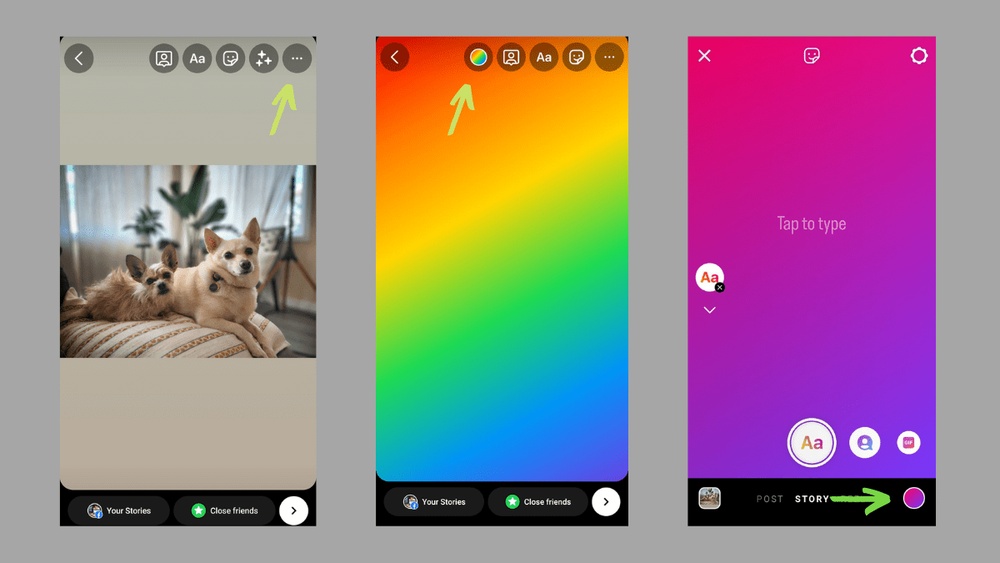
Open Instagram and swipe right or tap your profile picture. This opens the story camera. Swipe to the “Create” mode by tapping the “Aa” icon on the left. You will see a gradient background by default.
Change The Background Color
Tap the small circle in the bottom right corner to cycle through preset backgrounds. For more colors, tap the “Draw” tool icon at the top. Choose a color from the palette below.
Press and hold the chosen color on the screen for a few seconds. The whole screen fills with that color, creating a solid background.
Add Content To Your Blank Story
Tap the sticker icon in the top right corner to add images or GIFs from your gallery. Resize and move them anywhere on the screen. You can also add text by tapping the screen and typing your message.
This method lets you customize your story with a fresh background and creative content. It is simple and effective for eye-catching Instagram stories.
Use Draw Tool
The Draw Tool on Instagram Stories lets you change the background color easily. It fills the entire screen with the chosen color. This tool works with blank stories or stories with photos. You can hide the photo by covering it with color and then add it back as a sticker.
Using the Draw Tool gives you a simple way to create colorful story backgrounds. It takes just a few taps to make your story stand out with your favorite color.
Open Instagram Story And Select Draw Tool
Open Instagram and swipe right to start a new story. Tap the “Aa Create” button to open a blank story with a gradient background. Find the Draw Tool icon at the top right; it looks like a squiggly line. Tap it to open the color options.
Choose And Hold A Color To Fill Background
At the bottom, a color palette appears. Press and hold your finger on any color for a few seconds. The whole screen will fill with that color instantly. This changes the background to your chosen shade.
Add Photo As Sticker After Coloring
After filling the background, tap the sticker icon at the top right. Select a photo from your gallery. The photo appears on top of the colored background. Resize and place it anywhere you want on the screen.
Choose Background Color
Choosing the right background color sets the mood for your Instagram Story. It makes your story stand out and catches viewers’ attention. Instagram offers simple tools to pick any color you want. You can change the background on a blank story or over a photo. The process is quick and easy.
Using the draw tool lets you fill the screen with a solid color. This hides any existing image until you add it back as a sticker. Keep your background simple or colorful to match your message. Bright colors can make text pop, while soft colors create a calm look.
Open Instagram Story Creation
Start by opening the Instagram app and swiping right to create a new story. You will see the camera screen ready for a photo or video. Tap the “Aa Create” button on the left side. This opens a blank story with a gradient background.
Cycle Through Background Options
At the bottom right, find a small circle. Tap it to change the background style. Instagram shows different gradient colors. Tap multiple times to see all available options. Choose one that fits your story mood or brand colors.
Use The Draw Tool To Pick A Color
Tap the draw tool icon, shaped like a squiggly line, at the top right. This opens a color palette at the bottom. Press and hold any color for a few seconds. The whole screen fills with that color, changing the background instantly.
Add Images Over The Colored Background
Tap the sticker icon at the top right to open your gallery. Select any image you want to add over the background. Resize and move it around. This lets you create layered stories with custom colors and photos.
Fill Background With Color
Filling your Instagram Story background with color is a simple way to make your story stand out. This method works well whether you start with a blank story or want to cover an existing photo. The process uses Instagram’s draw tool to quickly fill the entire screen with a solid color.
This technique lets you customize your story’s look in just a few taps. It also helps you match your background to your brand or mood. The following steps explain how to fill your story background with color easily.
Open Instagram Story And Create A New Story
First, open the Instagram app and swipe right to access the story camera. You can create a new story by tapping the “Aa Create” button on the left side. This automatically adds a gradient background to your new story.
Select Your Background Color Using The Draw Tool
Next, tap the “Draw” tool icon shaped like a squiggly line at the top right corner. This opens a color palette. Press and hold any color in the palette for a few seconds. The whole screen will fill with that chosen color.
Add Images Or Stickers Over The Colored Background
After filling the background with color, you can add photos or stickers. Tap the sticker icon, which looks like a square smiley face, at the top right. Select images from your gallery or use Instagram stickers to decorate your story.
Add Photo Or Video
Adding a photo or video to your Instagram Story lets you personalize your content. It also makes your story more engaging and visually appealing. You can change the background color even after adding media. This feature helps your photo or video stand out.
Add A Photo Or Video To Your Story
Open Instagram and swipe right to start a new story. Tap the gallery icon in the lower-left corner. Select the photo or video you want to add. It will appear on your story screen, ready for editing.
Change Background Color Behind Media
Tap the draw tool icon at the top right of your screen. Choose a color from the palette below. Press and hold the screen to fill the background with that color. The photo or video will stay on top of the new background.
Adjust And Move Your Media
Use your fingers to resize or move the photo or video. Place it anywhere on the screen. This helps you create a balanced and attractive story layout.
Use Stickers To Re-add Hidden Photos Or Videos
If your background covers the media, tap the sticker icon at the top. Select your photo or video from the gallery sticker option. This places the media back on the story, visible over the colored background.
Change Background On Existing Media
Changing the background color of an existing Instagram Story photo or video is simple. You can add a new color behind your media to make it stand out. This method works well for photos or videos already added to your story.
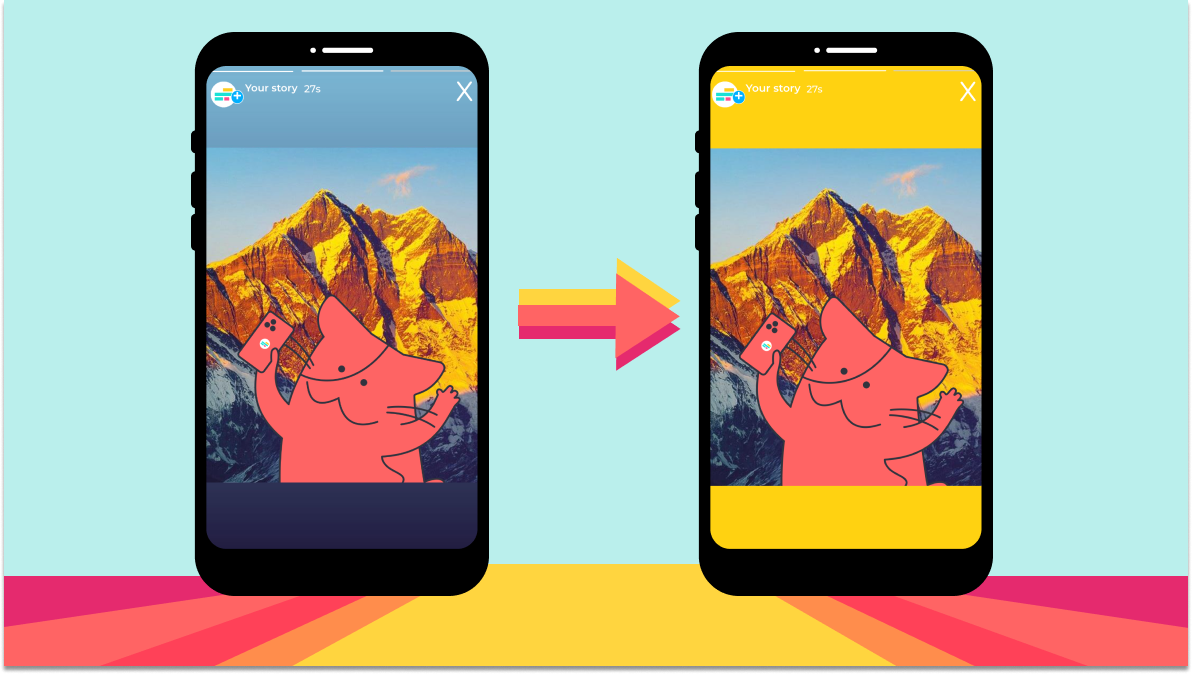
Instagram lets you cover the background with any color you want. You use the draw tool to fill the screen with color. Then, you bring your media back as a sticker on top of the colored background.
Open Your Instagram Story With Existing Media
Start by opening Instagram and swipe right to enter Story mode. Choose the photo or video you want to edit from your gallery. This media will appear as the main content of your story.
Use The Draw Tool To Change Background Color
Tap the draw icon on the top right. Select a color from the palette at the bottom. Press and hold on the screen until the entire background fills with the chosen color. Your media will disappear under this new background.
Add Your Media Back As A Sticker
Tap the sticker icon at the top of the screen. Choose your original photo or video from the gallery shown. Place it anywhere on the colored background. Resize or move it as you like to create the perfect look.
Save Or Share Your Edited Story
Once happy with the background and media placement, tap “Your Story” or “Close Friends” to share. You can also save the edited story to your device for later use. This way, your story will have a fresh new background.

Credit: skedsocial.com
Reposition And Resize Media
Repositioning and resizing media on your Instagram Story helps create a balanced and visually appealing post. Moving images, videos, or stickers lets you highlight the most important parts. Adjusting the size ensures everything fits well without overcrowding the screen.
These simple actions improve the overall look of your story. They also make your content more engaging for viewers. Let’s explore how to reposition and resize media effectively on Instagram Stories.
How To Reposition Media On Instagram Story
Tap the photo or sticker you want to move. Hold it down with your finger. Drag it to a new spot on the screen. Release your finger to place it there. You can move media anywhere you want.
How To Resize Media On Instagram Story
Use two fingers to resize your media. Pinch them together to make the image smaller. Spread your fingers apart to make it bigger. Adjust the size until it looks just right on your story.
Tips For Perfect Media Placement
Keep important parts of your media away from the edges. Avoid placing text or faces too close to screen borders. Center your media for a clean, balanced look. Experiment with different positions and sizes for the best effect.
Use Stickers For Design
Using stickers to design your Instagram Story background adds creativity and style. Stickers can cover the background with colors or patterns. They also let you place images or shapes over your story. This method works well with photos or blank stories. Stickers help customize your story and make it unique.
Access The Sticker Menu
Open Instagram and swipe right to start a new story. Take a photo or choose a blank background. Tap the sticker icon at the top. It looks like a square smiley face. This opens the sticker menu with many options.
Choose Colorful Stickers
Scroll through the stickers to find colorful shapes or patterns. Select a solid color square or circle sticker. Resize it to cover the entire screen. Move it to fill the background evenly. This changes the background color using stickers.
Add Photos As Stickers
Tap the photo sticker option in the menu. Choose any picture from your gallery. Place it anywhere on the story. Resize and adjust it as needed. This can add texture or design behind your main content.
Layer Stickers For Creative Effects
Use multiple stickers to create layered backgrounds. Place one sticker over another for patterns. Change opacity by resizing or moving stickers. Combine colors and images for a unique look. Experiment with different designs to suit your style.

Credit: www.youtube.com
Save And Share Story
After customizing your Instagram Story background color, saving and sharing your creation is the next step. This ensures your Story looks perfect and reaches your audience quickly. Instagram offers easy options to save your Story to your device or share it directly with followers.
Save Your Story To Device
Tap the download icon at the top of the screen. This saves your Story image or video to your phone gallery. You can access it anytime for reposting or editing. Saving helps keep a copy of your creative work safe.
Share Story With Followers
Press the “Your Story” button at the bottom left to post immediately. This shares your Story with all your followers. They can view it for 24 hours before it disappears. Sharing quickly spreads your message and visuals.
Send Story To Close Friends
Choose the “Close Friends” option to share privately. Only selected people see your Story this way. Use this for personal or special updates. It keeps your Story limited to a trusted group.
Share Story Via Direct Message
Tap the paper plane icon to send your Story in a message. Select one or more friends to share with privately. This method allows direct feedback and conversation. It’s a quick way to share with specific people.
Frequently Asked Questions
Can You Change The Background Color Of A Story On Instagram?
Yes, you can change an Instagram Story’s background color using the draw tool. Select a color, then press and hold the screen to fill the background. This works on blank stories or over photos by re-adding the image as a sticker after coloring the background.
How To Change Background Color On Instagram Stories When Reposting Without?
Open Instagram Story, tap “Draw” tool, select color, then press and hold screen to fill background. Add reposted post as a sticker and adjust its position.
How Do I Change The Background Behind A Photo On Instagram?
Open Instagram Stories and add your photo. Use the Draw tool to pick a color, then press and hold the screen to fill the background. Tap the sticker icon to re-add and position your photo over the new background. Share your story when ready.
How Do I Change My Instagram Background To Black?
Open Instagram and swipe to create a new story. Tap the “Draw” tool, select black, then press and hold the screen to fill the background with black.
How Do I Change My Instagram Story Background Color?
Use the Draw tool, pick a color, then press and hold the screen to fill it.
Can I Change The Background Color On A Photo Story?
Yes, add a photo, then cover it with a colored background using the Draw tool.
What Tool Lets Me Fill The Story Background With Color?
The Draw tool has a color palette and lets you fill the background by holding.
How To Pick Different Colors For Instagram Story Background?
Tap the Draw tool, then press and hold any color from the palette to fill.
Is It Possible To Use Gradients As Story Backgrounds?
Yes, tap the “Aa Create” button and cycle the background options to find gradients.
How To Add A Solid Color Background To A Blank Story?
Open a new Story, tap the Draw tool, select a color, and hold to fill the screen.
Conclusion
Changing the background color on your Instagram Story is simple and fun. Use the draw tool to pick any color you like. Press and hold to fill the screen quickly. You can do this on a blank story or over a photo.
Adding a new background gives your story a fresh look. Try different colors to match your mood or message. Keep practicing to get comfortable with the steps. Now, your stories can stand out with colorful backgrounds. Enjoy creating and sharing your unique Instagram moments!